
Network Security Threats: What to Spot and How to Respond
Network security threats are not just problems for large corporations. If you use a Windows 11 PC at home, run a small business, or travel with your laptop, you face the same types of attacks that target bigger networks. The difference is that you probably do not have a dedicated IT team watching your connections. Understanding which threats target your network and how to spot them helps you respond before damage occurs.
This guide explains the network security threats that affect home users, families, small businesses and travellers. You will learn what each threat does, how it reaches your PC, and what you can do about it.
Malware delivered through network connections
Malware remains one of the most common network security threats. It reaches your Windows 11 PC through network connections you make every day, whether you are browsing websites, opening email attachments, or connecting to shared drives.
How malware uses your network
When malware infects your PC, it often communicates back to a command-and-control server. This communication happens over your network connection. The malware might download additional payloads, send stolen data outward, or wait for instructions from an attacker.
Some malware spreads laterally across your network. If one PC gets infected, the malware scans for other devices on the same Wi-Fi network and attempts to spread. This behaviour is particularly dangerous in small business environments where multiple PCs share the same network.
Common network-based malware types include:
- Trojans that disguise themselves as legitimate software
- Worms that self-replicate across network connections
- Spyware that monitors your activity and sends data to attackers
- Adware that redirects your traffic through malicious servers
The Microsoft Digital Defense Report 2025 documents how modern malware increasingly uses network-based techniques, including AI-enabled threats and infostealer campaigns that target credentials.

Recognising malware network activity
You can spot potential malware by watching for unusual network behaviour. Unexpected outbound connections, especially to unfamiliar countries or suspicious domain names, often indicate malware communication.
Your Windows 11 PC might show signs like slow network performance when you are not downloading anything, or connections to IP addresses you do not recognise. Task Manager can show which programs are using your network, but it does not always identify malicious traffic clearly.
Ransomware behaviour and network impact
Ransomware represents a growing network security threat. The Sophos State of Ransomware 2025 report shows that ransomware attacks continue to evolve, with attackers now using remote ransomware techniques that encrypt files over network shares.
How ransomware reaches your network
Ransomware typically arrives through phishing emails, malicious downloads, or by exploiting vulnerabilities in network-facing services. Once it runs on your PC, many ransomware variants scan your network for shared folders and drives.
If you have mapped network drives, shared folders, or cloud storage synced to your PC, ransomware can encrypt those files too. Small businesses are particularly vulnerable because they often share folders between multiple PCs without proper segmentation.
Network behaviours that indicate ransomware:
- Rapid file access across network shares
- Connections to Tor networks or unusual domains
- Sudden spikes in outbound encrypted traffic
- File extension changes across multiple folders
Protection steps for ransomware
Back up your important files to an external drive that you disconnect after backing up. Cloud backups help, but remember that synced cloud storage can also be encrypted if ransomware runs while the sync is active.
Disable file sharing on your home network unless you actively need it. If you run a small business, segment your network so that not all PCs can access all shared folders. This limits how far ransomware can spread if one PC becomes infected.
NetGuardian Pro monitors ransomware behaviour patterns on Windows 11 PCs, watching for suspicious file access and network activity that indicates encryption attempts. Its detection modules track Wi-Fi, USB and Bluetooth connections, helping you spot threats before they spread across your network or to connected devices.

Unauthorised access and intrusion attempts
Network security threats often involve attackers trying to gain unauthorised access to your PC or network. These intrusion attempts can come from anywhere on the internet, targeting vulnerable services or trying to guess your passwords.
Common intrusion methods
Port scanning is often the first step in an intrusion attempt. Attackers scan ranges of IP addresses looking for open ports and services. If your Windows 11 PC has exposed services like Remote Desktop without proper security, it becomes a target.
Brute force attacks repeatedly try different passwords against network services. Credential stuffing uses passwords stolen from other breaches to try accessing your accounts. Dictionary attacks try common passwords in sequence.
The CISA Known Exploited Vulnerabilities Catalog tracks vulnerabilities that attackers actively exploit. Many of these target network-facing services, demonstrating why keeping your Windows 11 PC updated matters.
| Intrusion Method | How It Works | Signs to Watch |
|---|---|---|
| Port scanning | Probes your PC for open services | Multiple connection attempts from same source |
| Brute force | Tries many password combinations | Repeated failed login attempts |
| Exploit attacks | Uses known software vulnerabilities | Crashes or unusual service behaviour |
| Man-in-the-middle | Intercepts network traffic | Certificate warnings, unexpected redirects |
Protecting against intrusions
Turn off services you do not use. Windows 11 includes features like Remote Desktop that are powerful but create network entry points. If you do not need them, disable them.
Use strong, unique passwords for all network services and accounts. Enable two-factor authentication wherever available. Update Windows 11 regularly to patch known vulnerabilities that attackers exploit.
Phishing and social engineering through networks
Not all network security threats involve technical exploits. Phishing uses network connections to deliver convincing fake messages that trick you into revealing information or downloading malware.
How network-based phishing works
Phishing emails arrive through your network connection. They often impersonate banks, delivery services, or trusted companies. The links in these emails lead to fake websites hosted on attacker-controlled servers.
Smishing uses SMS messages, while vishing uses voice calls. All three rely on network infrastructure to reach you. Modern phishing campaigns are sophisticated, using information gathered from data breaches to personalise their messages.
Typical phishing indicators:
- Urgent language pressuring immediate action
- Suspicious sender addresses that mimic legitimate domains
- Links that do not match the claimed destination
- Requests for passwords or payment information
The Verizon 2024 Data Breach Investigations Report shows that social engineering remains a leading cause of breaches, with phishing being the most common technique.
Responding to phishing attempts
Check sender addresses carefully. Hover over links before clicking to see the actual destination URL. When in doubt, go directly to a company's website rather than clicking email links.
Report phishing emails to your email provider and delete them. Never open attachments from unexpected senders, even if they appear to come from someone you know. Attackers often compromise email accounts to send phishing messages to contacts.
Wi-Fi and public network threats
Wireless networks introduce specific network security threats. When you connect to Wi-Fi, especially public networks, you share the same network space with other users who might have malicious intent.
Risks on public Wi-Fi
Public Wi-Fi networks at coffee shops, airports and hotels often lack encryption. This means other users on the same network can potentially intercept your traffic. Man-in-the-middle attacks become easier when everyone shares an open network.
Rogue access points mimic legitimate Wi-Fi networks. An attacker sets up a fake network with a name similar to the real one. When you connect, all your traffic passes through their device.
Protecting yourself on public networks
Avoid accessing sensitive accounts on public Wi-Fi unless you use a VPN. A VPN encrypts your traffic before it leaves your PC, preventing others on the network from seeing what you are doing.
Turn off file sharing and network discovery when connecting to public networks. Windows 11 asks whether a network is public or private when you first connect. Always choose public for networks you do not control.
Check the exact network name with staff before connecting. Attackers often create networks with names like "Coffee Shop Guest WiFi" to trick users.
USB and Bluetooth attack vectors
Network security threats are not limited to traditional networks. USB and Bluetooth connections can introduce malware or unauthorised access to your Windows 11 PC.
USB-based threats
Malicious USB drives can execute code automatically when inserted, although Windows 11 security features limit this. USB devices can also impersonate keyboards or network adapters, giving attackers control.
Never insert USB drives from unknown sources. Even drives that appear to be gifts or promotional items can contain malware. Attackers sometimes leave infected drives in parking lots or public spaces, hoping someone will plug them in.
Bluetooth vulnerabilities
Bluetooth connections can be exploited if your PC is discoverable. Attackers might attempt to pair with your device without authorisation or exploit vulnerabilities in Bluetooth protocols.
Keep Bluetooth turned off when you are not using it. Only pair with devices you recognise and trust. Make your PC undiscoverable when you are not actively trying to connect to a new device.
Cloud service and application-layer threats
Modern network security threats increasingly target cloud services and applications rather than network infrastructure directly. The Cloud Security Alliance Top Threats 2024 identifies misconfigurations, identity risks, and cloud-specific attack vectors as major concerns.
How application threats affect your network
When you use cloud services, your PC maintains network connections to remote servers. If those services have vulnerabilities or if your credentials are compromised, attackers can access your data through those connections.
Supply chain attacks exploit trusted software and services. The NIST SP 800-161 Rev.1 guidance addresses cybersecurity supply chain risk management, recognising that software and hardware can introduce threats through their network connections.
Application-layer network threats include:
- API vulnerabilities that expose data
- Authentication bypass techniques
- Session hijacking and cookie theft
- Cross-site scripting and injection attacks
Monitoring application network activity
Pay attention to which applications connect to the internet. Windows 11 Firewall lets you control which programs can make network connections. Review these permissions regularly and block applications that do not need network access.
Watch for unexpected cloud storage sync activity or unfamiliar login locations in your account security settings. Many services now alert you when someone logs into your account from a new device or location.
Insider threats and compromised credentials
Network security threats do not always come from external attackers. Compromised credentials or insider actions can create serious risks, especially for small businesses.
Understanding credential compromise
When passwords are stolen through phishing, data breaches, or keyloggers, attackers can access your network using legitimate credentials. This makes detection harder because the access appears authorised.
The ENISA Threat Landscape 2025 provides comprehensive analysis of how threat actors use stolen credentials and highlights the increasing sophistication of credential theft campaigns.
Password reuse across multiple sites amplifies risk. If one service suffers a breach and your password is exposed, attackers will try that same password on other services.
Credential protection strategies
Use a password manager to generate and store unique passwords for every account. This eliminates password reuse and makes managing strong passwords practical.
Enable alerts for account logins and changes. Most email and cloud services can notify you when someone accesses your account. These alerts help you spot unauthorised access quickly.
For small businesses, implement principle of least privilege. Give users access only to the network resources they need for their work. This limits damage if credentials are compromised.
Detection and response capabilities
Understanding network security threats is only useful if you can detect and respond to them. Traditional antivirus software focuses on malware files but may not catch network-based threats as they happen.
What to monitor on your network
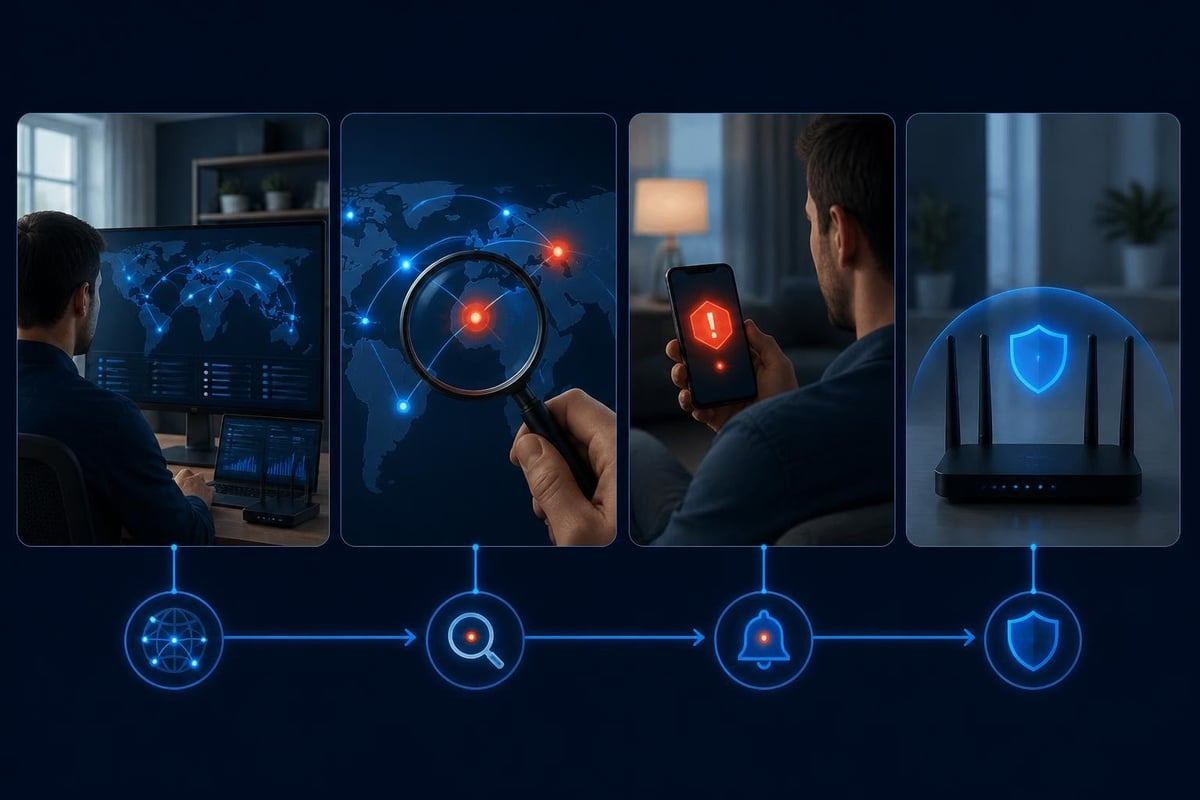
Track which programs connect to the internet and where they connect. Unexpected connections to unfamiliar IP addresses or countries can indicate compromise.
Monitor for unusual traffic volumes. Large uploads when you are not transferring files might mean data exfiltration. Increased network activity during times you normally do not use your PC could indicate automated malware activity.
The MITRE ATT&CK framework catalogues adversary tactics and techniques, providing a structured way to understand how attackers operate and what network behaviours might indicate each technique.
| Detection Type | What It Catches | Limitations |
|---|---|---|
| Signature-based | Known malware patterns | Misses zero-day threats |
| Behaviour-based | Unusual network activity | May generate false alerts |
| Anomaly detection | Deviations from normal | Requires learning period |
| Threat intelligence | Known malicious IPs/domains | Attackers change infrastructure |
Building your response capability
Have a plan before threats occur. Know how to disconnect your PC from the network if you suspect compromise. Understand how to restore from backups and who to contact for help.
Document your normal network activity. Knowing what is typical makes it easier to spot anomalies. Small businesses should maintain an inventory of devices and their network roles.
Practice isolation procedures. If one PC shows signs of infection, you need to disconnect it quickly without exposing other devices on your network.
Network security threats affect every Windows 11 user, from home users to small businesses to travellers on public Wi-Fi. Understanding these threats and watching for suspicious network behaviour helps you respond before damage occurs. NetGuardian Pro monitors your network connections in real time, with 14 detection modules tracking Wi-Fi, USB and Bluetooth threats, ransomware behaviour, and suspicious activity, giving you clear alerts you can understand and act on without needing an IT background.
Related reading: Threat Intelligence Feeds for Network Security, Computer Network Security Threats in 2026, Network Attacks: How to Detect and Stop Threats in 2026.
About the author. Published by Joel Papenfus, founder of NetGuardian and creator of NetGuardian Pro. The sources this post draws on are linked in the post. Reviewed and checked by Joel on 1 October 2026.