
Network and Security for Windows 11: Practical Guide
Understanding how network and security intersect on your Windows 11 PC helps you spot threats before they cause harm. Every time you connect to Wi-Fi, plug in a USB device or pair a Bluetooth accessory, you create a potential pathway for unauthorised access. This guide explains how network connections affect your security, what to watch for and how to respond when something looks suspicious. You do not need an IT background to follow these steps.
How network connections create security risks
Your PC communicates with dozens of network endpoints every day. Some are obvious: web servers when you browse, email servers when you check messages, cloud storage when you sync files. Others run quietly in the background, including Windows Update, app telemetry and advertising trackers. Each connection represents a potential entry point for threats.
What happens during a network connection
When your PC connects to a network resource, it sends packets of data containing information about your device, the application making the request and the data itself. The remote server responds, and the exchange continues until the task completes or times out.
Attackers exploit this process in several ways:
- Man-in-the-middle attacks where they intercept data between your PC and a legitimate server
- DNS hijacking that redirects your requests to malicious servers
- Port scanning to find vulnerable services running on your PC
- Command-and-control communication from malware already on your system
These techniques work because most users cannot see network activity happening behind the scenes. Your PC may appear to function normally while malware exfiltrates files or prepares to deploy ransomware.

Wireless connections multiply the risks
Wi-Fi, Bluetooth and USB connections each introduce specific vulnerabilities. Public Wi-Fi networks at cafés, airports and hotels rarely encrypt traffic between your device and the access point. Anyone within range can capture packets and reconstruct sensitive data including login credentials and payment information.
Bluetooth connections have shorter range but face similar risks. Attackers use tools like BlueSnarfing to access files or BlueJacking to send unsolicited messages and potentially malicious payloads to nearby devices.
USB devices present physical network threats. A modified USB stick can deliver malware the moment you plug it in, bypassing many software-based security controls. Some attacks masquerade as keyboards and type malicious commands faster than you can react.
What network and security monitoring involves
Effective network and security monitoring tracks every connection your PC makes, compares it against known threat patterns and alerts you when activity deviates from normal behaviour. This approach catches threats that signature-based antivirus might miss, particularly zero-day exploits and targeted attacks.
Detection modules for different threat types
Comprehensive network and security protection requires multiple detection methods running simultaneously:
| Detection type | What it monitors | Example threats |
|---|---|---|
| Port scanning | Incoming connection attempts to your PC's services | Attackers probing for vulnerabilities |
| Outbound connections | Apps and processes attempting to reach external servers | Malware command-and-control, data exfiltration |
| DNS queries | Domain name resolution requests | Malicious redirects, phishing infrastructure |
| Packet inspection | Content and patterns in network traffic | Exploit attempts, protocol abuse |
| Behavioural analysis | Deviation from learned normal activity | Ransomware encryption, credential theft |
The MITRE ATT&CK framework documents hundreds of real-world techniques attackers use once they gain network access. Monitoring tools that map detections to this framework help you understand not just what happened, but what the attacker intended to achieve.
How Hawk Sense reduces false alarms
Learning-based detection establishes a baseline of normal network behaviour for your specific PC and usage patterns. Instead of applying generic rules, the system notes which applications typically connect to which servers, at what times and with what frequency.
When activity falls outside this baseline, the system assigns a risk score. A web browser connecting to a new domain scores low. A background process you have never seen before attempting to contact a server in an unusual location scores high. This approach significantly reduces false positives while catching genuinely suspicious activity.
Monitoring network and security on Windows 11
Windows 11 includes basic network monitoring through Task Manager and Resource Monitor, but these tools show only active connections at the moment you look. They do not maintain history, correlate events or alert you to suspicious patterns.
What Windows shows you natively
Task Manager displays network utilization for each running process. You can see which applications consume bandwidth, but not where they connect or whether those connections are legitimate.
Resource Monitor provides slightly more detail, including remote IP addresses and port numbers. You still need to manually investigate each connection and determine whether it poses a risk.
Windows Security focuses primarily on antivirus scanning and firewall rules. It does not perform deep packet inspection or behavioural analysis of network connections.
Gaps in native Windows protection
Several threat categories slip past Windows built-in network and security controls:
- Lateral movement after initial compromise
- Low-and-slow data exfiltration designed to avoid bandwidth thresholds
- Encrypted malicious traffic that looks like legitimate HTTPS
- USB-based attacks that execute before Windows Security can react
- Bluetooth exploits targeting pairing and file transfer protocols
The CISA Shields Up guidance recommends layered network security that extends beyond perimeter firewalls and endpoint antivirus. For Windows 11 users, this means adding tools that monitor outbound connections, analyse behaviour and provide clear alerts when threats emerge.

Practical steps to improve network and security
You can strengthen your network and security posture immediately with configuration changes and monitoring habits that require no additional software.
Audit your network connections regularly
Set aside time weekly to review which applications connect to the internet and where they go. Look for:
- Unfamiliar process names in your connection list
- Connections to foreign IP addresses from applications that should only contact local servers
- High volumes of outbound traffic from background processes
- Connections on unusual ports outside the standard HTTP, HTTPS, email and DNS ranges
Document what you find and research any processes you do not recognize. Legitimate software sometimes behaves oddly, but verifying each connection builds your understanding of normal versus suspicious activity.
Configure Windows Firewall rules deliberately
Windows Firewall blocks incoming connections by default but allows most outbound traffic. You can tighten this by creating explicit allow rules for applications you trust and blocking everything else.
Steps to create outbound rules:
- Open Windows Security and navigate to Firewall & network protection
- Select Advanced settings to open Windows Defender Firewall
- Click Outbound Rules in the left pane
- Choose New Rule and select Program
- Browse to the application executable you want to control
- Choose Block the connection and apply the rule
Test thoroughly after creating blocking rules. Some applications fail silently when network access is denied, which can cause confusion.
Segment your home network
If you run a small business from home or manage sensitive data, create separate network zones for different device types. Most consumer routers support guest networks that isolate visitors from your primary devices.
Recommended network segments:
- Trusted zone for your work PCs and laptops
- IoT zone for smart home devices, printers and cameras
- Guest zone for visitors and personal devices
This approach limits lateral movement if one device becomes compromised. An attacker gaining access to your smart doorbell cannot immediately pivot to your business laptop if they reside on different network segments.
Recognising network and security threats in real time
Effective threat response depends on recognising suspicious behaviour quickly and understanding what action to take. Most users miss threats because alerts lack context or arrive too late to prevent damage.
What a real intrusion looks like
Network intrusions rarely announce themselves with dramatic pop-ups. Instead, you might notice:
- Your PC feels sluggish despite low CPU usage shown in Task Manager
- Unknown processes consume network bandwidth during idle periods
- Files disappear or change unexpectedly
- Browser behaviour changes, redirecting searches or injecting ads
- New programs appear in your startup folder
By the time these symptoms become obvious, the attacker may have already established persistence and begun exfiltration.
How detection modules identify threats
Specialized network and security tools monitor multiple indicators simultaneously and correlate them to identify attacks:
| Indicator | Normal behaviour | Suspicious behaviour |
|---|---|---|
| DNS queries | Requests to common domains during active browsing | Queries to newly registered domains from background processes |
| Connection timing | Apps connect when you launch them | Connections occur at scheduled intervals regardless of user activity |
| Data volume | Varies with user tasks | Consistent small transfers suggesting automated exfiltration |
| Destination geography | Matches your location and language | Frequent connections to countries you never interact with |
| Protocol usage | Standard HTTP/HTTPS for web, SMTP for email | Non-standard protocols or ports for common applications |
These patterns help distinguish legitimate software updates from command-and-control traffic, and normal file synchronization from ransomware preparation.
NetGuardian Pro monitors these exact patterns across 14 different detection modules that run directly on your Windows 11 PC. Rather than sending your data to the cloud for analysis, everything happens locally, with clear explanations of what each alert means and what action you should consider.

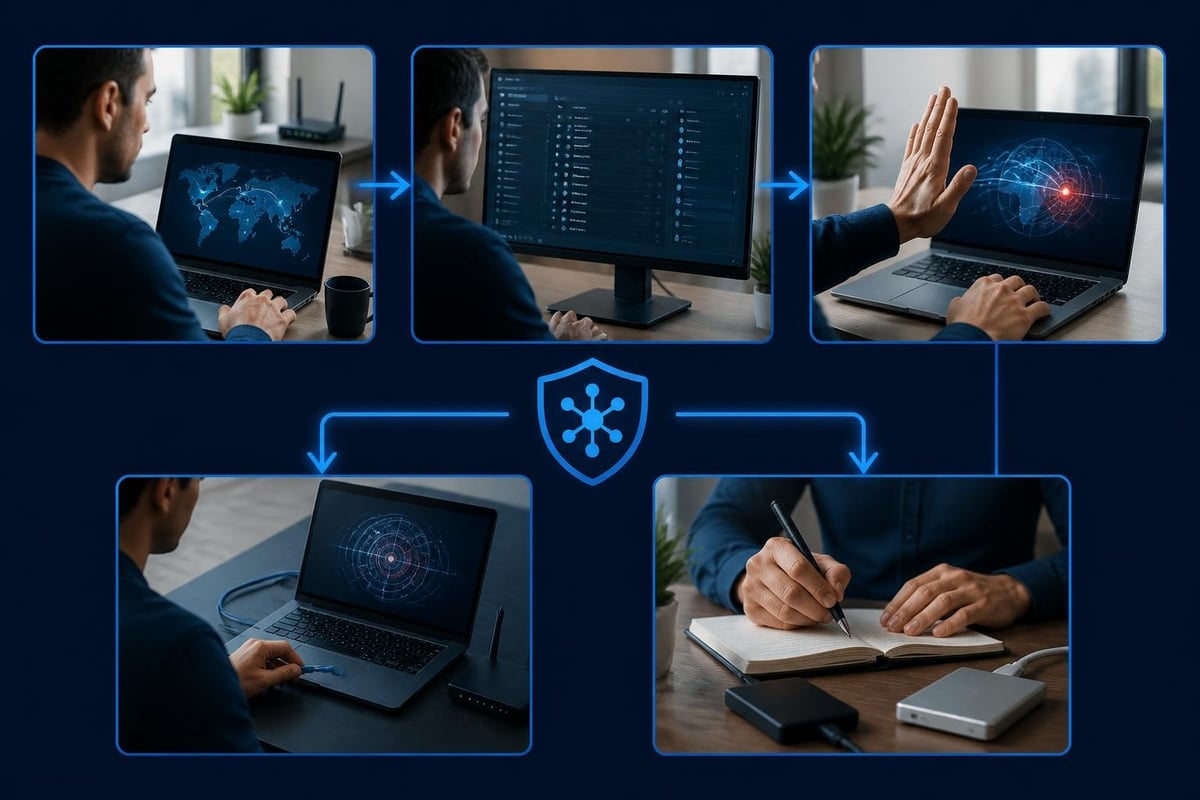
Network and security for travellers
Public Wi-Fi at hotels, airports and cafés creates heightened network and security risks. These networks rarely implement strong encryption, and attackers specifically target them because users often access sensitive accounts while travelling.
Risks specific to travel scenarios
When you connect to public Wi-Fi, your network traffic passes through infrastructure you do not control. The access point operator can see unencrypted traffic, and anyone else connected to the same network can attempt to intercept or redirect your connections.
Common travel network threats:
- Evil twin access points that impersonate legitimate hotel or airport Wi-Fi
- Packet sniffing to capture credentials and session tokens
- SSL stripping attacks that downgrade encrypted connections to plain HTTP
- Router-level redirects that serve phishing pages for popular services
Mobile hotspots from your phone provide better security than public Wi-Fi, but you still expose your device to potential threats when tethered.
Using VPNs for travel protection
A virtual private network encrypts all traffic between your PC and the VPN server, preventing local network eavesdropping. The VPN creates a secure tunnel before your data reaches the untrusted public Wi-Fi infrastructure.
What to look for in a travel VPN:
- WireGuard protocol for fast, lightweight encryption with minimal battery impact
- Built-in kill switch that blocks internet access if the VPN disconnects
- DNS leak protection to prevent queries from bypassing the tunnel
- Local operation that does not require trusting a third-party VPN provider with all your traffic
Free VPN services often monetize by logging your activity or injecting ads. If you do not pay for the service, your data becomes the product.
Small business network and security considerations
Small businesses face the same network and security threats as enterprises but typically lack dedicated IT staff to monitor and respond. A single compromised PC can expose customer data, financial records and intellectual property.
Threats that target small businesses specifically
Attackers view small businesses as easier targets than corporations because security budgets and expertise are limited. Ransomware groups specifically search for businesses that can afford ransom payments but lack robust backup and recovery capabilities.
Business-focused attack patterns:
- Email compromise targeting accounts payable and customer payment processing
- Ransomware timed to deploy during peak business hours or before critical deadlines
- Credential harvesting via phishing that targets employees with financial access
- Supply chain attacks through compromised software updates or vendor access
The ENISA 2024 cybersecurity report documents how attackers increasingly target small-to-medium businesses in both the EU and internationally, exploiting the gap between consumer-grade and enterprise-grade security controls.
Implementing layered network and security controls
Small businesses benefit from security approaches that provide enterprise-level visibility without requiring dedicated staff. This means choosing tools that explain threats clearly and recommend specific actions rather than expecting you to interpret raw network logs.
Essential small business controls:
- Per-PC monitoring that detects lateral movement between workstations
- USB device controls to prevent drive-by malware installation
- Ransomware behaviour detection that catches encryption activity before widespread damage
- Network isolation capabilities to quarantine infected PCs immediately
- Audit trails that document security events for insurance and compliance purposes
You do not need a Security Operations Centre to implement these controls. Modern network and security tools designed for small businesses handle the complexity while giving you clear visibility and control.
Understanding ransomware network behaviour
Ransomware follows predictable network and security patterns that detection systems can identify before encryption begins. Recognizing these patterns gives you a critical window to isolate infected PCs and prevent spread.
Pre-encryption network activity
Modern ransomware typically downloads encryption tools and target lists after the initial infection rather than including them in the first payload. This multi-stage approach helps evade detection but creates detectable network traffic.
Typical ransomware network sequence:
- Initial infection through phishing email, malicious download or exploit
- Outbound connection to command-and-control server to register the infection
- Download of encryption binary and target file list
- Scanning of network shares and connected drives
- Test encryption of a small number of files
- Mass encryption if initial tests succeed without detection
- Display of ransom note and payment instructions
Steps 2 through 5 generate network traffic that behavioral detection can identify, particularly when correlated with file system activity.
How behaviour monitoring catches ransomware
Signature-based antivirus struggles with ransomware because variants change constantly. Network and security monitoring that tracks behaviour catches ransomware regardless of which specific variant is involved.
Detectable ransomware behaviours:
- Rapid sequential read/write operations across multiple file types
- Creation of encrypted copies alongside original files
- Deletion of shadow copies and backup files
- Network enumeration to discover shared drives
- Outbound connections to newly registered or low-reputation domains
The Cloud Security Alliance guidance emphasizes the importance of behavioral detection and network telemetry in cloud and endpoint security, noting that modern threats evolve faster than signature databases can track.
Balancing network security and usability
Overly aggressive network and security controls frustrate users and encourage workarounds that ultimately weaken protection. The goal is to catch genuine threats while allowing legitimate work to proceed smoothly.
Why false positives matter
Security tools that generate excessive false alarms train users to ignore warnings. When every software update triggers an alert, you stop investigating alerts carefully. This is precisely when real threats slip through.
Strategies to minimize false positives:
- Use learning-based detection that understands your specific usage patterns
- Whitelist known-good applications rather than blocking broadly
- Provide detailed context in alerts so you can make informed decisions
- Allow temporary bypasses for trusted installers and updates
- Log all blocks and allows for later review
The right balance depends on your risk tolerance and technical comfort. A financial services consultant handling sensitive client data should tolerate more interruptions than a home user checking email and browsing news.
When to block versus monitor
Not every suspicious connection requires immediate blocking. Some situations benefit from monitoring first to gather information about the threat.
| Scenario | Recommended action | Rationale |
|---|---|---|
| Unfamiliar process contacting known-good domain | Monitor | Likely legitimate software update or cloud sync |
| Known application contacting new foreign IP | Monitor initially, investigate | Could be CDN or new server infrastructure |
| Background process using unusual port | Block and investigate | High risk of malware communication |
| Rapid connection attempts after installing new software | Monitor | Probably legitimate configuration or telemetry |
| Outbound traffic during PC idle time | Block and investigate | Strong malware indicator |
Document your decisions and review them periodically. Patterns emerge that help you refine rules and reduce unnecessary alerts.
Network and security for families
Families face unique network and security challenges. Children and teens install games and apps without considering security implications, while older family members may struggle to recognize phishing and social engineering attempts.
Protecting shared PCs
When multiple people use the same Windows 11 PC, network and security monitoring must account for varied usage patterns. What appears suspicious for one user may be normal for another.
Family PC security practices:
- Create separate Windows user accounts for each family member
- Configure standard user accounts rather than administrators for children
- Review installed applications monthly and remove unfamiliar software
- Discuss what to do when security alerts appear
- Maintain regular backup routines for important files
Young children should use supervised accounts with restricted internet access until they demonstrate responsible online behaviour. Teenagers benefit from monitoring with transparency; explain what you monitor and why rather than implementing secret controls.
Teaching security awareness
Network and security education works better than purely technical controls. Family members who understand threats make better decisions and recognize attacks earlier.
Topics to cover with your family:
- Why clicking unknown links creates risk
- How to verify email sender legitimacy
- What information never to share online
- Why downloading pirated software is dangerous
- How to check if a website connection is encrypted
Make this an ongoing conversation rather than a single lecture. Security threats evolve, and regular discussions keep everyone alert and informed.
Network and security intersect every time your Windows 11 PC connects to Wi-Fi, pairs with Bluetooth or accepts a USB device. Understanding these connection points and monitoring them for suspicious activity protects you from intrusions, ransomware and data theft before damage occurs. NetGuardian Pro provides that monitoring through 14 detection modules running locally on your PC, with clear alerts that explain threats in plain language and help you decide what action to take. You pay once, with no subscription, and get the protection you need without requiring an IT background.
Related reading: Active Defence: Practical Security for Your Network, Network Security IT: A Practical Guide for 2026, Cloud Networking and Security: A Practical Guide.
About the author. Published by Joel Papenfus, founder of NetGuardian and creator of NetGuardian Pro. The sources this post draws on are linked in the post. Reviewed and checked by Joel on 1 October 2026.