How to monitor your child’s phone without wrecking trust
If you’re trying to work out how to monitor child’s phone use, you’re not trying to spy. You want to know if your kid is safe, whether they’re sleeping enough, and who they’re talking to. The tricky part isn’t finding an app. It’s doing it in a way that doesn’t make your kid feel hunted the moment they find out, which they usually do.
This guide walks through what monitoring can actually mean, why it works better when your child knows about it, and how to agree on what you can see before you install anything.
Ways to monitor child’s phone activity
“Monitoring” gets used for a lot of different things, and it helps to be specific about which one you need.
- Screen time: how long the phone is used each day, and whether there’s a cutoff at bedtime.
- App activity: which apps are used and for how long, without seeing what was typed inside them.
- Location: where the device is right now, and alerts when it arrives at or leaves a place like school.
- Content alerts: warnings about risky conversations or searches, flagged by keywords or patterns rather than read in full by a parent.
- Website and content filtering: blocking categories like adult content or gambling sites.
You probably don’t need all five. A family with a 9-year-old’s first phone has different needs than one with a 15-year-old who already has social media. Common Sense Media’s guide points out that figuring out what you need depends entirely on your own family, and some households get by fine with free browser settings while others want full monitoring across every device.
Why Common Sense Media and the UK Safer Internet Centre say to do this openly
There’s a real temptation to install something quietly and check it later, especially if you’re worried about a specific situation. But the advice from both organisations points the same way. Common Sense Media’s own framing is that parental controls work best when used openly and honestly in partnership with your kids, not as a surprise.
The UK Safer Internet Centre takes the same line from a different angle: their advice centres on having an ongoing conversation with your child about staying safe online, with specific prompts like asking what sites they visit most, what’s okay to share, and where they’d go for help if something went wrong. None of their suggested conversation starters involve installing something quietly and hoping for the best.
There are practical reasons for this too, not just relationship ones. A monitoring setup that gets discovered by accident usually does more damage than the thing you were worried about in the first place. Kids who find out they’ve been tracked without being told tend to get better at hiding things, not worse at taking risks. And once trust breaks, it’s hard to get back the next time you genuinely need to have a hard conversation.
Agreeing what a parent can see
Before you install anything, it helps to sit down and actually talk through what’s reasonable. This works better as a short conversation than a lecture.
- Say what you’re worried about, specifically. “I want to know you’re not talking to strangers who ask for photos” lands differently than “I don’t trust you.”
- Explain what you’ll be able to see and what you won’t. If a tool only shows app names and minutes used, say so. If it shows location, say when and why you’d check it.
- Set the boundaries together. Maybe the phone comes with a bedtime cutoff and location sharing, but private messages stay private. Write it down if that helps.
- Revisit it as your child gets older. What’s right for a 10-year-old’s first phone usually isn’t right for a 16-year-old. Loosen things as trust is earned.
- Tell them when something changes. If you add a new feature or app later, mention it. Don’t let them find out by accident.
This kind of conversation also gives you a natural moment to check Android privacy settings for kids together, since a lot of what a child shares publicly is controlled by settings they’ve probably never opened.
What common monitoring tools actually can’t do
It’s worth knowing the limits before you pick a tool, so you don’t end up relying on something for a job it was never built to do.
- Most phone monitoring apps can only track accounts they know about. If your child creates a new profile on a friend’s device without telling you, the monitoring won’t cover it.
- Social media monitoring often needs your child’s account password to work at all, which is its own conversation to have.
- Location trackers only work if the phone is switched on and connected. A powered-off phone shows nothing.
- Google’s Family Link lets you set screen time limits, manage apps, and check your child’s device location, but it’s built around a child’s Google Account and won’t show you message content.
- No tool reads everything a child does inside every app. Most either block an app entirely or track time spent in it, not what happens on screen.
- Website and content filters usually rely on lists of known sites, so new or unlisted ones can slip through no matter which product you use.
If you’re choosing between products, it’s worth reading up on what to look for in a parental monitoring app before you pay for anything, since features vary a lot between apps that look similar on their store pages.
Age matters more than the tool you pick
Common Sense Media’s guidance leans toward full operating-system parental controls, like the settings built into Windows, iOS or Android, for younger kids who mostly use a shared home device. As kids move to their own phones and start using social apps, the more relevant question becomes less about blocking everything and more about catching specific warning signs, like requests for money or pressure to send photos.
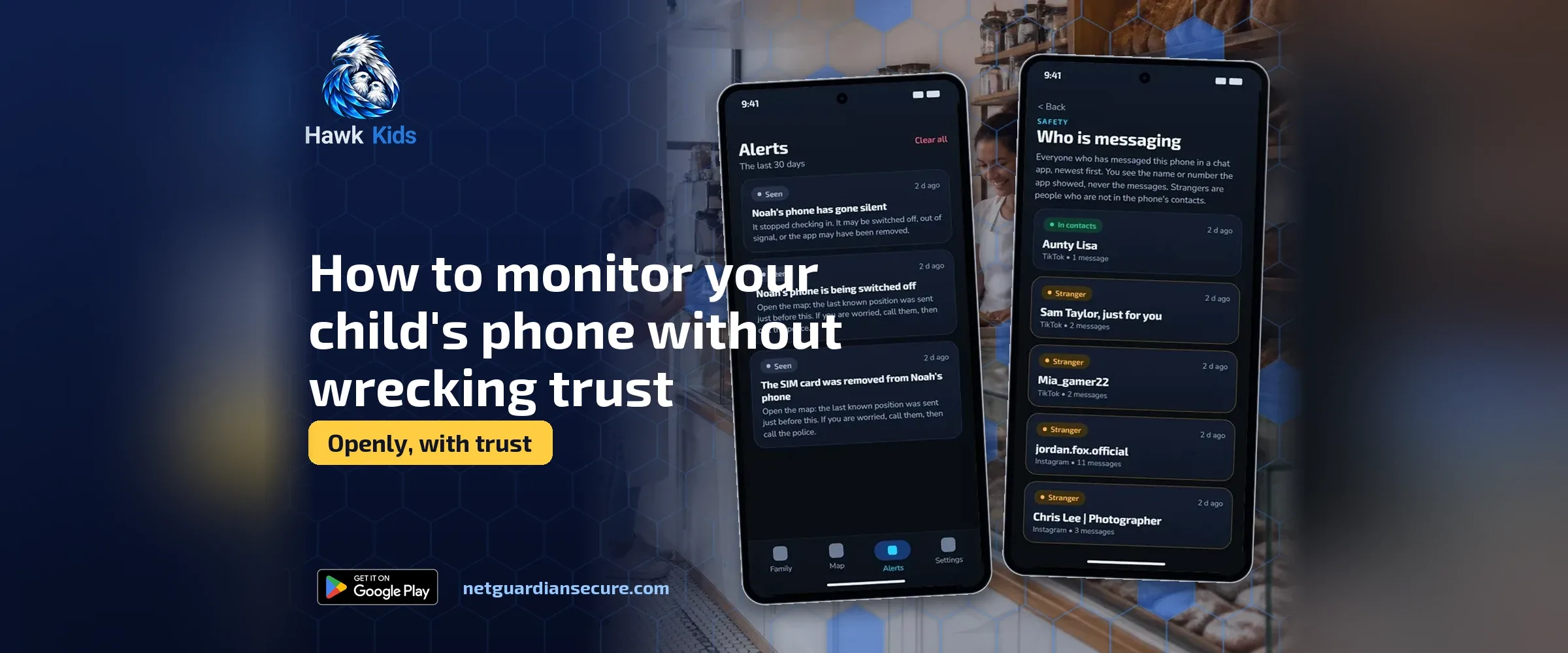
That’s roughly the gap between something like Family Link, which is built around a Google Account and handles screen time, app permissions and location well, and a dedicated phone monitoring app for parents that also looks for risky conversation patterns. NetGuardian, the company behind this site, makes one of the latter: Hawk Kids, an Android parental control app that runs on a child’s phone and pairs with a parent’s phone using a 6-digit code. It can pause internet access in one tap, set daily screen-time allowances and bedtime schedules, and show arrival and departure alerts for places like school. It also looks for warning signs in chats, such as requests for photos or pressure to keep things from parents, and flags them to a parent without showing the actual conversation.
That last point matters for the trust question this whole post is about. The alert tells a parent what kind of warning sign came up, which app it was in, and the contact’s name, not the private messages themselves. It’s built to start a conversation, not replace one. Its website blocking works from small starter categories, plus sites a parent adds by hand, so it can still miss sites a child finds another way, and a determined kid may find a way round any control eventually. That’s worth saying plainly before anyone buys anything. The child’s phone also shows a notice while location sharing and alerts are switched on, so the app is visible on the device, not hidden from the person using it.
If bedtime is your main battle, a bedtime schedule for your child’s Android phone tends to solve more arguments than a general screen-time cap, since it targets the specific hours that cause trouble rather than the whole day.
When the phone goes missing or gets taken away
Part of monitoring openly is also being upfront about what happens when a phone is lost, broken, or confiscated as a consequence. If you need to lock a device remotely during a disagreement or because it’s gone missing, it helps to know in advance how to lock a child’s phone remotely on Android rather than figuring it out in a panic. Knowing this ahead of time, and telling your child you know how to do it, is itself part of doing monitoring openly rather than as a surprise power move.
A phone that’s switched off or reset won’t report its location to any monitoring app. Tools built for this generally send a parent an alert with the last known location before the device went dark, which is useful but not the same as live tracking.
Starting the conversation this week
If you haven’t had the monitoring conversation yet, the UK Safer Internet Centre’s list of starter questions is a reasonable place to begin: ask what sites or apps your child likes, what they think is okay to share online, and whether they know where to go for help if something feels wrong. You’ll learn more from that ten-minute chat than from a week of quietly checking an app, and it sets up every monitoring tool you add afterward to actually work the way it’s meant to: as a backup, not a secret.
Sources
- Common Sense Media, Parents’ Ultimate Guide to Parental Controls: advice on using controls openly, matching tools to family needs, and the limits of monitoring apps and account-based tracking.
- UK Safer Internet Centre, Parents and Carers: conversation starters for talking with children about online safety.
- Google, Get started with Family Link: what Family Link covers for screen time, app management and location.
If it isn’t for you, there’s a 7-day refund window.
Guarding your family, your business, your future .