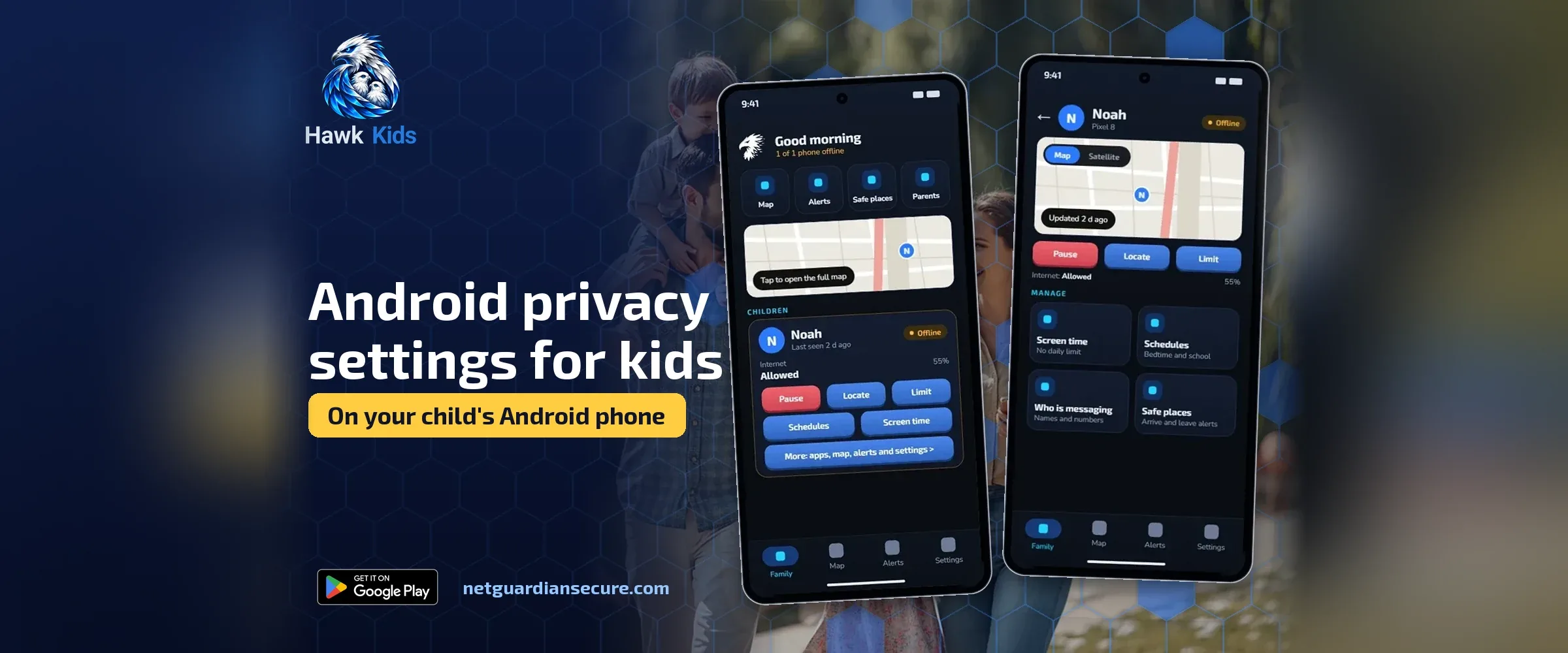
Android privacy settings for kids: what to check on your child’s phone
Most parents hand over a phone, set up the account once, and never go back into the settings again. That’s the gap worth closing. Going through android privacy settings for kids once every few months takes maybe twenty minutes and it catches things that quietly change on their own, like a new app asking for location, or a screen time rule that got switched off during setup of a new device.
Why this is worth your time
If your child is under 13, US law actually gives you specific rights over their data. The Children’s Online Privacy Protection Act requires sites and apps aimed at kids that age to tell you what they collect and get your consent first. You can also ask to see what’s been collected, and ask a company to delete it. That only works if a service is covered by COPPA, but it’s a real lever, not just a suggestion.
The FTC’s broader advice on protecting kids online is blunt about the order of operations: talk with your kid about your family’s rules first, then use parental controls to back that up. Settings don’t replace the conversation. They just make the agreed rules stick when nobody’s watching.
Start with the Google Account itself
Every privacy setting on an Android phone sits on top of a Google Account, so that’s where to begin.
Google’s Family Link lets you create a Google Account for a child under 13, or add supervision to an account your child already has. Through Family Link you can change some of your child’s account settings, decide which apps they’re allowed to download or buy, block or allow specific apps, and change app permissions. It also restricts mature content on Google Play. Worth knowing: iPhones, iPads and regular computers can’t be supervised with Family Link, only Android devices, Chromebooks and compatible Fitbit devices. To supervise, your child needs their own Google Account and an Android device running 6.0 or newer.
If your child’s account was created without Family Link, check whether it’s linked to yours at all. An account with no parental supervision attached means none of the controls below apply.
Check screen time and app limits
Family Link handles daily limits and bedtime schedules from your own phone.
- Open the Family Link app and select your child.
- Tap Screen time, then Time limits.
- Turn on Daily limit, then tap Weekly schedule to set a different limit for each day, or apply one limit to every day at once.
You can also hand out bonus time on the spot, from a locked or soon-to-be-locked device, without touching the regular schedule. For app-specific limits, go to Screen time, then App limits, and block or allow apps individually. A blocked app takes about five minutes to actually lock on the child’s device once it’s connected to the internet, and if your child is mid-use when you block it, they get a one-minute warning before it closes. Some apps can’t be blocked at all, because the device or the supervision settings need them to keep working.
If you want a closer look at how much time your child is actually spending per app before you set limits, our screen time guide walks through where that data lives on the phone itself.
Review location sharing
Location sharing in Family Link isn’t automatic. You have to turn it on deliberately: open the app, tap Location, then Set up location, choose which children to share for, and confirm. Once it’s on, you can check your child’s Android device location from your own phone at any time.
It’s worth checking this setting exists and is actually switched on, rather than assuming it carried over from an earlier phone or a factory reset. A new device, a wiped phone, or a re-added account can all quietly drop location sharing back to off.
Look at app permissions one by one
This is the setting most parents skip, because it’s tedious. Family Link lets you change app permissions directly, not just decide whether an app is allowed to exist on the phone. Go through the apps your child actually uses and check what each one can see: camera, microphone, contacts, location. A messaging app asking for contacts makes sense. A flashlight app asking for location does not.
This matters more for games and social apps than people expect. Many request permissions during setup that have nothing to do with how they’re actually used, and kids tap through those prompts without reading them. If your child plays Roblox, our guide to Roblox’s parental settings covers the account-level controls that sit alongside the phone’s own permissions. If YouTube is the main app in question, the YouTube parental controls walkthrough covers the account side of that one specifically.
Where a dedicated app fits in
Family Link covers account settings, screen time, app blocking and location well. It doesn’t look at what’s happening inside a conversation, and it isn’t built to flag the kind of message that should worry a parent.
That’s the gap Hawk Kids, an Android parental control app made by NetGuardian, the same company behind this site, is built to narrow. It’s a once-off purchase with no subscription, and on top of screen time and location it adds alerts for warning signs in chats, such as requests for money or pressure to keep a secret, plus a missing-child mode and a records pack a parent can hand to the police if needed. It doesn’t read or show private messages, and an alert is a reason to start a conversation with your child, not a substitute for one. You can see what it covers on the Hawk Kids product page if you want to compare it against what Family Link already does for free.
Website and content settings
Family Link can restrict mature content on Google Play, which covers app downloads and purchases, but that’s a narrower job than filtering the open web. A browser can still reach plenty of sites that have nothing to do with the Play Store.
If you want site-level blocking, check what any tool you’re using actually covers before you rely on it. Starter category lists (adult content, gambling, that kind of thing) plus sites you add yourself will catch a lot, but the lists are small and can miss sites, and a determined kid may find a way around them eventually. That’s true of Hawk Kids too: it blocks by starter category plus sites you add, not by reading the page itself, so treat it as reducing accidental exposure rather than sealing off the web entirely. If you’re shopping around for a monitoring app and want to know what questions to ask before paying, this checklist is a good place to start.
A PIN stops a child changing things back
Here’s the part that undoes everything above if you skip it: a child who can reopen the settings you just configured can simply turn them off again. A PIN on the controls, or device-admin protection that makes the app hard to remove, is what actually makes the rest of this stick.
In Hawk Kids, that protection sits on the child’s device itself. If a child (or anyone else) tries to switch off that protection, the parent gets an alert. No app can stop someone from switching a phone off entirely or resetting it outright, so if that happens, the parent gets an alert with the device’s last known location instead of silence. The app also shows a notice on the child’s phone while location sharing and safety alerts are active, so none of this runs hidden. The child has to approve location sharing on their own device before it works at all.
If you’re not using Hawk Kids, the same principle still applies to Family Link: check whether your child’s Google Account can be removed from supervision without your password, and whether the Digital Wellbeing settings on the device itself are locked behind a parent code. A setting that a ten-year-old can switch off in thirty seconds isn’t really a setting.
A quick android privacy settings for kids checklist
- Confirm your child’s Google Account is actually supervised under Family Link, not just created and left alone.
- Check daily screen time limits and the weekly schedule match what you agreed as a family.
- Turn on location sharing deliberately, and confirm it’s still on after any device change.
- Go through each app your child uses and check its permissions, not just whether it’s allowed.
- Check mature content restrictions on Google Play are switched on.
- Confirm whatever parental control app you use is locked behind a PIN the child doesn’t know.
None of this is a one-time job. Phones get reset, accounts get recreated, new apps get installed every week. The twenty minutes it takes to run through this list again in three months is cheaper than finding out something slipped through six months later.
Sources
- FTC: Protecting your child’s privacy online: COPPA rights, parental consent and data deletion requests.
- FTC: Protecting kids online: general advice on talking with kids and using parental controls together.
- Google: Get started with Family Link: account supervision, screen time steps, app blocking, location sharing, and device requirements.
If it isn’t for you, there’s a 7-day refund window.
Guarding your family, your business, your future.