Bedtime Schedule for a Child’s Android Phone: Routines That Stick
A bedtime schedule for kids phone use sounds simple until you actually try to enforce one at 9pm on a school night. The phone pings, your child says “two more minutes”, and somehow it’s 10:30. The good news is that Android already has the tools to make a bedtime stick without a nightly argument. The harder part is agreeing on the schedule in the first place, and that’s worth doing before you touch any settings.
Start by agreeing on the routine together
The American Academy of Pediatrics suggests building a family media plan rather than just handing down rules. That means talking it through with your kids rather than just switching things off one night and hoping for peace. A few ideas from that guidance work well for bedtime specifically:
- Make the bedroom and the hour before sleep a screen-free zone, since that’s linked to better sleep.
- Turn off notifications and autoplay at night, because those features exist to keep your child scrolling.
- Revisit the plan at the start of each school year or after a school holiday, since a bedtime that worked for a nine-year-old won’t fit the same child at twelve.
The same guidance points out that parents are role models here too. If your own phone is lighting up the kitchen table at 11pm, a child notices the gap between the rule and the behaviour, and the rule loses weight. Worth building your own screen-free window into the plan, even if it’s shorter than theirs.
If your child is getting their first phone, it helps to put the bedtime in writing alongside the other basics. A simple agreement for a child’s first phone is a good place to put the exact bedtime, rather than leaving it as a vague “not too late.”
Decide the actual times before you open any app
A schedule only sticks if it’s specific. “No phone at bedtime” is a wish. “Phone goes to the hallway charger at 20:30 on school nights, 21:30 on Fridays and Saturdays” is a schedule. Write down three things before you open Family Link or Digital Wellbeing:
- The exact time the phone should lock or leave the room on school nights.
- Whether weekends get a later time, and how much later.
- Where the phone actually sits overnight, since a bedtime that still leaves the phone on the pillow is barely a bedtime at all.
Once you have those answers, the settings below just carry out the decision you’ve already made. Settings don’t decide a bedtime, they enforce one, so skipping this step and jumping straight to the app is usually why the schedule falls apart by the second week.
Set a bedtime schedule for kids phone use with Family Link
If your child’s phone is set up with a Google Family Link account, you can set both a weekly screen-time schedule and a straight daily limit from your own phone. Google’s instructions cover both.
To set a weekly schedule:
- Open the Family Link app and select your child.
- Tap Screen time, then Time limits.
- Turn on Daily limit, then tap Weekly schedule.
- Pick a day and enter how much screen time the device gets, or apply the same limit to every day at once.
When the limit is reached, the child’s device locks. They can’t open apps or see notifications, but they can still answer phone calls and dial emergency numbers if the device has a calling plan. That’s worth knowing if your child’s bedtime schedule doubles as their only phone at night: locking the device doesn’t cut off a genuine emergency call.
You can also give bonus time on a one-off basis, say if homework ran long, without touching the daily limit itself. And if the phone needs unlocking after bedtime for a real reason, Family Link’s parent access code works even if the device isn’t online, which matters on nights when WiFi is down or the child is somewhere without signal.
One limit worth knowing: system apps can’t have time limits placed on them, and the schedule applies per device, so a child with a phone and a tablet gets the same allowance on each one, not a combined total split between them. If you’re trying to figure out what your child’s screen time actually looks like before you set numbers, checking current screen time on the device first gives you a baseline instead of a guess, and it’s a quick way to see whether the real problem is total hours or just one app eating the evening.
Use Bedtime mode on the phone itself
Family Link is the Google account level control. Digital Wellbeing’s Bedtime mode lives on the phone itself and works alongside it. Android’s own guide describes two ways to set it up:
- Use a schedule: set a start and end time for sleep, and choose which days of the week it applies.
- Turn on while charging: Bedtime mode switches on automatically whenever the phone is plugged in between times you set, which is a reasonable nudge if your rule is “phone charges outside the bedroom.”
Once it’s on, Bedtime mode can switch the screen to grayscale, dim the wallpaper and lock screen, and turn on Do Not Disturb so calls and texts don’t light up the screen at midnight. You can also set it to turn off automatically at the next alarm, which suits a school-morning routine better than a fixed end time, since it means the phone wakes up when the child does rather than ten minutes before the bus.
This is a device setting, not an account one, so it’s worth checking it’s actually switched on on the child’s phone rather than assuming Family Link alone covers the bedtime hours. The two sit at different levels: one controls the account across devices, the other controls how this particular phone behaves overnight.
Check the routine is actually holding
A schedule you never look at tends to drift. Digital Wellbeing shows a daily chart of screen time, how often the device was unlocked, and how long each app was used, right on the child’s device under Settings > Digital Wellbeing. That’s useful for a weekly check-in rather than daily policing, and it gives you something concrete to talk about instead of a vague “were you on your phone too late again?”
If one app in particular is eating into the evening, you can set an app timer for just that app rather than changing the whole schedule. That’s worth doing for whichever app your child goes back to most: if it’s video or social apps specifically, limiting TikTok and YouTube time walks through app-level limits rather than a blanket device limit. It’s also worth running through the device’s privacy settings for kids at the same time you set a bedtime, since you’re already in the settings menu and it takes a few extra minutes.
For older limits and allowances in general, not just the bedtime hour, the wider guidance on screen-time limits for kids covers how to pick a daily total that actually fits your family rather than copying a number from somewhere else.
What these settings can’t do
A bedtime schedule handles the clock. It doesn’t handle what happens in the hour before the clock runs out, or what a child sees on a friend’s phone, or a determined child who finds the phone again after it’s supposedly charging in the hallway. Family Link and Bedtime mode lock the device; they don’t read messages, and they don’t stop a child trying to get round the lock by using a second device or a sibling’s phone.
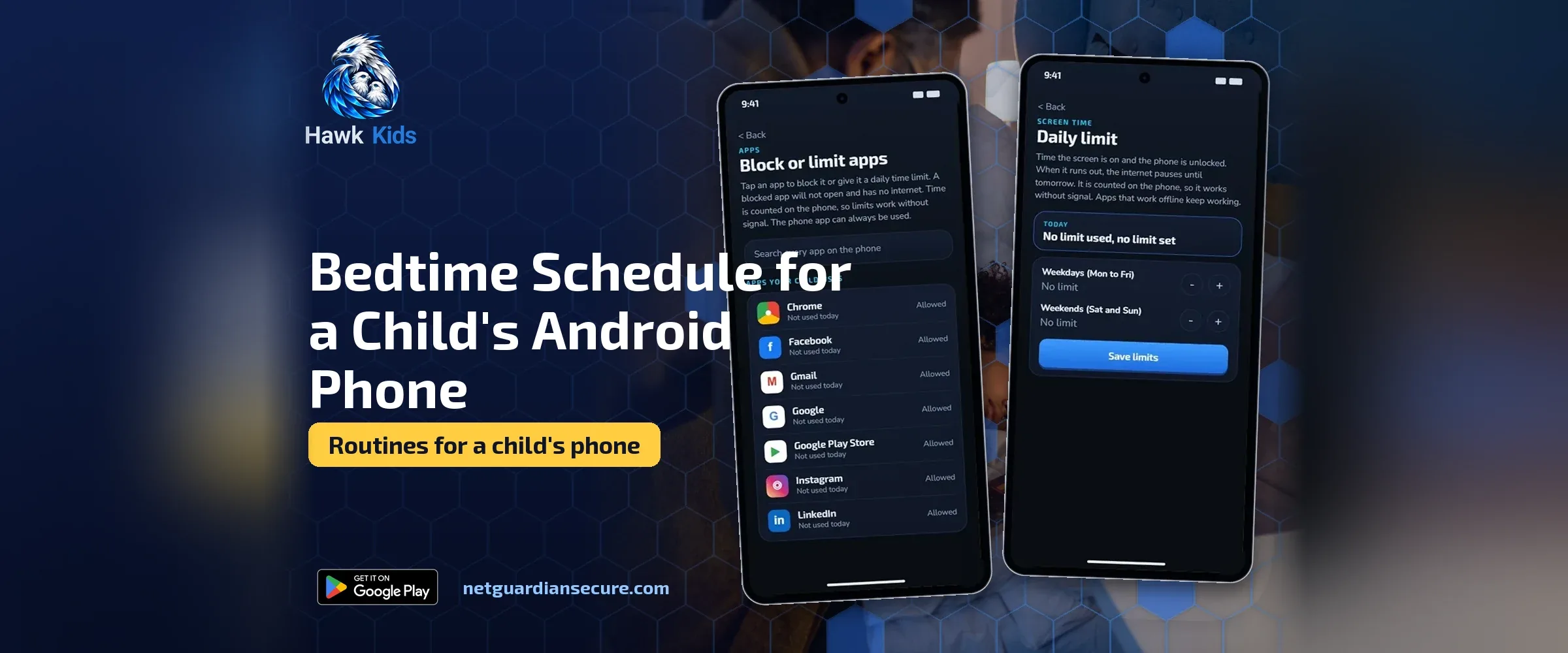
NetGuardian, the company behind this site, also makes Hawk Kids, an Android parental control app, and its “Allowed times” setting works a bit differently from Family Link’s schedule: a parent picks the exact windows internet is allowed, say 17:00 to 18:00 on school days, with a different plan for each day of the week, and the controls sit on the child’s device so they apply on home WiFi, other WiFi and mobile data. It’s a once-off purchase rather than a subscription, and the same company makes it, so it’s worth saying that plainly rather than pretending this is neutral advice. It’s one option among several, not a replacement for the free tools above or for a conversation about why the bedtime matters in the first place.
Whatever tool you use, none of them reads what’s happening inside a conversation or a video. None of them blocks every website either, only the ones on a starter list plus any you add yourself, so a determined teenager can usually find a way round a gap in the list. If your real worry at bedtime is who your child is talking to late at night rather than the clock itself, that’s a different problem, and worth thinking about separately from the schedule itself. Looking again at what the AAP’s media plan guidance says about screen-free zones is as much about habits as it is about settings, and habits are what actually get a child to put the phone down without being told.
When the phone goes missing after bedtime
Even with a good schedule, phones wander. Sometimes it’s an accident, left under a pillow or in a school bag, and sometimes it’s a child testing the rule. If you’ve ever needed to lock a device remotely rather than wait for the schedule to kick in on its own, locking your child’s phone remotely covers the manual side of things for exactly that moment, which is useful on the nights a scheduled lock just isn’t enough on its own.
Make the routine stick past the first week
The schedule you set tonight won’t be right forever. A bedtime that suits an eight-year-old is too early for a thirteen-year-old, and a limit that felt fair in September can feel unfair by January once homework gets heavier. Revisit the actual times at least once a term, not just once a year, and change them with your child rather than for them. A schedule that was agreed on tends to survive the first time it’s tested, say a sleepover or a late homework night; one that was just imposed usually doesn’t last past the first excuse.
Sources
- Manage your child’s screen time, Google For Families: Family Link weekly schedule, daily limits, device locking, bonus time and the emergency-call exception.
- Digital Wellbeing, Android Help: Bedtime mode setup, grayscale and Do Not Disturb options, and app timers.
- How to Make a Family Media Plan, HealthyChildren.org (AAP): screen-free zones, agreeing rules with kids, parents as role models, and revisiting the plan each school year.
If it isn’t for you, there’s a 7-day refund window.
Guarding your family, your business, your future.