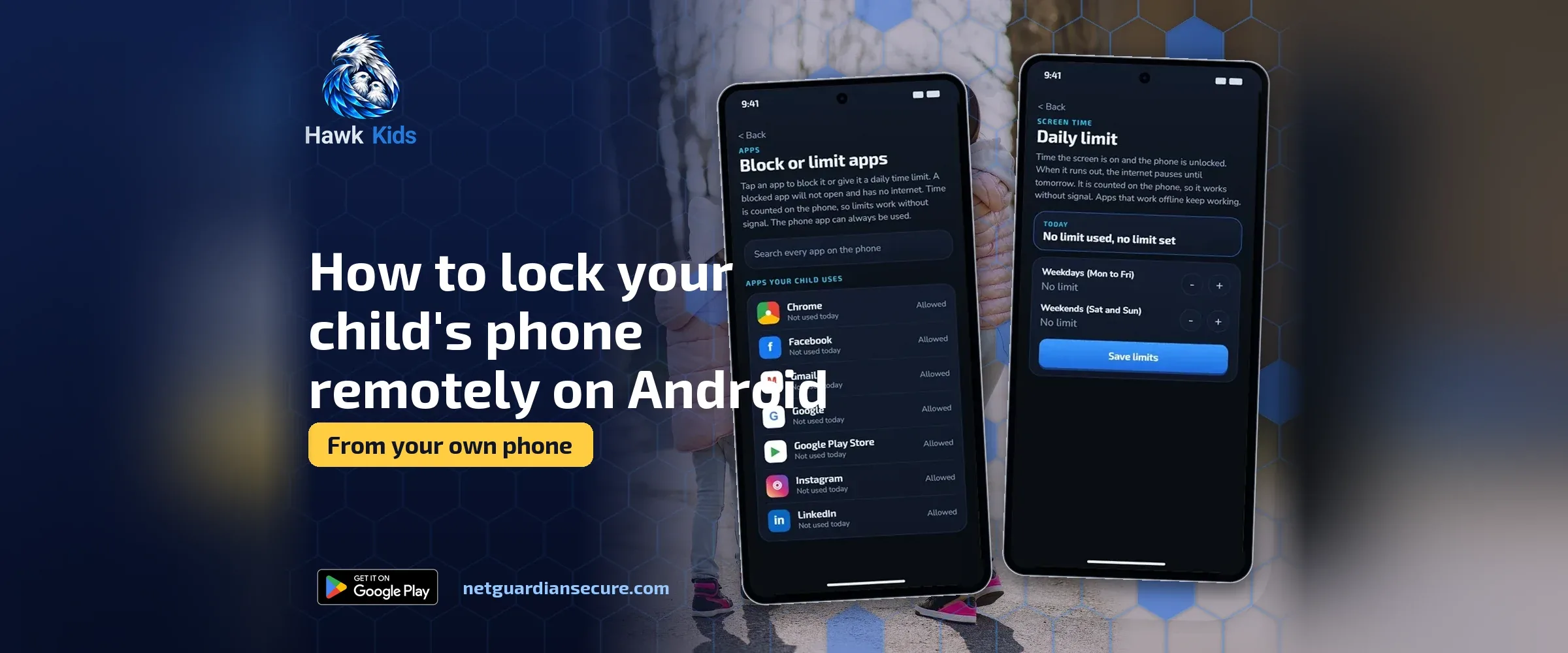
How to lock your child’s phone remotely on Android
If you want to lock child’s phone remotely, Android actually gives you two different tools for two different jobs, and mixing them up causes most of the confusion parents run into. One tool is for everyday supervision of a device your child still has in their hand. The other is for a phone that’s lost or missing. They use different apps, different setup steps, and the child sees something different on screen in each case.
This post walks through both, using only what Google’s own help pages describe, plus the honest limits of each.
Two different jobs: supervision or a lost phone
Family Link is the tool for supervision. It’s built so a parent can manage a child’s screen time, apps and location on a device the child uses day to day, including locking it when time is up or when a parent decides it’s time for downtime.
Find Hub is the tool for a phone that’s lost, left somewhere, or possibly stolen. It can find, ring, lock or erase a device remotely, whether that device belongs to an adult or to a supervised child.
Both can lock a screen. But Family Link locking is something you’d do routinely, as part of agreed screen-time rules. Find Hub locking is for an emergency: the device is missing and you want it secured until it turns up.
Setting up Family Link before you need it
You can’t lock a child’s phone through Family Link on the spot if it was never set up. The requirements are specific. The parent needs to be 18 or older with a Google Account, and the child’s device needs an Android version of 6.0 or higher. The child also needs a Google Account linked to the family group, and the device has to have Family Link’s supervision actually turned on, not just installed.
Once that’s in place, a parent can do several things from the Family Link app, not only lock the screen:
- Set a daily screen-time limit so the device locks on its own once the time is used up.
- Block or allow specific apps, with blocking applying across all of the child’s Android devices and Chromebooks.
- Check the child’s device location.
- Give bonus time for a single day without changing the regular limit.
If you haven’t looked at the account and privacy side of your child’s phone yet, it’s worth going through the privacy settings worth checking on an Android phone at the same time you set up Family Link, since a few of them sit close together in the same settings menu.
How to lock child’s phone remotely with Family Link
Once supervision is set up, locking the device takes a few taps from the parent’s own phone:
- Open the Family Link app.
- At the top left, select your child.
- Tap “Screen time.”
- Below your child’s device name, tap “Lock.”
The same screen has an “Unlock” button when you want to give the phone back. Google’s help page notes that you can also use your Family Link parent access code to unlock the device even if it isn’t connected to the internet at that moment, which is handy if your child is somewhere without WiFi or data.
When the device is locked this way, the child can’t see notifications and can’t open any apps, aside from ones you’ve marked as Unlimited time apps if you’ve turned that feature on. Phone calls still work: they can answer a call, and tap Emergency to dial if the device has a calling plan. That last point matters. A lock through Family Link is not the same as cutting the phone off entirely; it still allows for calls, which is sensible for a child who might need to reach a parent or emergency services.
Screen-time limits can also lock the device automatically. If you set a daily limit, the child gets a notification when the limit is first set, and another when the device is about to lock. You can also set a weekly schedule, so Monday to Friday looks different from the weekend, and the schedule applies across every Android device or Chromebook the child signs into.
If you’d rather see how much time has actually been used before deciding to lock anything, it helps to check how to see screen time on an Android phone first, so a lock isn’t a surprise with no context behind it.
Using Find Hub to lock a lost phone
Find Hub is a separate app (and a website, find.google.com) built for when a device can’t be found. If a parent manages a child’s account through Family Link, the child’s supervised devices show up automatically in the Family devices tab inside Find Hub, so there’s no extra setup needed beyond what Family Link already requires.
For Find Hub to work at all, the lost device needs to have power, be connected to WiFi or mobile data, be signed into a Google Account, and have Find Hub turned on. If the phone is switched off or has no signal, none of this works, because there’s nothing for Find Hub to reach.
To lock a device through Find Hub:
- On another Android phone or tablet (or a browser), open Find Hub.
- Sign in, or continue as yourself if it’s your own family’s device.
- Select the device from the list.
- Choose “Mark as lost.”
- Add contact info and a message to show on the lock screen, then confirm.
Marking a device as lost locks it with the existing PIN, pattern or password, and turns off access to notifications, widgets and quick settings. On newer Android versions with fingerprint or face unlock set up, it can also require that biometric check alongside the PIN. This is a stronger lock than the routine Family Link one, and it’s meant for exactly one situation: you don’t know where the phone is and you want it secured.
If locking isn’t enough and the phone truly can’t be found, Find Hub also lets you erase it entirely through a factory reset, though that’s permanent and the device needs your Google Account password to be usable again afterward.
Menu names will not match exactly
One honest warning: the exact wording and tap sequence for both tools shifts between Android versions and phone brands. Some phones show “Digital Wellbeing & parental controls” directly in Settings; older versions route through “Google” then “Parental controls.” Samsung, Pixel and other brands each lay out their settings menus slightly differently, and a menu that existed on last year’s Android build might be renamed or moved on this year’s. If a step in this post doesn’t match what you see, look for the words “screen time,” “parental controls” or “Find Hub” in your phone’s search bar within Settings, since that usually gets you to the right place faster than hunting through menus.
What locking a phone doesn’t solve
A locked screen stops a child opening apps for the moment. It doesn’t tell you what they were doing before the lock, who they were talking to, or whether something in a chat worried them. Family Link’s screen time and app controls are about limits and access, not about what happens inside an allowed app.
That’s a different job, and it’s one reason the same company behind this site built Hawk Kids, an Android parental control app for parents who want more than a timer and a lock screen. It can pause and restore a child’s internet from the parent’s own phone in one tap, set allowed times for the day, and send an alert if it notices warning signs in a chat, like requests for pictures or money, or if a risky photo shows up on the child’s own device. None of that reads or shows private messages to the parent, and it’s not a replacement for talking to your child about what happened.
Website blocking in Hawk Kids works from a short built-in starter list (things like adult content or gambling sites) plus any address a parent adds by hand. Small lists can miss sites, and a determined teenager may well find a way around any control eventually. If you’re deciding between a few options, it’s worth reading what to look for in a parental monitoring app for Android before settling on one, and checking how to set up YouTube’s own parental controls too, since video content is one of the gaps no lock screen touches.
A lock, whether it comes from Family Link or Find Hub, is a tool for a moment: downtime, bedtime, or an emergency where a phone is missing. It works best next to rules you’ve actually talked through with your child, not instead of them.
Sources
- Manage your child’s screen time: steps to lock and unlock a child’s device, daily limits, bonus time, and what the child sees when locked.
- Get started with Family Link: setup requirements, supported Android versions, and what Family Link can manage on a supervised device.
- Find, secure, or erase a lost Android device: how Find Hub locks a lost device with Mark as lost, requirements, and the factory reset option.
If it isn’t for you, there’s a 7-day refund window.
Guarding your family, your business, your future.