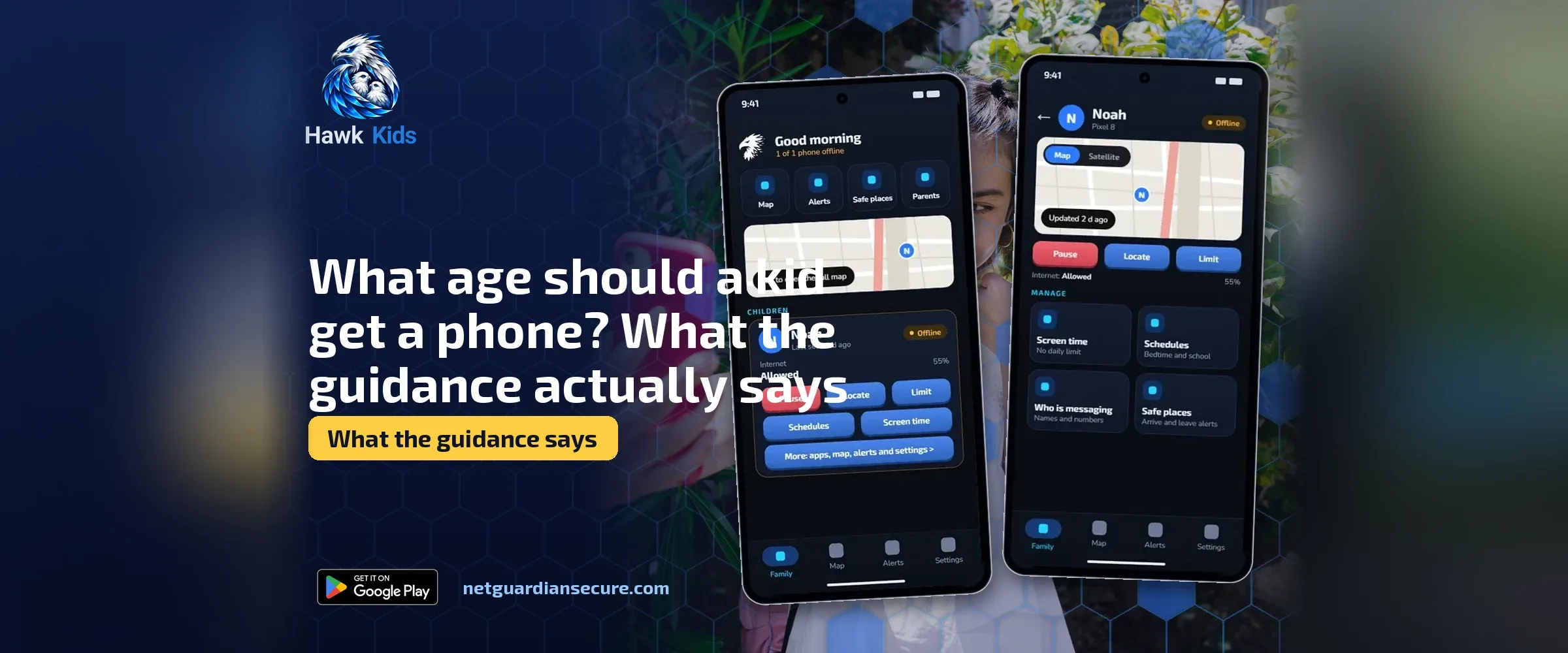
What age should a kid get a phone? What the guidance actually says
What age should a kid get a phone? It’s the question every parent group chat circles back to, and the honest answer is that nobody has a fixed number. Common Sense Media says the right age is really up to you, and that age matters less than how your child behaves, how responsible they are day to day, and what your family actually needs from a phone.
That’s not a dodge. It’s the same conclusion you get from Internet Matters, which frames the whole decision around what a specific child needs right now rather than a birthday. So instead of chasing a magic age, it helps to work through the questions the guidance actually suggests, look at what sits between “no phone” and “full smartphone,” and agree on some rules before the phone ever leaves the box.
What age should a kid get a phone: the honest answer
There’s a reason none of the big parenting and online safety organisations will give you a number. Two nine-year-olds can be completely different: one remembers to tell you when they leave a friend’s house and never loses a backpack, the other loses a jacket every week. Common Sense Media points out that if your kid’s tech skills are ahead of their ability to use a phone wisely, that gap matters more than their age and it’s fine to say “not yet.”
By age 11, about half of children in the US already own a smartphone, so you’re not an outlier either way, early or late. Peer pressure around this is real, but it isn’t a reason on its own. The better question isn’t “what age should a kid get a phone” in the abstract, it’s “is this particular kid, at this particular stage, ready for this particular device.”
Questions to ask before you decide
Both Common Sense Media and Internet Matters land on the same approach: ask about the child, not the calendar. Common Sense Media’s list includes questions worth sitting with:
- Do they let you know when they leave the house, and show up when they say they will?
- Do they tend to lose things like backpacks or homework folders? If so, expect a lost phone too.
- Do they need to be reachable for safety reasons, or would easy contact with friends genuinely help them socially?
- Will they follow the boundaries you set for when, where and how long they use the phone?
- Will they use texting, photos and video responsibly, without using them to embarrass or harass someone?
Internet Matters adds a practical layer to this: why does your child need a phone at all (safety, school, travel, social connection, independence), how confident are you both at managing the safety settings, and is this a first device, a replacement, or an upgrade from something more basic? They also suggest a short conversation before you buy anything, covering expectations around behaviour, daily routines and screen time, how group chats can escalate quickly, and what your child should do if something goes wrong.
None of this needs to be a formal sit-down interview. But if you can’t answer most of these questions with confidence, that’s useful information in itself.
The middle options before a full smartphone
A phone doesn’t have to mean a smartphone. This is probably the most useful thing both guides agree on: there’s a whole middle ground between nothing and a full internet-connected device, and most families pass through it.
Common Sense Media lists several options for a first phone that give a child contact without the full weight of a smartphone:
- A smartwatch with limited features, built for calls and location rather than apps.
- A prepaid phone that doesn’t lock you into a long contract.
- A “feature” phone with large icons and a narrow set of functions.
- A flip phone with large numbers and GPS tracking, built for simplicity.
- A low-cost prepaid carrier plan, so you’re not adding a child to an expensive family contract.
Internet Matters breaks the same idea down by type of device. Basic or feature phones do calls and texts only, no major apps or social media, which suits younger children or anyone just starting independence. Entry-level smartphones sit in the middle, useful once a child needs to message friends, use a homework app, or get help travelling, and they still come with strong parental controls at a lower cost than a flagship phone. Full smartphones, with better cameras and more advanced privacy controls, are described as better suited to older children and teens who need more independence and more digital skills to match.
The point both sources make is that the “right” phone isn’t the newest or most expensive one. It’s the one your child can use safely with the amount of guidance you’re actually prepared to give.
Choosing by age and stage
Internet Matters also sets out rough guidance by age band, which is worth reading as a starting point rather than a rule. For younger children aged 6 to 9, most won’t have their own device at all, but if you do give one, they suggest limited or no internet access, call and text restrictions to trusted contacts only, and no open app store access.
For tweens aged 10 to 12, the focus shifts to customisable parental controls that allow for gradual independence, age-appropriate content filters, time limits, and location sharing that a parent can switch on or off. For teens aged 13 and up, the guidance leans toward controls that protect privacy while still offering safeguards, app-by-app time and notification limits, safer social media settings, and clear agreements about rules and responsibilities.
If your child is moving up from a basic phone to a full smartphone, Internet Matters recommends talking openly about what changes: access to apps and group chats, more exposure to social media, new responsibilities around sharing content, and a higher risk of scams or spam. They suggest starting gradually, limiting downloads at first, allowing messaging before social apps, and turning on content filters and screen-time tools together so the settings feel like part of the process rather than a punishment.
If you want a deeper look at how to set screen-time boundaries once the phone is in hand, our guide to screen time limits for kids walks through what the research says about making rules that actually stick.
Rules to agree on day one
Whichever device you land on, the guidance is consistent that the rules matter more than the model number. Common Sense Media sets out basic safety rules worth covering before handing over any phone:
- Be respectful in texts, and assume even private messages can become public.
- Verify callers and don’t respond to unknown numbers, but always answer when a parent calls.
- Ask permission before taking or sharing someone’s photo or video.
- Follow the family’s rules about app purchases and downloads, since apps and in-app upgrades can cost real money.
- Think before posting, and be careful with location sharing.
The UK Safer Internet Centre frames this as an ongoing conversation rather than a one-time talk, with simple conversation starters: ask what sites or games your child likes, what they think is okay or not okay to share, and whether they know where to go for help if something goes wrong. That last point matters. A child who knows they can come to you without getting the phone taken away is more likely to actually tell you when something feels off.
If you want a ready-made starting point rather than building the list from scratch, our first-phone agreement covers the basics you can adapt and sign together on day one. It also helps to check the phone’s own privacy settings before handing it over; our rundown of Android privacy settings for kids covers what to switch off and on before your child starts using the device.
What a parental control app can and can’t do
Once the rules are agreed, some families want a tool to help enforce them, especially around screen time and app use. This is where our own app fits in, so it’s worth being plain about what it does and doesn’t do. Hawk Kids, an Android parental control app made by NetGuardian, the same company behind this site, lets a parent pause and restore their child’s internet in one tap from their own phone, set a daily screen-time allowance or bedtime schedule, and choose allowed times when the internet works at all, say 17:00 to 18:00 on school days.
It can also go app by app. A parent can set any app on the child’s phone to allowed, blocked, or a daily time limit from 15 minutes up to 12 hours. A blocked app won’t open and has no internet, and once a time limit runs out the app closes until the next day, with a warning given when 5 minutes are left. This needs one extra permission on the child’s phone called usage access, which the app walks the child’s phone through switching on; without it, a blocked app only loses its internet connection rather than being stopped from opening.
It’s not a content filter in the broad sense. Website blocking uses small starter lists for things like adult content and gambling sites, plus any sites a parent adds by hand, so it can miss sites a determined child goes looking for. It doesn’t read messages or filter what happens inside an app like YouTube or TikTok. What it does give is alerts, flagging things like requests for photos or demands for money in chats, so a parent knows when to start a conversation. It doesn’t replace having that conversation, and no tool catches everything. You can read more about what it covers on the Hawk Kids product page, or compare it against other options in our guide to choosing a parental monitoring app for Android.
The short version
There’s no age that fits every child, and anyone who tells you otherwise is guessing. What actually works is looking honestly at how responsible your child is right now, starting with the least phone that meets their actual need rather than the most phone you can afford, and agreeing on rules before the device is in their hands rather than after something goes wrong. The phone can always be upgraded later. The trust you build around how it’s used is harder to rebuild once it’s been broken.
Sources
- Common Sense Media, cellphones and devices guide: right age depends on maturity not a number, questions to ask, smartphone ownership by age, middle-ground device options, basic safety rules.
- Internet Matters, children’s mobile phone buying guide: questions to ask before buying, phone types by independence level, age-based feature guidance, advice on upgrading from basic phone to smartphone.
- UK Safer Internet Centre, parents and carers advice: guidance on having ongoing conversations with children about staying safe online.
If it isn’t for you, there’s a 7-day refund window.
Guarding your family, your business, your future .