Protect Your Children and Teenagers During the School Holidays: A Parent’s Guide
The school holidays are the longest stretch of the year when your children are not under anyone’s eye for most of the day. Teachers are gone, routines are loose, bedtimes slip, and the phone becomes the main way a child or teenager talks to the world. Most of that time is harmless. A few hours of it will not be, and you will not know which hours.
No app, rule or conversation can promise to keep a child safe. What you can do is cut the number of unsupervised gaps, agree on rules before they are needed, and set up a few tools so that you hear about a problem early. This guide covers children and teenagers separately, because what works for a nine-year-old will start a war with a sixteen-year-old.
Why the school holidays are different
During term, school fills the day and sets the rhythm. In the holidays that structure disappears. Screen time goes up because there is nothing to stop it. Children visit friends, malls, pools and holiday programmes you may never see. Teenagers stay up later and sleep later. Strangers online do not take a holiday either, and gaming chats, social media and messaging apps are busiest when school is out.
Three things tend to go wrong: too many hours on a screen, contact with people you do not know, and not knowing where your child actually is. Every section below deals with one of them.
Start with a family agreement, not a lock
Tools work best when the child already knows the rules. Before the holidays start, sit down and write a short family media plan. The American Academy of Pediatrics publishes a free family media use plan you can adapt. Our posts on rules for a child’s first phone and setting boundaries without the daily fight can help you word it. Cover these points:
- How many hours of screen time a day, and whether weekends differ from weekdays.
- When the phone goes to charge at night, and where.
- Which apps and games are allowed, and which need a yes from you first.
- What to do if someone online asks for pictures, money or secrecy: tell you, and nothing bad happens to them for telling.
- That you will use a parental control app and a family locator, and what you will and will not look at.
That last point matters most with teenagers. A monitor child’s phone setup that a teenager finds out about later feels like spying. One they helped agree to feels like a family rule.
Screen time limits that survive the holidays
Daily screen time limits are the easiest win. Set a daily allowance for each child, with a different amount for school-free weekdays and weekends if you like. Google’s free Family Link lets you set daily limits and a bedtime from your own phone, and its help pages explain how to manage your child’s screen time step by step. Android phones also have Digital Wellbeing settings on the device itself. If you want the guidance behind the numbers, read our post on screen time limits for kids, and see how to check screen time on an Android phone.
Pick a number you will actually enforce. A limit that is ignored teaches children that limits are optional. If you give extra time as a reward, make it deliberate and short.
A bedtime schedule and phone-free bedrooms
Late nights are where holiday routines fall apart first, and the small hours are when risky chats happen. Set a bedtime schedule for the phone as well as the child: a time when the internet pauses or the screen locks, and a charging spot outside the bedroom. For younger children, the parent keeps the charger. For teenagers, agree the time together and hold to it for everyone in the house, including you.
An app blocker and app limits for what they actually use
Most children spend their screen time in a handful of apps: video, short-form video, games, social media and messaging. An app blocker lets you block apps outright or give each one a daily time limit, so ten minutes of a game can run out without touching the homework app or the dialler. Choose the apps by looking at what your child uses, not by reputation. Check the age rating before you allow a new one, and read what it asks permission for. Our guides on how to lock apps on Android and how to limit TikTok and YouTube time walk through it.
Google Play has its own parental controls for age ratings and purchase approval, and Family Link can require your approval before a child installs something new. That alone stops a lot of surprise downloads and in-app purchases over the holidays.
Website blocking and safe search
Website blocking adds a second layer. You can block adult content, gambling and VPN sites by category, and add any individual site you want blocked. A blocked site will not open in any browser or app on the child’s phone. Pair it with Google SafeSearch, which hides explicit results in Google Search. Our post on how to block websites on Android shows three ways to do it.
Be realistic about this. Block lists are starting points, not complete filters. They can miss sites, and a determined teenager may find a way round them. They keep honest curiosity from turning into a mistake, which is most of what you need.
Location: a family locator you agree to openly
Knowing where your child is gives you more peace of mind than almost anything else in the holidays. A family locator or GPS family tracker shows your child’s phone on a map, and some can send a real-time alert when they arrive at or leave places you choose, such as school, a grandparent’s home or a friend’s house. Children should know it is switched on, and a teenager should help decide which places count. Read what to know before you turn location sharing on and the options in family locator apps for Android.
Two practical checks. First, test it before the holidays start, with the child, so you both know how it behaves and what the battery drain is. Second, set up your phone to find a lost device. Google explains how to find, secure or erase a lost Android device, and it takes a few minutes and saves a bad afternoon.
Strangers, social media and gaming chat
This is the part most parents worry about, and with reason. Children can be contacted through games, social media and messaging apps by people they have never met. The pattern is familiar: friendly attention, a move to a private chat, then requests for photos, money, or secrecy. Phrases such as “don’t tell your parents” are a warning sign on their own. Our posts on online grooming warning signs, gaming chat safety and cyberbullying signs go deeper.
Social media monitoring is a sensitive subject. Most tools cannot and should not show you a child’s private messages. What they can do is report new unknown contacts, tell you which apps are being used and for how long, and in some cases warn you when a conversation shows signs such as requests for pictures or demands for money. Use that as a prompt to start a conversation, not as evidence. If you do find something, stay calm, keep the evidence, and make it clear the child is not in trouble.
If a child is being blackmailed online, do not pay, keep the messages, report the account to the platform and tell the police. Children are often too ashamed to speak up unless you have already told them they can. See what sextortion is and its warning signs and, for South African families, what to do first and where to report.
Teenagers are different
A twelve-year-old and a sixteen-year-old need different handling.
Younger children (about 6 to 12): use tighter limits, app approval, website blocking and a lock on the device overnight. They need you to be the default decision-maker and they usually accept it.
Teenagers (13 and up): they need privacy and trust, and they will resent anything hidden. Be open about what you use. Negotiate screen time limits instead of imposing them. Focus on location, bedtime and alerts about real warning signs, and talk about the rest: friends, pressure, cyberbullying, and what to do when something feels wrong. A teenager who trusts you will tell you more than any tool will. Our guide to parental controls for teens covers what works at 13 to 17.
Where an Android parental control app fits
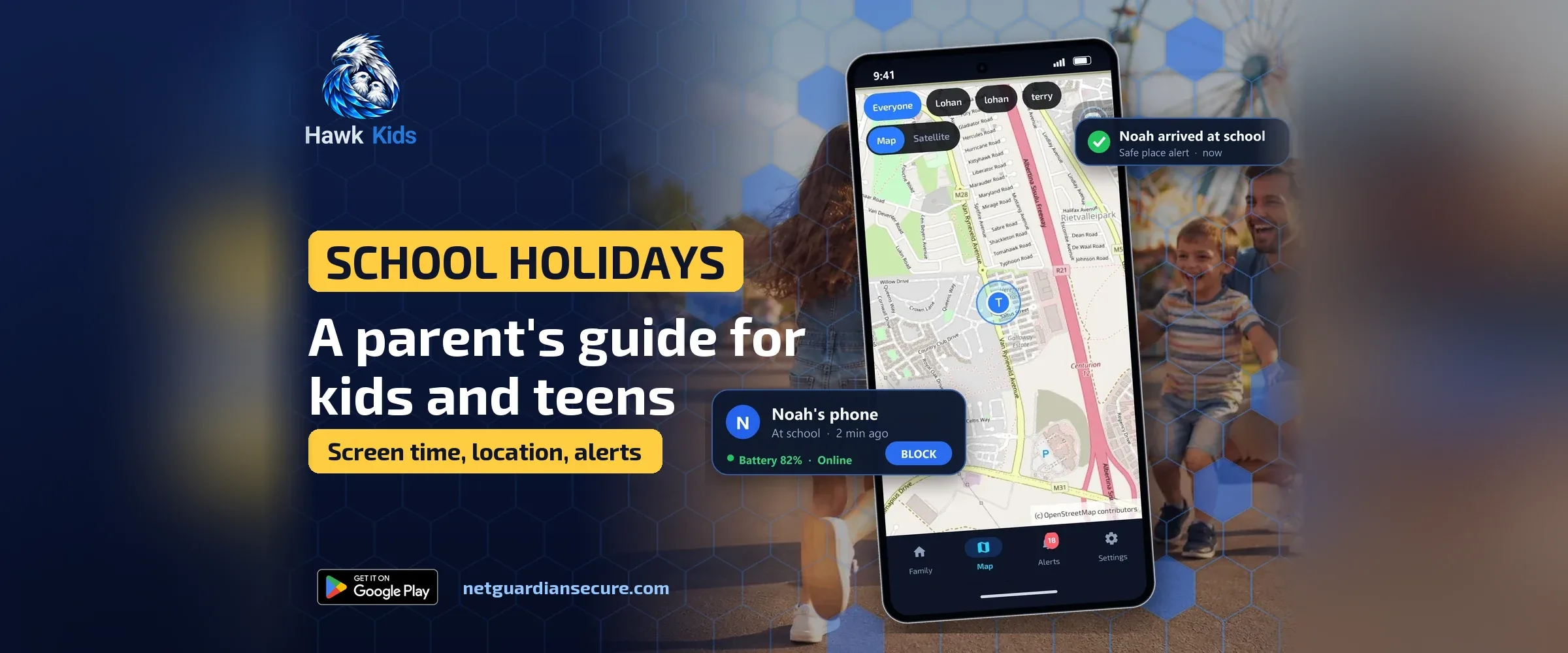
Google Family Link is a free place to start and does a lot. If you need more than that, an Android parental control app can put the controls above in one place; we compare the two in a Family Link alternative: when the free tool is enough. We built Hawk Kids for exactly this: from your own phone you can see your child’s phone on a map, get arrival and departure alerts, set daily screen-time limits and a bedtime schedule, block or limit individual apps, block websites, pause their internet in one tap, and get a warning when a chat shows signs such as requests for pictures or “don’t tell your parents”. The phone shows the child a notice while location sharing and safety alerts are on, so it is open, not secret.
It has limits, and we would rather you know them. It does not read private messages, it is not a complete content filter, it runs on Android only, and no app can stop someone switching a phone off. It is a once-off price with no monthly or yearly fees, and it is on Google Play. Whatever you choose, pick it with this checklist: does it work on mobile data and not just home Wi-Fi, is it open with the child, what data does it collect, and is the price a subscription.
A holiday checklist you can use this week
- Write the family agreement and have the children help.
- Set daily screen time limits and a bedtime schedule.
- Choose which apps to allow, limit or block, and check the age ratings.
- Switch on website blocking and SafeSearch.
- Turn on location sharing with the child’s knowledge, and add the places that matter.
- Make sure you can find a lost phone.
- Agree what happens if someone online asks for pictures, money or secrecy.
- Pick one regular time each day to ask how it is going.
The conversation matters more than the tool
Every control in this guide can be worked around by a determined child, and none of them replaces being someone your child will tell. Use the tools to buy yourself time and early warning. Use the conversation to keep the trust that makes the tools unnecessary.
Have a safe and happy holiday.
Sources
- Manage your child’s screen time, Google Family Link help.
- Get started with Family Link, Google Family Link help.
- Google Play parental controls, Google Play Help.
- Make Google Search safer with SafeSearch, Google Search Help.
- Find, secure, or erase a lost Android device, Android Help.
- How to make a family media use plan, American Academy of Pediatrics.
If it isn’t for you, there’s a 7-day refund window.
Guarding your family, your business, your future.