How to Block Websites on Android: 3 Ways That Work
To block websites on Android, you have three realistic options. Google’s Family Link can block sites in Chrome on a child’s account. A family-safe Private DNS setting filters every app on the phone. And a parental control app such as Hawk Kids blocks the sites you choose, from your own phone. Which one fits depends on whose phone it is and how hard a child is likely to push back.
Take Sam, 13, who got his first phone at Christmas. One school night his dad finds a betting site open in the browser. He doesn’t want to take the phone away. He wants that site, and a few like it, gone.
Quick answer: which method should you use
- Your child has a Google account and mostly uses Chrome: Family Link.
- Any Android 9 or newer phone, no extra app, and your child won’t go looking in settings: Private DNS with a family filter.
- A child’s phone you want to manage from your own phone, in any browser or app: Hawk Kids.
Method 1: block sites in Chrome with Family Link
Family Link is Google’s free app for managing a child’s account. Open the Family Link app and pick your child, then tap Controls and Google Chrome and Web. You can choose a content filter: allow all sites, try to block explicit sites, or only allow approved sites. To block one site, go to Manage sites, tap Blocked sites, then Add a website. If your child hits a blocked site, they can ask permission and you answer from the app.
What it doesn’t cover: Google says the filter works in Chrome and “some Android apps” and doesn’t say which. It also says no filter is perfect. Incognito mode is switched off while your child is signed in to Chrome with a Family Link account.
Method 2: filter every app with Private DNS
Android 9 and newer has a Private DNS setting. Point it at a family-safe DNS service and the phone asks that service where every site lives, so blocked sites fail to load in any app, on Wi-Fi and on mobile data. CleanBrowsing’s free Family Filter is one example.
- Open Settings, then Network & internet, then Advanced (some phones say More connection settings), then Private DNS.
- Choose Private DNS provider hostname.
- Type family-filter-dns.cleanbrowsing.org and tap Save.
On a Samsung phone the path is Connections, then More connection settings, then Private DNS.
The catch: it is a setting on the phone, so a child who knows where it lives can switch it off. CleanBrowsing also warns that some school and work networks block this kind of connection, and that the setting says “Couldn’t connect” if the hostname is typed wrong. With the free hostname you use CleanBrowsing’s list as it comes.
Method 3: block sites from your phone with Hawk Kids
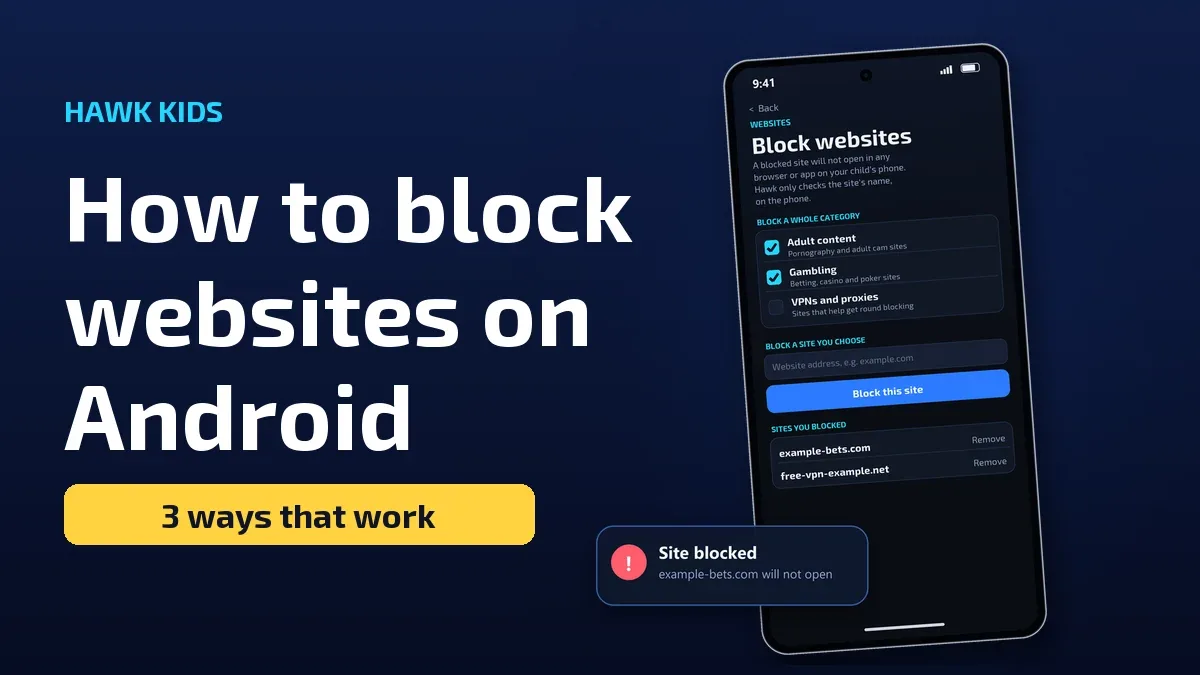
Hawk Kids is our Android app for parents, so weigh this section knowing that. Website blocking is new. The blocking runs on your child’s phone and you control it from yours.
- Install Hawk Kids on your phone and on your child’s phone, and pair them with the code the app shows.
- On your phone, open your child’s page and tap Websites.
- Switch on a category: adult content, gambling, or VPNs and proxies.
- Or type the address of any site and tap Block this site. The change reaches the phone within about a minute.
A blocked site doesn’t open in any browser or app on that phone. Hawk only compares the name of a site with your list, on the phone. It doesn’t record or send what your child visits. You can see how it fits with the rest of the app on the features page, and the same app can block single apps too.
Its limits, plainly: the category lists cover well-known sites, not every site on the internet, so add anything else by hand. A child who changes the phone’s Private DNS setting or runs a VPN of their own can get round it. And it needs the VPN permission on your child’s phone, the same one the Pause button uses.
What none of these can do
No method stops every route. A child can borrow another device, use a friend’s hotspot, or open a tool that hides the address. Blocking is one layer. The better protection is a calm talk about why a site is blocked, so your child tells you when they run into something they didn’t expect. Our step-by-step Android guide covers the other settings worth switching on.
Questions people ask
Can I block a website on my own phone? Yes. Private DNS works on any Android 9 or newer phone, so you can use it on yours. Family Link and Hawk Kids are built for a child’s phone.
Does Private DNS work on mobile data? Yes. CleanBrowsing’s guide says it applies to both Wi-Fi and cellular connections.
What does my child see on a blocked site? The page fails to load. With Family Link they can ask you for permission from the same screen.
Sources
- Google Family Link Help: block or allow sites in Chrome: the Controls, Google Chrome and Web and Manage sites steps, the three content filter options, the note that no filter is perfect, and incognito being switched off.
- CleanBrowsing: set up Private DNS on Android 9+: the Settings path, the family-filter hostname, the Samsung path, Wi-Fi and cellular coverage, and the warnings about “Couldn’t connect” and networks that block the connection.
We opened each of these pages on 5 November 2026. Menu names can differ a little between Android versions and phone makers.
If it isn’t for you, there’s a 7-day refund window.
Guarding your family, your business, your future.
Related reading: Family locator apps for Android: ways to share a child’s location, and the trade-offs.