
Cybersecurity and Networking: Practical Protection Guide
Modern devices connect to dozens of networks every week. Your Windows 11 laptop talks to your home router, coffee shop Wi-Fi, Bluetooth headphones, USB drives and cloud services. Each connection is a potential entry point for threats. Cybersecurity and networking work together to monitor these connections, detect suspicious activity and block unauthorised access before damage occurs. You don't need an IT background to understand how your network behaves or to spot when something looks wrong.
How cybersecurity and networking protect your PC
Network security focuses on the connections entering and leaving your device. Traditional antivirus software scans files for malware signatures, but it doesn't always watch how applications communicate across your network. That's where cybersecurity and networking intersect.
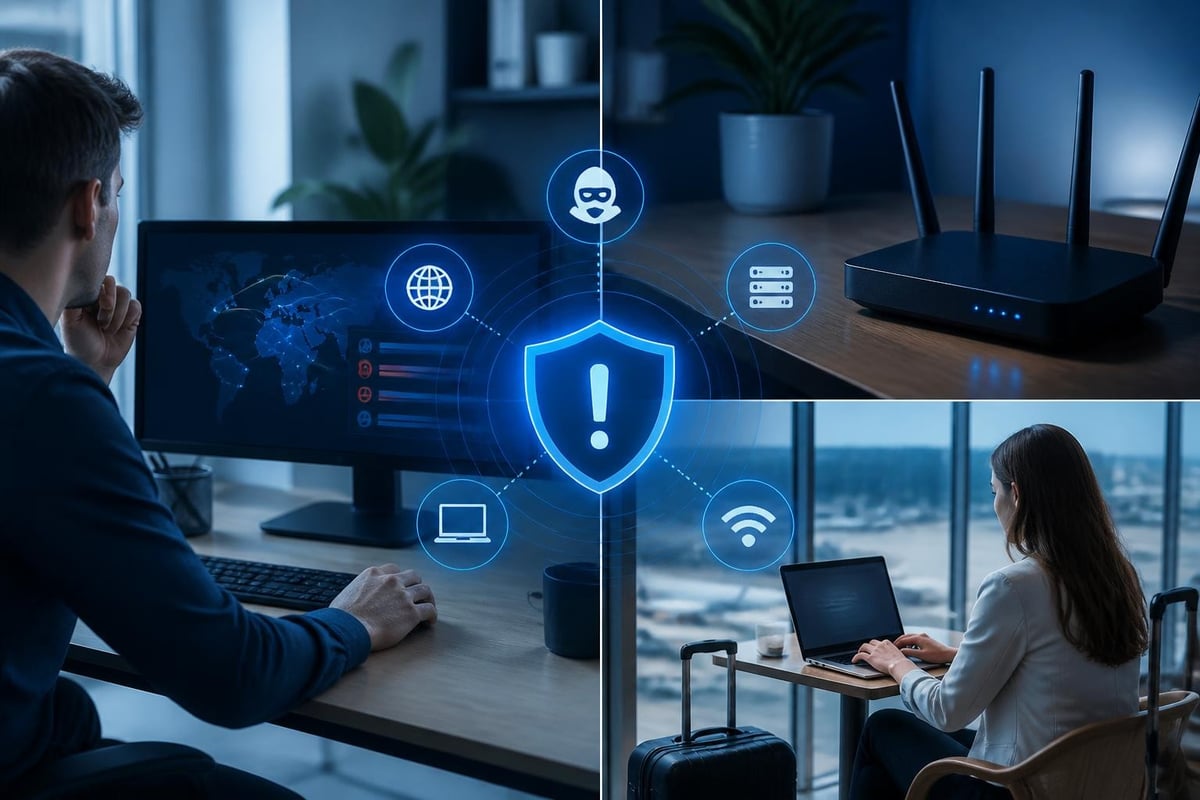
When you connect to Wi-Fi at a hotel or airport, your laptop sends and receives packets of data. An attacker on the same network might try to intercept those packets, redirect you to fake websites or inject malicious code into unencrypted traffic. Network-level protection monitors these connections in real time.
What happens during a network intrusion
An intrusion occurs when an unauthorised party gains access to your network or device. The MITRE ATT&CK framework documents how attackers move through networks using specific techniques. Common methods include:
- Port scanning to find open services on your PC
- Man-in-the-middle attacks that intercept your traffic on public Wi-Fi
- Lateral movement from one compromised device to others on your home network
- Command and control connections where malware calls home for instructions
These techniques don't always trigger antivirus alerts because they exploit network protocols rather than file-based malware. Detection requires monitoring network behaviour patterns.
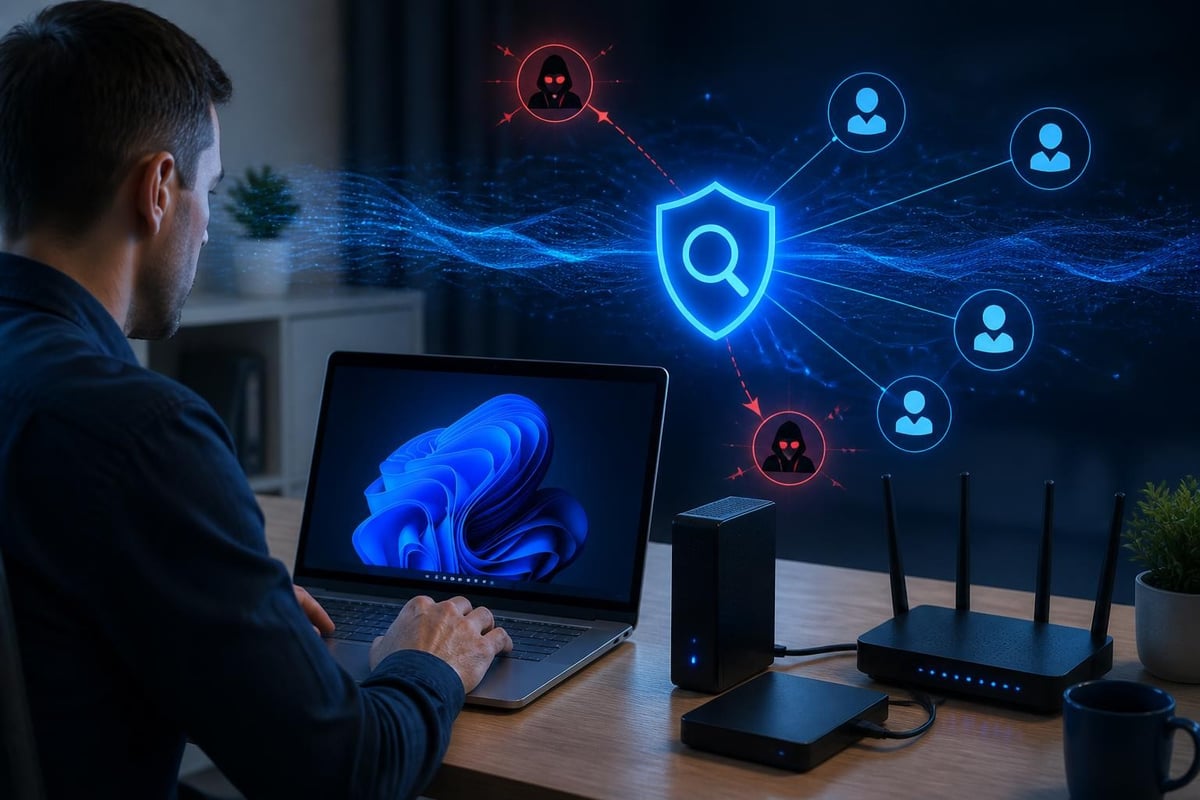
Detection modules that watch connections
Effective network protection uses multiple detection modules running simultaneously. Each module watches a different aspect of network behaviour. For example:
| Detection focus | What it monitors | Why it matters |
|---|---|---|
| DNS requests | Where your PC looks up website addresses | Malware often uses DNS to locate command servers |
| Port activity | Which network ports open and accept connections | Attackers scan for open ports to exploit |
| Bluetooth pairing | Devices attempting to connect wirelessly | Unauthorised devices might try to pair silently |
| USB network adapters | New network interfaces added via USB | Rogue adapters can bypass firewall rules |
This layered approach means one module might catch what another misses. The CISA Zero Trust Maturity Model recommends continuous monitoring across all network boundaries, not just perimeter defences.
Understanding suspicious network activity
You need to recognise what normal looks like before you can spot suspicious activity. Your Windows 11 PC makes legitimate network connections constantly: Windows Update checks for patches, OneDrive syncs files, your browser fetches web pages. Learning which connections belong helps reduce false alarms.
Normal versus suspicious behaviour
Normal network activity follows predictable patterns. Your email client connects to known mail servers at regular intervals. Your browser contacts websites you visit. Cloud backup services sync at scheduled times.
Suspicious activity breaks those patterns:
- Applications connecting to unfamiliar IP addresses in countries you don't use
- Outbound connections on unusual ports late at night when you're not using the PC
- High volumes of data leaving your device unexpectedly
- Connections attempting to use protocols you've disabled
The ENISA Threat Landscape 2025 report highlights how ransomware increasingly uses network reconnaissance before encryption. Attackers map your network, identify valuable files and establish backup command channels. Detecting this reconnaissance early stops the attack before encryption starts.
Ransomware behaviour on your network
Ransomware doesn't just encrypt files. It communicates across your network throughout the attack cycle. Before encryption begins, ransomware often:
- Scans network shares to find connected drives
- Tests connectivity to payment and decryption servers
- Attempts to disable backup services
- Spreads to other devices on your home or office network
Behaviour-based detection watches for these patterns. Instead of waiting for file encryption to start, it alerts you when applications begin network scanning or try to contact known ransomware infrastructure. This gives you time to isolate your PC and stop the spread.

Protecting multiple connection types
Your Windows 11 device uses several connection types daily. Each needs specific protection because each carries different risks.
Wi-Fi network risks
Public Wi-Fi at cafes, airports and hotels is inherently untrustworthy. Other users on the same network can see your traffic if it's not encrypted. The RFC 8446 TLS 1.3 specification provides strong encryption for web traffic, but not all applications use modern TLS correctly.
Practical steps for Wi-Fi security:
- Verify you're connecting to the legitimate network (ask staff for the exact name)
- Use HTTPS for all websites (look for the padlock icon)
- Enable your firewall to block unsolicited incoming connections
- Monitor which applications connect when you join public networks
- Use a VPN to encrypt all traffic on untrusted networks
A VPN creates an encrypted tunnel between your device and a trusted server. Even if someone intercepts your packets on public Wi-Fi, they see only encrypted data. Built-in VPN capabilities using WireGuard protocol offer strong encryption with minimal performance impact.
USB and Bluetooth threats
USB devices can carry more than files. Malicious USB drives might include hidden network adapters that create backdoor connections. Bluetooth allows wireless pairing, but older Bluetooth versions have known vulnerabilities attackers can exploit.
Protection measures:
- Disable Bluetooth when not in use
- Review paired Bluetooth devices regularly and remove unfamiliar ones
- Monitor when new network interfaces appear via USB
- Be cautious with USB drives from unknown sources
- Check USB device properties to verify they match what you expect
The CIS Critical Security Controls v8.1 framework emphasises hardware asset management and secure configuration. Knowing which devices should connect to your network helps you spot unauthorised hardware quickly.
Network isolation when threats appear
When you detect suspicious activity, quick action prevents damage. Network isolation disconnects your PC from all networks immediately, stopping malware from spreading or communicating with command servers.
How PC isolation works
Isolation is not the same as simply disabling Wi-Fi. Complete isolation:
- Drops all active network connections instantly
- Blocks new connection attempts from applications
- Prevents the PC from rejoining Wi-Fi or Bluetooth networks
- Maintains only essential local services
You stay in control during isolation. You can review alerts, research the suspicious activity and decide whether to allow the connection or keep the block in place. This approach works well for home users and small businesses who want to understand what's happening rather than relying entirely on automatic decisions.
Clear alerts you can act on
Technical alerts filled with IP addresses and port numbers don't help if you can't interpret them. Effective cybersecurity and networking tools translate technical data into plain language. Instead of "Outbound TCP connection to 192.168.1.1:445", you see "File sharing attempted to another device on your home network".
Good alerts include:
- Which application made the connection
- Where the connection was going (website, IP address, local device)
- Whether this is normal behaviour for that application
- Recommended actions (block, allow, investigate further)
This transparency helps you learn how your network works. Over time, you'll recognise normal patterns and respond confidently to genuine threats.
Cybersecurity and networking for small businesses
Small businesses face the same network threats as large enterprises but usually lack dedicated IT staff. You need protection that's effective without requiring constant expert attention.
Network segmentation basics
Segmentation divides your network into separate zones. Your customer-facing Wi-Fi should be isolated from your business computers. Printers and IoT devices should sit on a different network segment from your financial systems.
Simple segmentation strategies:
| Network zone | What connects here | Isolation level |
|---|---|---|
| Guest Wi-Fi | Customer devices | No access to business systems |
| Office devices | Staff laptops and desktops | Full access to business resources |
| IoT devices | Printers, cameras, smart devices | Access only to required services |
| Management | Servers, backup systems | Restricted access, monitoring enforced |
Even basic segmentation limits damage when one device is compromised. The Verizon Data Breach Investigations Report consistently shows that lateral movement across flat networks extends breach impact significantly.
Monitoring business network health
Regular monitoring helps you spot problems before they become incidents. Review network activity weekly:
- Which devices connected to your business network
- Any failed connection attempts or unusual access patterns
- Applications making unexpected external connections
- Changes to network configurations or firewall rules
For small businesses, this doesn't require enterprise-grade security operations centres. You need visibility into your network paired with practical guidance on what to check and when to act.
Laptop security while travelling
Travelling exposes your Windows 11 laptop to more network risks than you encounter at home or in the office. Hotel networks, airport Wi-Fi and conference centre connections are shared with strangers who might have malicious intent.
Threats on public networks
The Cloudflare DDoS Threat Report 2025 Q4 documents how attackers target public Wi-Fi hotspots for man-in-the-middle attacks and credential theft. Public networks rarely encrypt traffic between your device and the access point, making interception straightforward for anyone with basic tools.
Travel security checklist:
- Enable full disk encryption before you leave
- Update Windows 11 and all applications
- Configure your firewall to block all incoming connections
- Prepare a VPN for all public network use
- Disable automatic connection to open Wi-Fi networks
- Review and limit which applications can access the network
These steps create defence in depth. If one protection fails, others remain active.
VPN protection for travellers
A VPN encrypts your entire network connection from your laptop to the VPN server. This protects you from local eavesdropping on public Wi-Fi and masks your traffic from the network operator. For business travellers handling sensitive information, VPN use on public networks should be mandatory, not optional.
Modern VPN protocols like WireGuard offer strong security with fast connection speeds and low battery impact. You want a VPN that activates automatically when you join untrusted networks and reconnects quickly if your connection drops.
For individuals and small businesses who need real-time monitoring of network connections across Wi-Fi, USB and Bluetooth, plus built-in VPN capabilities for secure travel, NetGuardian Pro provides comprehensive protection on Windows 11 devices without requiring deep technical knowledge or ongoing subscription fees.

Complementing your antivirus protection
Cybersecurity and networking protection works alongside antivirus software, not instead of it. Antivirus scans files, email attachments and downloads for known malware signatures. Network monitoring watches how applications communicate and detects threats that don't rely on malicious files.
Why you need both layers
Consider a legitimate application compromised through a supply chain attack. The application file itself might be signed and trusted, so antivirus doesn't flag it. But when the application starts sending your data to an unauthorised server, network monitoring catches the suspicious connection.
Layer comparison:
| Protection layer | What it catches | What it misses |
|---|---|---|
| Antivirus | File-based malware, known signatures, suspicious files | Network-based attacks, zero-day exploits, behaviour anomalies |
| Network monitoring | Suspicious connections, command and control traffic, lateral movement | Dormant malware, encrypted malicious files, offline threats |
Both layers together provide broader coverage. The NIST SP 800-238 Cybersecurity & Privacy Annual Report emphasises layered defence as a fundamental principle in risk management frameworks.
Understanding detection overlap
Some threats trigger both antivirus and network monitoring. Ransomware might be detected when the malicious file downloads (antivirus) and again when it attempts network reconnaissance (network monitoring). This redundancy is useful: if one detection layer fails or is disabled by malware, the other provides backup protection.
Your response should consider which layer detected the threat. File-based detection usually means quarantine and removal. Network-based detection might mean investigation followed by blocking specific connections while allowing the application to continue for other purposes.
Reducing false alarms with behaviour learning
Early network monitoring tools generated excessive alerts. Every unusual connection triggered a warning, training users to ignore or dismiss alerts without investigation. Modern cybersecurity and networking solutions use behaviour learning to understand normal activity patterns.
How adaptive detection works
Behaviour learning builds a profile of normal network activity for each application on your PC. It notes:
- Which servers the application typically contacts
- What time of day connections usually occur
- How much data normally transfers
- Which network protocols the application uses
After learning your normal patterns, the system raises alerts only for significant deviations. Your browser connecting to a new website isn't suspicious. Your backup software suddenly connecting to an unfamiliar server in a foreign country at 3 AM is worth investigating.
This approach reduces alert fatigue. You see fewer false positives and can focus attention on genuine anomalies. For guidance on implementing this type of monitoring, explore resources on NetGuardian Pro’s product capabilities.
Manual controls for edge cases
Automated learning doesn't catch everything. You might install a new application that legitimately needs to connect to international servers. Or you might travel to a new country and need to approve location-based connections. Effective tools provide manual override controls.
You should be able to:
- View all blocked connections and the reason for each block
- Temporarily allow a connection to test if it's legitimate
- Permanently whitelist trusted applications and destinations
- Reset learned behaviour if your usage patterns change significantly
This balance between automation and control suits home users and small businesses. You get protection without constant interruption, but you maintain authority over security decisions.
Building practical network security habits
Technology provides tools, but your habits determine how effective those tools are. Small consistent practices create strong network security over time.
Weekly network hygiene
Set aside fifteen minutes each week to review network activity:
- Check which devices are connected to your home or office network
- Review any security alerts from the past week
- Update Windows 11 and key applications
- Verify backup processes completed successfully
- Confirm firewall and network monitoring are active
This regular review helps you notice subtle changes. A new device on your network, a previously quiet application making many connections, or repeated connection attempts from an unknown source all become visible through consistent monitoring.
When to investigate versus block immediately
Not every suspicious connection requires immediate blocking. Use this decision framework:
Block immediately if:
- The application is unknown or you didn't install it
- The connection targets known malicious infrastructure
- Ransomware behaviour patterns are detected
- The connection originates from a location you never use
Investigate further if:
- A familiar application connects to a new server
- The timing is unusual but the destination looks legitimate
- The alert is your first for this application
- You recently changed settings or installed updates
Investigation means searching for the destination IP or domain online, checking whether the application recently updated or reading user reports about similar connections. The SANS 2025 Threat Hunting Survey shows that human analysis of anomalies catches threats automated systems miss.
Network security across platforms
While this guide focuses on Windows 11, cybersecurity and networking principles apply across devices. Your smartphone, tablet and smart home devices all create network connections that might be exploited.
Securing your home network
Your router is the gateway for all home devices. Basic router security steps:
- Change the default administrator password to something strong and unique
- Update router firmware when manufacturers release patches
- Enable WPA3 encryption for your Wi-Fi (or WPA2 if WPA3 isn't available)
- Disable WPS (Wi-Fi Protected Setup) which has known vulnerabilities
- Create a separate guest network for visitors and IoT devices
These changes protect all devices on your network, not just your Windows 11 PC. The OWASP Top 10:2025 highlights how weak authentication and misconfiguration create vulnerabilities across network boundaries.
Family and household security
If multiple people use your home network, establish shared security practices:
- Everyone should recognise what network security alerts look like
- Create separate user accounts on shared PCs (never share administrator accounts)
- Discuss which websites and applications are trusted
- Agree on a process for investigating suspicious activity together
Cybersecurity and networking protection works best when everyone understands basic concepts and knows how to respond to alerts. You don't need to make everyone an expert, but shared awareness prevents one person's mistake from compromising the whole household.
Cybersecurity and networking protection gives you visibility into how your Windows 11 device communicates and control over which connections you allow. By monitoring network activity across Wi-Fi, USB and Bluetooth, detecting suspicious patterns and providing clear alerts you can act on, you stay protected at home, in the office and while travelling. NetGuardian Pro brings these capabilities to Windows 11 users who want practical network security without ongoing subscriptions or complex technical management.
Last checked by Joel on 3 October 2026. If anything here looks out of date, tell me through the contact page.
Related reading: Cloud Networking and Security: A Practical Guide, Is South Africa safe to travel? A practical 2026 guide, Protection Secure: Practical Windows Network Security.