
Cyber Security Methods to Protect Your Windows Network
Protecting your Windows 11 PC from network threats requires more than just installing antivirus software. Modern cyber security methods combine multiple layers of defence to monitor network activity, detect suspicious behaviour and stop attacks before they cause damage. Whether you're working from home, running a small business or travelling with your laptop, understanding these methods helps you make informed decisions about your digital safety. This guide explains the most effective approaches you can implement today.
Understanding layered security for Windows networks
Layered security means using multiple cyber security methods together rather than relying on a single tool. Antivirus software scans files and programs, but it doesn't see everything happening on your network connections. Network monitoring watches what your PC sends and receives over Wi-Fi, USB devices and Bluetooth. Firewall rules control which programs can access the internet. Together, these layers catch different types of threats.
Why single solutions fall short:
- Antivirus misses network-based attacks that don't involve files
- Firewalls allow legitimate programs that might be compromised
- VPNs encrypt traffic but don't detect malicious connections
- Password managers secure credentials but don't monitor active sessions
The NIST Cybersecurity Framework recommends organizing your defences around five core functions: identify, protect, detect, respond and recover. For home users and small businesses, this means knowing what devices connect to your network, protecting them with appropriate tools, detecting unusual activity quickly, responding to alerts and having backups ready.

Most Windows 11 users already have Microsoft Defender installed. That covers file-based threats. The gap appears when malware communicates over your network, when unauthorised devices connect or when ransomware begins encrypting files. Network intrusion detection fills this gap by monitoring connection behaviour in real time.
Network monitoring as a core method
Network monitoring examines every connection your Windows PC makes. This includes websites you visit, services running in the background, software updates and any malware trying to reach command servers. Effective monitoring shows you what's normal so you can spot what's suspicious.
Modern cyber security methods for network monitoring include:
- Connection logging – recording which programs connect to which servers
- Protocol analysis – checking whether traffic matches expected patterns
- Threat intelligence – comparing connections against known malicious addresses
- Behaviour baselines – learning what's typical for your PC to reduce false alarms
- Alerting systems – notifying you when something requires attention
You'll see terms like intrusion detection system (IDS) and intrusion prevention system (IPS). An IDS watches and alerts. An IPS actively blocks threats. For Windows 11 home and business users, combined IDS/IPS protection running directly on your PC gives you visibility and control without needing separate network hardware.
Ransomware behaviour detection
Ransomware remains one of the most damaging threats facing Windows users. The CISA StopRansomware Guide emphasizes that prevention and early detection save more data than post-infection recovery. Traditional antivirus relies on recognizing known ransomware signatures, but new variants appear daily. Behavioural detection watches for ransomware actions instead.
Typical ransomware behaviours include:
- Rapidly accessing and modifying large numbers of files
- Encrypting documents, photos and databases
- Deleting shadow copies and backup files
- Creating ransom notes in multiple folders
- Attempting to spread across network shares
| Detection Method | What It Catches | Limitation |
|---|---|---|
| Signature scanning | Known ransomware families | Misses new variants |
| Heuristic analysis | Suspicious code patterns | Generates false positives |
| Behaviour monitoring | Encryption activity | Requires fast response |
| Network blocking | Command server contact | Ransomware may work offline |
Behaviour monitoring cyber security methods work by watching file system activity. When a program starts encrypting multiple files in quick succession, the system can alert you or isolate the PC before significant damage occurs. This approach complements signature-based antivirus because it catches zero-day ransomware that hasn't been seen before.
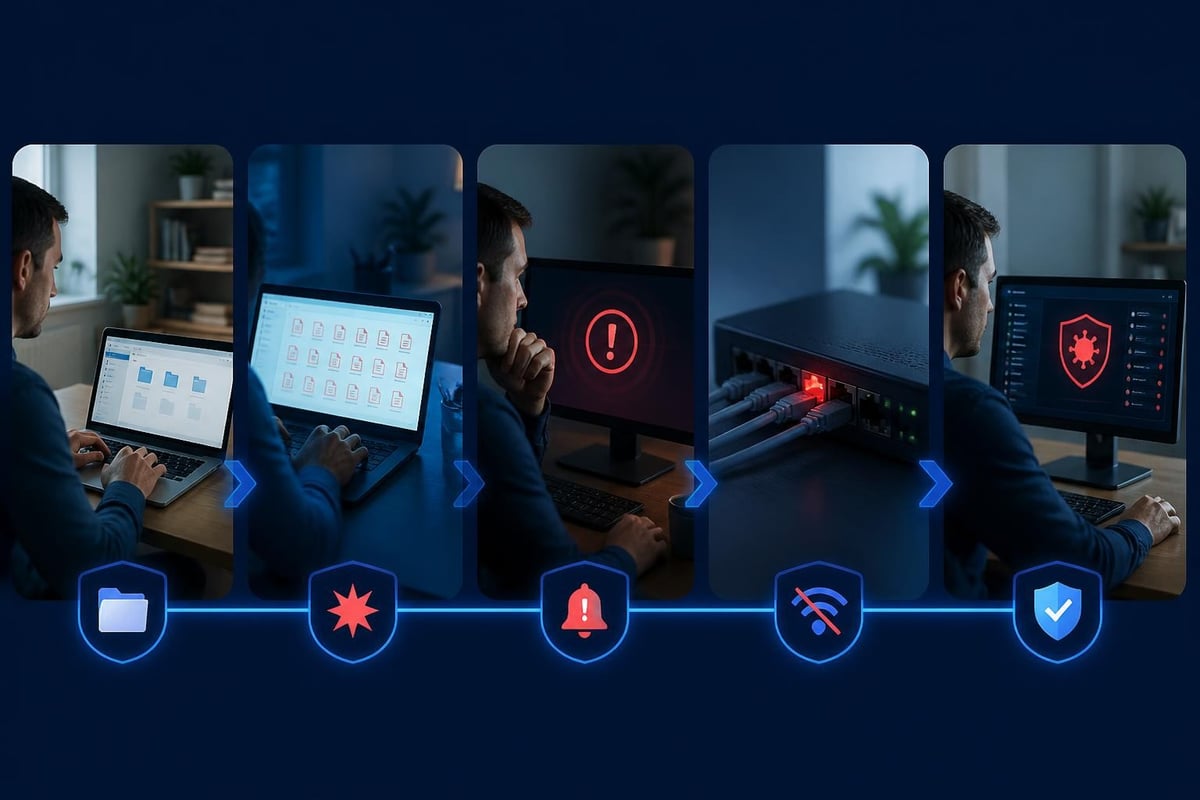
For small businesses, ransomware behaviour detection is particularly valuable. You might not have dedicated IT staff, but you need protection that explains what's happening in plain language. Clear alerts that describe the threat and suggest actions help you respond confidently without technical training.
Protecting Wi-Fi, USB and Bluetooth connections
Your Windows 11 laptop connects through multiple channels, and each presents different security challenges. Wi-Fi networks broadcast your traffic through the air. USB devices can introduce malware or extract data. Bluetooth connections often bypass traditional security controls. Comprehensive cyber security methods monitor all three.
Wi-Fi security beyond passwords
Connecting to public Wi-Fi at cafes, airports or hotels exposes your laptop to interception and man-in-the-middle attacks. Even password-protected networks at co-working spaces can be monitored by other users. VPNs encrypt your traffic, making interception useless, but they don't detect if your PC is already compromised or if malware is communicating.
Effective Wi-Fi protection includes:
- Using WPA3 encryption on your home network
- Running a VPN when travelling (WireGuard protocol offers excellent speed and security)
- Monitoring which networks your PC has connected to previously
- Detecting rogue access points that mimic legitimate networks
- Watching for suspicious connections even when VPN is active
Network intrusion detection sees what happens after the VPN connection. If malware on your PC tries reaching a command server, the detection system alerts you regardless of encryption. This layered approach addresses both interception risks and infection risks.
USB and Bluetooth threat monitoring
USB devices can carry malware or execute attacks the moment you plug them in. BadUSB attacks disguise malicious devices as keyboards or network adapters. Bluetooth connections can expose file transfer services or allow unauthorized pairing. Most Windows 11 users don't monitor these connections unless something obviously goes wrong.
Cyber security methods for USB and Bluetooth include blocking unknown devices, logging all connection attempts and alerting you when new devices appear. If someone gives you a USB drive at a conference, your system should warn you before any files execute. If a Bluetooth device tries to pair without your initiation, you should see that attempt immediately.
Implementing Zero Trust principles on Windows PCs
Zero Trust architecture assumes no connection is trustworthy by default. The NIST Zero Trust Architecture guide explains how to verify every access request rather than trusting devices inside your network perimeter. For home users and small businesses, this translates to practical steps you can take on individual Windows 11 PCs.
Core Zero Trust practices:
- Verify every connection – don't assume programs are safe because they're installed
- Limit privileges – run programs with minimum necessary permissions
- Monitor continuously – watch for behaviour changes in trusted software
- Isolate when suspicious – disconnect compromised PCs immediately
- Assume breach – plan for detection and response, not just prevention
You don't need enterprise-grade infrastructure to apply Zero Trust thinking. Start by questioning whether each program really needs internet access. Use Windows 11's built-in firewall to block unnecessary connections. Monitor which programs are communicating and with whom. When you see unexpected behaviour, investigate before it escalates.
Network intrusion prevention brings Zero Trust to your daily computing. Instead of trusting that installed software will behave correctly, the system verifies behaviour against expected patterns. When deviations occur, you receive alerts with enough context to make informed decisions.

Threat intelligence and detection modules
Threat intelligence means knowing which IP addresses, domains and connection patterns are associated with attacks. Security researchers worldwide share information about command servers, phishing sites and malware distribution networks. Cyber security methods that incorporate threat intelligence can warn you before you visit a malicious site or block malware from calling home.
For Windows 11 users, threat intelligence works best when integrated into local detection. Cloud-based lookups can be slow or unavailable when you need them most. Systems that download updated threat data and match it locally provide faster protection without sending your browsing history to external servers.
Effective detection modules cover:
- Known malicious IP addresses and domains
- Suspicious connection patterns (high-frequency scanning, unusual ports)
- Geographic anomalies (connections to countries you don't do business with)
- Protocol violations (malformed packets, unexpected handshakes)
- Peer-to-peer activity that might indicate botnet participation
NetGuardian Pro demonstrates this approach with 14 specialized detection modules that run directly on your Windows 11 PC. Each module focuses on specific threat types, from ransomware behaviour to USB device monitoring, providing comprehensive coverage without overwhelming you with technical details. The system includes built-in threat intelligence that updates regularly, helping you stay protected against emerging threats while maintaining privacy since all analysis happens locally on your device.

The MITRE ATT&CK framework catalogs adversary tactics and techniques. Understanding common attack patterns helps developers build better detection and helps users recognize threats. You don't need to memorize attack techniques, but knowing that attackers follow predictable patterns helps you trust well-designed detection systems.
Managing alerts and reducing false positives
One challenge with comprehensive cyber security methods is alert fatigue. If your system generates dozens of warnings daily about normal behaviour, you'll start ignoring them. Effective detection balances sensitivity with usability through behavioural learning and clear communication.
Behavioural baselines learn what's typical for your specific PC. Your banking software connects to the same servers daily. Your email client checks for messages every few minutes. Your backup software uploads files overnight. After an initial learning period, the system recognizes these patterns as normal and focuses alerts on genuine anomalies.
| Alert Type | User Action Required | False Positive Risk |
|---|---|---|
| Known malware connection | Block and investigate | Very low |
| Unusual server contact | Review and decide | Medium |
| New USB device | Verify device | Low if you plugged it in |
| Rapid file encryption | Immediate action | Very low |
| Geographic anomaly | Check if legitimate | Medium |
Clear alerts explain what happened in plain language. Instead of "Connection to 185.220.101.42 blocked," you see "Bitcoin mining pool connection blocked – program: backgroundservice.exe." This context helps you decide whether the block was correct or whether you need to create an exception.
Securing small business networks with limited resources
Small businesses face the same threats as large enterprises but typically lack dedicated IT staff. Cyber security methods for this environment must be effective without requiring constant expert oversight. The CIS Critical Security Controls offer a prioritized approach that helps you focus efforts where they matter most.
Priority actions for small businesses:
- Maintain inventory of all devices and software
- Secure configurations for operating systems and applications
- Control administrative privileges
- Enable network monitoring on all Windows PCs
- Implement regular backup procedures
- Train staff on phishing and social engineering
Many small business owners believe they're too small to be targeted. Attackers disagree. Automated scanning tools probe every internet-connected device looking for vulnerabilities. Small businesses often have weaker defences than enterprises, making them attractive targets for ransomware and data theft.
Running intrusion detection on each Windows 11 business PC provides visibility you won't get from perimeter firewalls alone. When an employee clicks a phishing link, you want to know immediately. When malware attempts to spread from one PC to another, blocking that lateral movement contains the damage. Individual PC protection complements network security rather than replacing it.
Practical implementation means choosing tools that work for non-technical users. Alerts should be understandable. Controls should be straightforward. Support should be accessible when questions arise. One-time licensing with free updates removes budget uncertainty compared to subscriptions that increase annually.
Protection strategies for travellers
Travelling with your Windows 11 laptop exposes you to additional risks. Public Wi-Fi networks are rarely secure. Physical theft is more likely. Connecting to unfamiliar networks in hotels, conference centres or cafes requires extra vigilance. Cyber security methods for travellers emphasize encryption, monitoring and quick response to threats.
A VPN should be your first connection when joining any public network. The WireGuard protocol provides strong encryption with better performance than older VPN protocols, making it practical for video calls and large file transfers. Some security solutions include VPN functionality alongside intrusion detection, simplifying your protection toolkit.
Beyond encryption, monitor what's happening on the connection. Is your PC scanning for network shares? Are programs attempting connections they don't make at home? Unfamiliar networks sometimes inject advertisements or redirect DNS queries. Detection systems that alert you to these manipulations help you stay informed.
Traveller security checklist:
- Enable VPN before connecting to any public Wi-Fi
- Verify network name with venue staff (avoid rogue access points)
- Watch for suspicious connection alerts
- Disable automatic Wi-Fi connection to prevent joining malicious networks
- Keep PC physically secure when leaving hotel rooms
- Review connection logs after travel to spot any compromise
Network isolation features let you disconnect your PC instantly if you detect a threat while travelling. Rather than troubleshooting while connected to a potentially hostile network, you can cut all network access and restore connectivity only after verifying your system is clean. This emergency response capability complements preventive measures.
Combining commercial tools with Windows 11 built-in security
Windows 11 includes solid baseline security: Microsoft Defender antivirus, Windows Firewall, BitLocker encryption and various hardening features. These built-in tools handle many common threats effectively. The question isn't whether to abandon them but rather what additional cyber security methods fill remaining gaps.
Microsoft Defender focuses on files and processes. Windows Firewall provides basic program-level network control. Neither offers detailed network behaviour monitoring or intrusion detection. Neither watches for ransomware encryption patterns. Neither helps you understand what's happening when suspicious activity occurs. These gaps create opportunities for specialized tools that complement rather than replace built-in protection.
Effective combination strategy:
- Keep Microsoft Defender active for file scanning and real-time protection
- Maintain Windows Firewall for basic program access control
- Add network intrusion detection for connection monitoring
- Enable BitLocker for disk encryption on laptops
- Use Windows Security Centre to review overall protection status
- Configure regular Windows updates for security patches
The ENISA Threat Landscape 2025 identifies ransomware, DDoS attacks and supply chain compromises as top threats. Windows 11's built-in tools address some of these, but network-level monitoring catches threats that file-based antivirus misses. Running complementary tools creates comprehensive protection without conflicts or performance degradation.
Incident response for home users and small businesses
Even with strong cyber security methods in place, you should prepare for potential incidents. Incident response means having a plan before something goes wrong. For home users and small businesses, this doesn't require complex playbooks, just clear steps you can follow under pressure.
Basic incident response steps:
- Detect – recognize that something unusual is happening
- Isolate – disconnect affected PC from network immediately
- Assess – determine what happened and extent of damage
- Contain – prevent spread to other devices or data
- Recover – restore from backups or rebuild if necessary
- Learn – understand what allowed the incident and prevent recurrence
The SANS Institute’s guidance on incident response playbooks explains how to structure response procedures. For smaller operations, focus on having contact information ready (IT support, security vendor support, backup service), knowing where backups are stored and understanding how to isolate compromised systems quickly.
Clear alerts make detection easier. When your intrusion detection system warns about ransomware behaviour, you can act immediately rather than discovering encrypted files hours later. When you see alerts about unusual server connections, you can investigate before data exfiltration completes. Early detection dramatically improves incident outcomes.
PC isolation features provide immediate containment. With one click, you can block all network access while keeping the PC running for investigation. This prevents malware from spreading, stops data theft in progress and gives you time to assess the situation calmly. After verification or cleaning, you can restore connectivity knowing the threat is contained.
Practical implementation for non-technical users
Many cyber security methods assume technical knowledge that most people lack. Effective protection for home users, families and small businesses without IT staff requires different design priorities: clarity over detail, guidance over options and confidence over complexity.
You shouldn't need to interpret packet captures or understand TCP flags to stay safe. Good security tools translate technical events into plain language. "A program is trying to connect to a known malware server" tells you what you need to know. "TCP SYN to 45.142.212.61:4444" doesn't help unless you're a network engineer.
User-friendly security features:
- Alerts that explain what happened and why it matters
- Recommended actions that match your technical level
- Allow/block controls that don't require networking knowledge
- Learning modes that reduce interruptions after initial setup
- Documentation written for normal people, not IT professionals
- Support that answers questions without condescension
The right cyber security methods work quietly in the background until something needs your attention. When alerts appear, they provide context and options. You can choose to block, allow or investigate further. The system trusts your judgment while giving you the information needed to decide wisely.
Home users and families benefit from security that accommodates multiple users with different technical skills. Parents might review alerts and make blocking decisions while children simply use their PCs. Small business owners might check security status weekly while employees focus on daily work. Flexible control levels support different roles and comfort levels.
Maintaining protection over time
Cyber security methods aren't set-and-forget solutions. Threats evolve. Software updates introduce new features and occasionally new vulnerabilities. Your usage patterns change. Maintaining effective protection requires periodic review and updates, but not constant attention.
Monthly security maintenance:
- Review alerts and blocked connections to verify accuracy
- Check for software updates (security tools and Windows)
- Verify backups completed successfully
- Remove old or unused programs that expand attack surface
- Review connected devices and remove unknown entries
Quarterly security tasks:
- Test backup restoration to verify backups actually work
- Review user accounts and remove unused ones
- Update passwords for critical accounts
- Review firewall rules and network access policies
- Assess whether current protection still matches your needs
Windows 11 handles many updates automatically. Security tools with automatic threat intelligence updates reduce manual maintenance. The key is balancing automation with oversight. You want updates to happen without intervention, but you should review security status regularly to catch configuration drift or emerging issues.
For small businesses, assign security review to a specific person, even if they're not IT staff. A business owner or office manager can dedicate 30 minutes monthly to check that protection is working correctly. This lightweight governance prevents security tools from being forgotten until an incident occurs.
Implementing effective cyber security methods doesn't require expert knowledge or expensive infrastructure. By combining network monitoring, ransomware behaviour detection, multi-channel protection and clear alerts, you can defend your Windows 11 PC against modern threats while maintaining usability. If you're looking for comprehensive network intrusion detection that complements your existing antivirus and works on individual Windows PCs, NetGuardian Pro provides 14 specialized detection modules, ransomware monitoring, threat intelligence and a built-in VPN with a one-time payment and no subscription required.
Related reading: Threat Intelligence Feeds for Network Security, Files Security: Protect Your Data from Ransomware and Theft, Protection Secure: Practical Windows Network Security.