What Are Web Scans and How Do They Work?
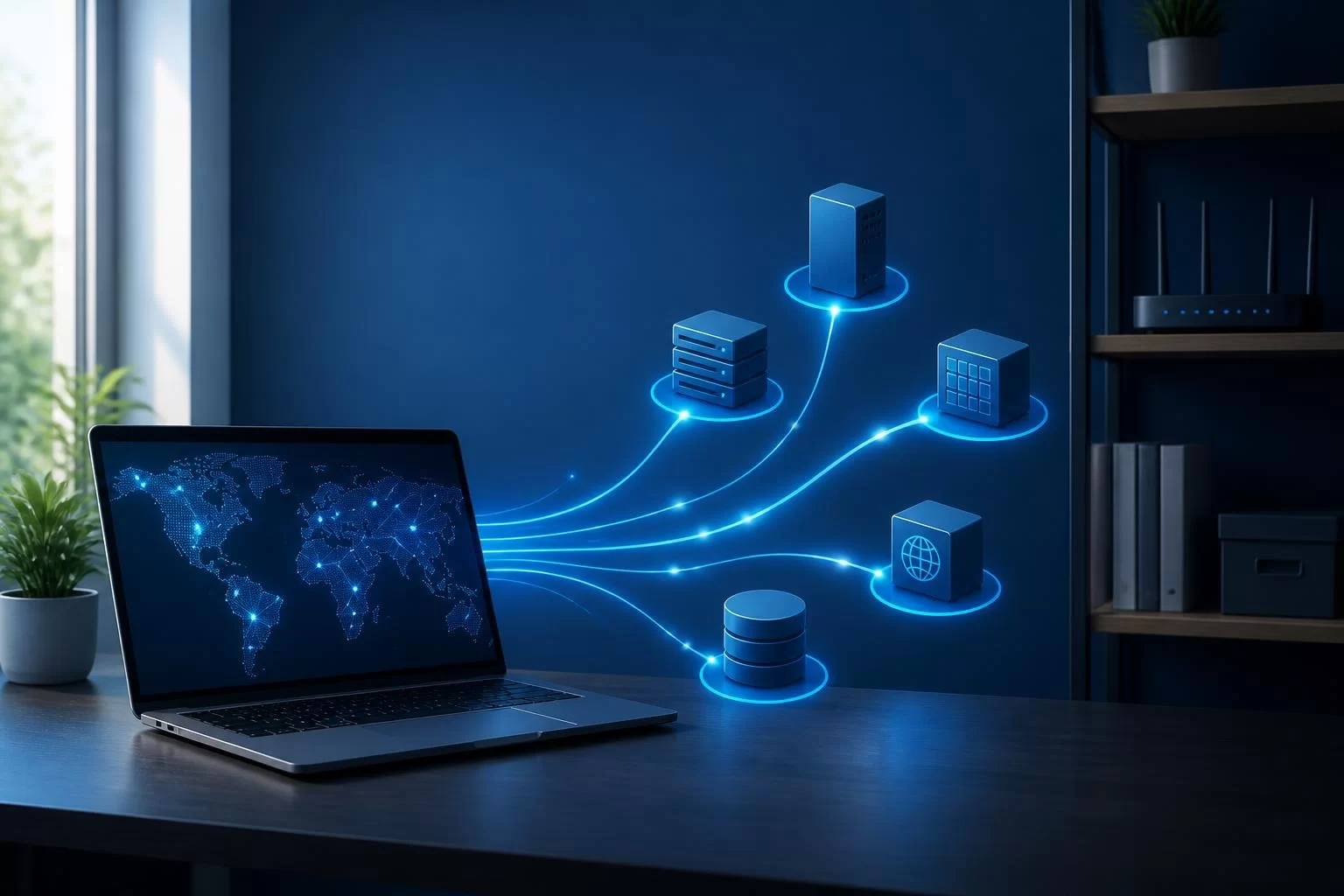
Web scans are automated processes that probe websites, servers and network services to discover information about them. Attackers use web scans to find vulnerable systems they can exploit, while security teams use the same techniques to identify and fix weaknesses before criminals find them. If you use Windows 11 at home or run a small business, understanding web scans helps you recognize when someone might be probing your network and what that activity means for your safety.
What web scans actually discover
When someone runs a web scan against a target, they're sending carefully crafted requests to see what responds. The scanner looks for open ports, running services, software versions and potential security gaps.
A basic web scan might check which ports are listening for connections. Port 80 typically means a web server is running, while port 22 suggests SSH access for remote administration. More sophisticated scans examine the responses to identify specific software and version numbers.
Web scans typically discover:
- Open ports and the services running on them
- Web server software and versions (Apache, Nginx, IIS)
- Operating system details and patch levels
- Web application frameworks and their versions
- Hidden directories and files
- Known vulnerabilities in detected software
The OWASP Web Security Testing Guide provides comprehensive methodologies for web application scanning and testing, showing both offensive and defensive perspectives.
Active versus passive scanning techniques
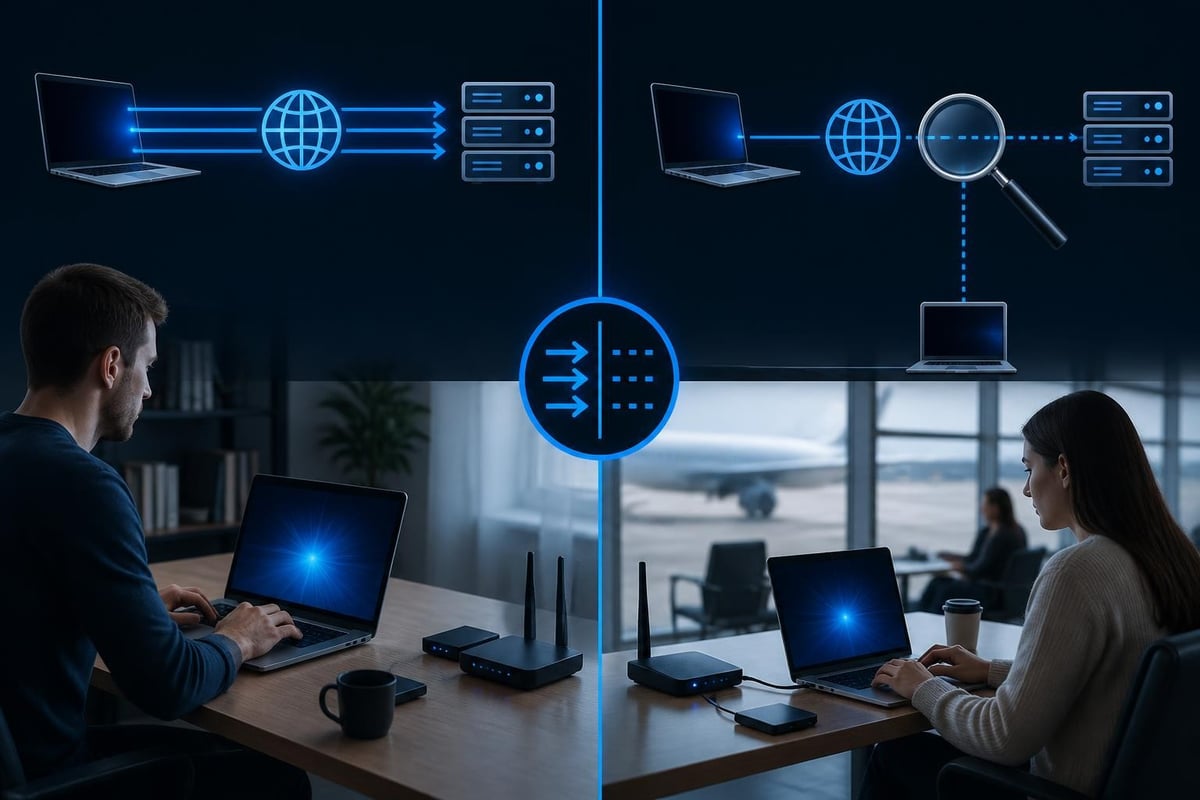
Active web scans send packets directly to the target system. This approach is fast and thorough but leaves clear traces in logs. If you monitor your network traffic, you'll see these connection attempts.
Passive scanning observes existing traffic without sending packets to the target. This method is stealthier but gathers less information. Attackers sometimes combine both approaches, starting with passive reconnaissance before switching to active probing.
How attackers use web scans to find targets
Criminals rarely attack systems randomly. They use web scans to build target lists, prioritizing systems with known vulnerabilities or weak configurations.
Internet-wide scanning campaigns run continuously. Research shows that large-scale Internet scanners like Shodan and Censys constantly probe the entire IPv4 address space, cataloguing every device that responds. When a new vulnerability becomes public, attackers scan for affected systems within hours.
Common attacker workflows:
- Scan large IP ranges to find systems with specific ports open
- Fingerprint the software running on discovered systems
- Cross-reference versions against vulnerability databases
- Prioritize targets with exploitable weaknesses
- Launch attacks against the most promising candidates
The MITRE ATT&CK framework categorizes active scanning as a reconnaissance technique that adversaries use before launching attacks. This helps defenders understand where scanning fits in the broader attack chain.
For Windows 11 users, this means your PC might be scanned simply because it has an IP address. If you're running services accessible from the internet or using public Wi-Fi, those scans happen regularly.
What scanners look for on home networks
Home networks present specific targets that web scans routinely probe. Attackers look for misconfigured routers, network-attached storage devices and IoT gadgets with default passwords.
Your Windows 11 PC itself might not run web services, but other devices on your network probably do. Smart home hubs, security cameras and printers all respond to network requests. Each one represents a potential entry point.
| Device Type | Common Vulnerable Ports | Typical Risks |
|---|---|---|
| Home routers | 80, 443, 8080 | Admin interfaces with default credentials |
| Network cameras | 554, 8000, 8001 | Weak authentication, outdated firmware |
| Smart home hubs | Various | Unpatched vulnerabilities, open APIs |
| Network storage | 139, 445, 5000 | SMB exposure, weak passwords |
| Printers | 631, 9100 | Information disclosure, open management |
If you travel for work or leisure, public Wi-Fi networks expose your laptop to web scans from other users on the same network. Coffee shop networks rarely isolate devices from each other, letting anyone run scans against your system.
Legitimate uses of web scanning
Not all web scans are malicious. Security professionals, researchers and businesses use the same tools to improve security rather than break it.
Organizations scan their own networks to find vulnerabilities before attackers do. This proactive approach, called vulnerability management, helps teams prioritize patches and configuration changes. Many compliance frameworks require regular scanning as part of security programs.
Legitimate scanning purposes:
- Security auditing: Finding weaknesses in your own systems
- Compliance verification: Proving you meet industry standards
- Research: Understanding Internet-wide trends and threats
- Asset discovery: Knowing what devices exist on your network
- Change detection: Spotting unauthorized services or modifications
The legal and ethical boundaries matter here. Academic research on web crawling and scraping explores when scanning crosses from permissible research into illegal access. Scanning systems you own is legal. Scanning systems you don't own without permission typically isn't.
How security tools perform scans
Security tools use various scanning engines to check for threats. Some focus on network-level scanning with tools like Nmap, which can discover ports and services across entire networks. Others specialize in web application testing, looking for SQL injection points or cross-site scripting vulnerabilities.
Research comparing vulnerability scanner performance shows significant differences in detection rates. No single scanner catches everything, which is why defense requires multiple layers.
For Windows 11 users, particularly those running small businesses, this means relying on scanning alone isn't enough. You need tools that monitor ongoing activity, not just check for problems at a single point in time.
What web scans reveal about your network
When someone scans your network, they learn more than you might expect. Even a simple port scan reveals which services you're running and potentially which devices are online.
Version information is particularly valuable to attackers. If a scan shows you're running Apache 2.4.49, the attacker knows exactly which exploits to try. That specific version had a path traversal vulnerability that allowed remote code execution.
Banner grabbing and service fingerprinting
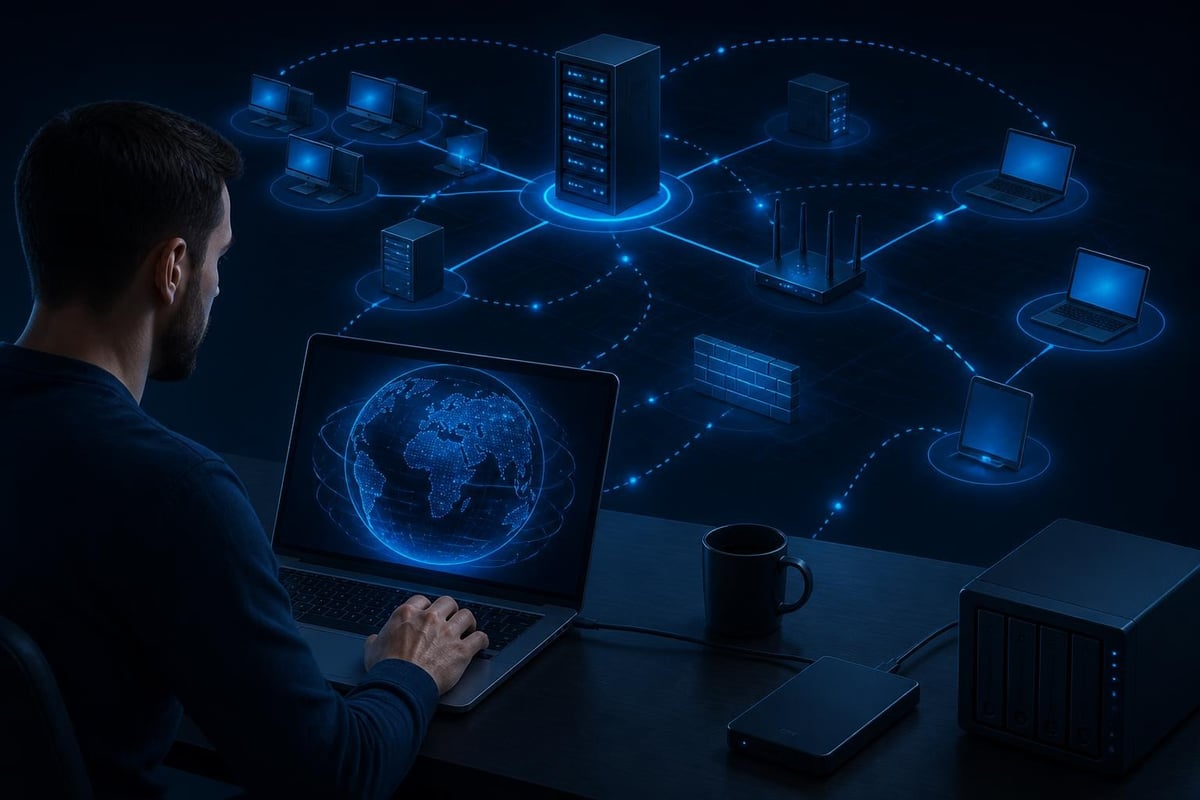
Many services announce their identity when you connect. Web servers often send banners that include software names and version numbers. This banner grabbing gives attackers instant intelligence about potential vulnerabilities.
Service fingerprinting goes deeper, analyzing how services respond to various requests. Different software versions react differently to malformed packets or edge cases. By testing these responses, scanners can identify software even when banners are hidden.
What fingerprinting reveals:
- Exact software versions and patch levels
- Operating system type and version
- Network device manufacturers
- Potential security hardening measures
- Service configurations and enabled features
You can reduce information disclosure by configuring services to hide version details, but determined attackers can still fingerprint based on behavior patterns.
Protecting Windows systems from hostile scans
While you can't prevent all web scans, you can reduce what they reveal and limit their effectiveness. For Windows 11 users, this starts with understanding what's listening on your network.
Your Windows firewall blocks most incoming connections by default, which is good. However, some applications create firewall rules when installed, opening ports you might not know about. Remote desktop, file sharing and various business tools all create entry points.
Practical protection steps:
- Review firewall rules regularly – Open Windows Security, check Firewall & network protection, and examine which apps have network access
- Disable unnecessary services – Turn off Remote Desktop, file sharing and other features you don't actively use
- Keep software updated – Windows Update handles the OS, but you need to update third-party applications manually
- Use a VPN on public networks – This hides your actual system from other users on shared Wi-Fi
- Monitor unusual connection attempts – Watch for repeated failed access attempts or connections to unexpected ports
NetGuardian Pro takes this further by actively monitoring network connections on your Windows 11 PC. Its 14 detection modules watch for scanning behavior, unusual connection patterns and threats across Wi-Fi, USB and Bluetooth. When you're travelling and using public networks, the built-in WireGuard VPN adds another protection layer while the monitoring continues underneath.
Recognizing scan activity in your logs
Windows keeps connection logs, though they're not always easy to interpret. Event Viewer shows security events, including failed login attempts and blocked connections.
What does scan activity look like? You'll see multiple connection attempts from the same source IP in quick succession, often to different ports. The attempts typically fail because your firewall blocks them, but the pattern is distinctive.
| Log Entry Pattern | Likely Meaning | Action to Consider |
|---|---|---|
| Rapid connections to sequential ports | Port scan | Normal if from your ISP or security service; investigate if repeated |
| Failed authentication attempts | Login guessing | Block the source IP; check for compromised passwords |
| Connections to ports you don't use | Service discovery | Verify firewall rules; check for unexpected applications |
| High volume from single source | Automated scanning | Usually blocked automatically; monitor for persistence |
Most scanning you'll see is automated and non-targeted. Your IP address sits in a range being scanned systematically. The scanner doesn't know or care who you are specifically.
Web scanning tools and how they work
Understanding the tools helps you think like both an attacker and a defender. The same software serves both purposes depending on who's using it and why.
Nmap is the most widely known network scanner. It sends packets to target systems and interprets the responses to determine what's running. Security professionals use it for legitimate network discovery. Criminals use the identical tool to find targets.
Popular scanning tools:
- Nmap: Network and port scanning, service detection, OS fingerprinting
- OWASP ZAP: Web application security testing, finds injection flaws and misconfigurations
- Nikto: Web server scanning, checks for dangerous files and outdated software
- Masscan: Ultra-fast port scanning, can scan the entire Internet in minutes
- SQLMap: Automated SQL injection detection and exploitation
Benchmark research on OWASP ZAP evaluates the effectiveness and limitations of automated web scanners. These tools find many vulnerabilities automatically, but they also miss subtle logic flaws and produce false positives.
The speed and scope of modern scanning
Modern scanning tools can probe millions of systems quickly. Masscan can transmit 10 million packets per second, letting attackers scan the entire IPv4 internet for a specific port in under an hour.
This speed explains why new vulnerabilities get exploited so fast. When researchers disclosed the Log4Shell vulnerability in December 2021, scanning for vulnerable systems began within hours. By the time many organizations heard about the problem, attackers had already compiled target lists.

For home users and small businesses, this means you can't rely on obscurity. Your system will be found and scanned. Your safety depends on being configured securely, not on hiding.
What happens after a scan finds something
Discovery is just the first step. Once web scans identify a vulnerable system, attackers decide whether to exploit it immediately or save it for later.
Many scanning operations build databases rather than attacking directly. The scan results get catalogued, indexed and searched when someone needs systems with specific characteristics. This is why services like Shodan exist – they continuously scan the internet and make the results searchable.
When attackers do exploit findings, the timeline varies. Critical vulnerabilities with public exploits get attacked within hours. Lesser vulnerabilities might sit in a database for months until someone needs that specific access.
Post-scan attack progression:
- Initial scan identifies open ports and services
- Follow-up scans fingerprint exact versions
- Vulnerability databases get cross-referenced
- Exploitation attempts begin on promising targets
- Successful compromises lead to deeper reconnaissance
- Attackers move laterally within the network
- Final objectives (ransomware, data theft) execute
Research on Certificate Transparency and its ecosystem effects shows how public records help attackers discover and target systems. CT logs, designed to improve security, also enable discovery of new systems within hours of deployment.
Scanning versus active attacks
You need to distinguish between scanning activity and actual attacks. Scans are reconnaissance – they gather information but don't damage systems or steal data directly.
Active attacks exploit discovered vulnerabilities. They might install malware, steal credentials, encrypt files or exfiltrate data. Scanning is the precursor that makes targeted attacks possible.
Think of web scans like someone walking through a neighborhood checking door locks. They're testing, not breaking in yet. An active attack is when they actually force a door open and enter your home.
Most systems experience constant scanning from automated tools that probe the entire internet. These scans are background noise. They're worth monitoring but not usually urgent threats by themselves.
The concern is what comes after the scan. If a scan reveals a serious vulnerability and you don't fix it, an attack will follow. The time between discovery and exploitation keeps shrinking as attack automation improves.
Why continuous monitoring matters more than periodic scans
Point-in-time scans show vulnerabilities at a specific moment. Continuous monitoring shows what's happening right now on your network.
For Windows 11 users, this distinction is important. Running a security scan monthly tells you about known vulnerabilities. Monitoring your network connections constantly shows you when something suspicious is actually happening.
Attackers don't wait for your next scheduled scan. They probe continuously, looking for windows of opportunity when you've misconfigured something or forgotten to update. The gap between your scans is when you're most vulnerable.
This is why network monitoring tools that work in real-time provide better protection for most people than periodic vulnerability scanning alone. You need both approaches, but continuous visibility into what's connecting to your PC catches problems as they develop.
Web scans are constant on modern networks, used by both attackers searching for vulnerabilities and defenders trying to find and fix them first. Understanding how scans work helps you recognize suspicious activity and take appropriate action. NetGuardian Pro monitors your Windows 11 PC's network connections continuously, alerting you to scanning behavior and suspicious patterns while giving you clear controls to block threats. Its 14 detection modules work alongside your antivirus to provide practical protection without requiring IT expertise.