
Net Scanning: What It Is and How to Protect Your Network
Net scanning is a technique that discovers devices, services and vulnerabilities across a network by sending packets and analysing responses. If you've ever wondered what's connected to your home or business network, or how attackers find targets before launching an intrusion, you're asking the right questions. Understanding net scanning helps you protect your Windows 11 PC and recognise suspicious activity when it happens. This article explains how scanning works, why both defenders and attackers use it, and what you can do to stay protected.
How net scanning discovers network devices
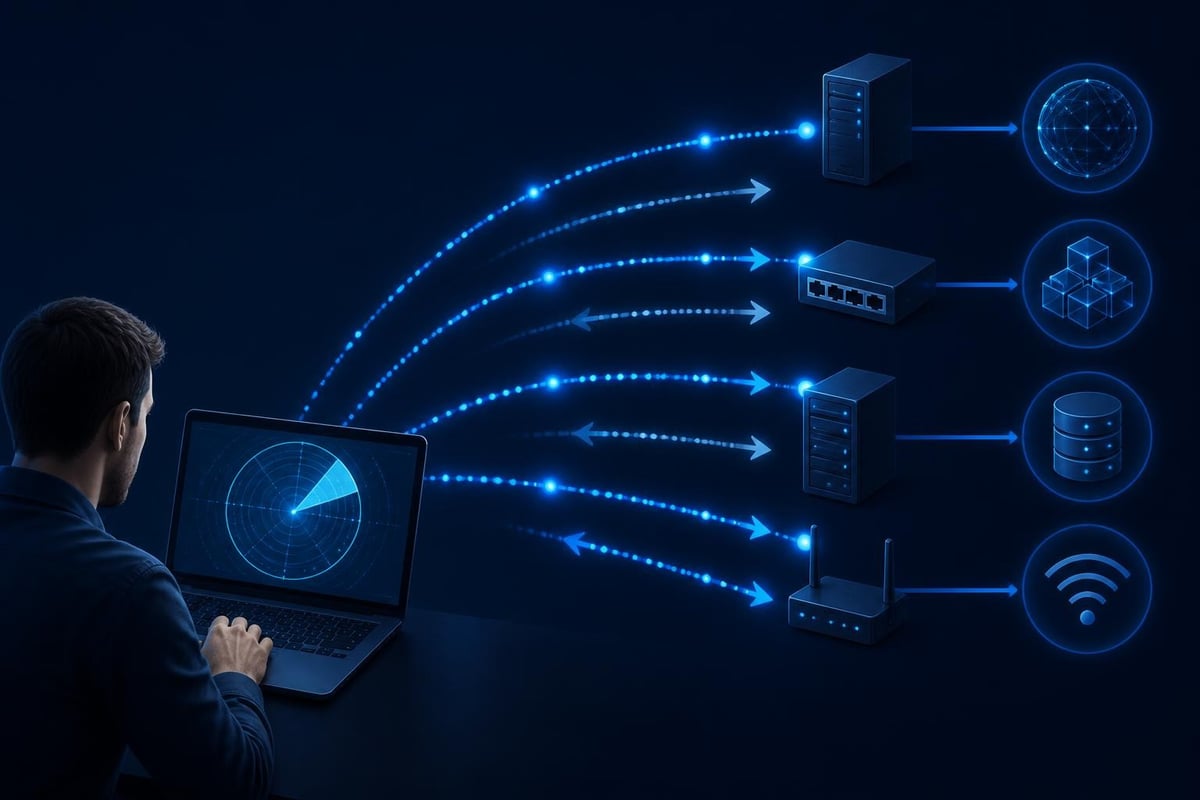
When you perform net scanning, your computer sends packets to a range of IP addresses and waits for replies. Devices that respond confirm they exist and often reveal which services they're running. This process is similar to knocking on every door in a street to see who's home.
Active versus passive discovery methods
Active scanning sends probes directly to target addresses. The scanner transmits specially crafted packets to check if a host is alive, which ports are open, and what software versions are running. This method is fast and thorough but creates detectable network traffic.
Passive scanning listens to existing network traffic without sending its own packets. It captures and analyses communications already happening, building a picture of the network over time. Passive methods are stealthier but slower and less complete.
Most scanning tools use active methods because they provide reliable, immediate results. The Nmap scanning guide documents dozens of scan types, each designed to reveal different information while adapting to firewalls and filters.
Why attackers scan networks before intrusion
Attackers rarely launch attacks blindly. They scan first to find vulnerable targets and plan their approach. Net scanning gives them a map of your network, showing which devices exist, what services they run, and where weaknesses might hide.
Reconnaissance saves time and increases success rates. An attacker scanning your network might discover:
- Windows PCs with Remote Desktop enabled
- Routers with default credentials
- File shares accessible without passwords
- Outdated software with known exploits
- Database servers exposed to the internet
Once they identify a weakness, they focus their efforts there. A single exposed service can become the entry point for ransomware, data theft or complete network takeover.
Common scanning patterns attackers use
Attackers often scan entire IP ranges looking for any vulnerable device. Internet-wide scans happen constantly-tools like Masscan and ZMap can scan the entire IPv4 internet in hours, probing billions of addresses for specific open ports.
Other attackers target specific regions or internet service providers. If you're in South Africa or the United States using residential broadband, your IP address sits within a range attackers know serves home users. They might scan your neighbourhood looking for webcams, routers or PCs with weak protection.
| Scan Type | Purpose | What It Reveals |
|---|---|---|
| Ping sweep | Find live hosts | Which IP addresses are active |
| Port scan | Identify services | What software is listening for connections |
| Version detection | Find vulnerabilities | Exact software versions with known flaws |
| OS fingerprinting | Profile targets | Operating system and device type |
The NIST guide to security testing describes how organizations use these same techniques defensively, but attackers employ them without permission or ethical constraints.
Legitimate uses of net scanning
Not all scanning is malicious. Network administrators, security professionals and even home users scan their own networks for good reasons.
Inventory and asset management helps you know what's connected. If you scan your home Wi-Fi and find twelve devices but only recognise ten, you've discovered a problem worth investigating. Small businesses use scanning to track laptops, printers, phones and IoT devices across their networks.
Vulnerability assessment finds weaknesses before attackers do. Security teams scan their own infrastructure regularly, looking for misconfigured services, missing patches or exposed admin panels. CISA offers vulnerability scanning services to help organizations find and fix internet-exposed risks.
Compliance and security policies often require regular scans. Many regulations demand that businesses know what's on their networks and prove they've addressed vulnerabilities. Scanning provides the evidence needed for audits and certifications.
Troubleshooting network problems sometimes requires scanning to identify conflicts, rogue DHCP servers or devices causing performance issues. You might scan to find which device is consuming excessive bandwidth or causing connection drops.

Port scanning and service enumeration explained
When you hear "net scanning," you're often hearing about port scanning. Every network service-web servers, email, file sharing, remote access-listens on a specific port number. Scanning these ports reveals what services a device offers.
Your Windows 11 PC has 65,535 possible TCP ports and another 65,535 UDP ports. Most stay closed, but some open when you run software that accepts network connections. Port scanning checks each one to see which respond.
How ports reveal network services
Common ports have standard purposes. Port 80 usually means a web server, port 443 indicates encrypted HTTPS, port 3389 signals Remote Desktop, and port 445 handles Windows file sharing. When a scanner finds these ports open, it knows what services to investigate further.
Service enumeration goes deeper than just finding open ports. After discovering that port 445 is open, an attacker might send additional probes to determine the exact Windows version, installed patches and available shares. This detailed information helps them choose the right exploit.
Modern scanning tools automate this process. They don't just report "port 445 open"-they tell you "Windows 11 Pro running SMB version 3.1.1 with anonymous access disabled." This precision helps defenders secure systems but also helps attackers find targets.
Scan types and their detection profiles
Different scan types balance speed, stealth and completeness:
- TCP connect scans complete full connections and work reliably but create obvious logs
- SYN scans send partial handshakes, running faster and staying quieter
- UDP scans check connectionless services but often produce unreliable results
- FIN, NULL and Xmas scans try to slip past simple firewalls using unusual flag combinations
Tools like NetGuardian Pro monitor your Windows 11 PC for these scanning patterns, detecting when someone probes your ports systematically and alerting you to potential reconnaissance activity before an attack begins.
Cloud environments and scanning permissions
If you run business services in cloud platforms, net scanning gets complicated by provider policies. Cloud providers generally prohibit scanning other customers' resources but allow scanning your own infrastructure with restrictions.
Amazon Web Services requires you to request permission for certain scan types and prohibits others entirely. You can scan your own EC2 instances for vulnerabilities, but aggressive scans resembling attacks might trigger automatic defences or account suspension.
Microsoft Azure and Google Cloud have similar policies. They want you securing your resources but don't want your scans disrupting the shared infrastructure or other tenants. Always check your cloud provider's acceptable use policy before scanning, even when targeting systems you own.
Small businesses moving to cloud services sometimes discover they can't use their familiar scanning tools without modification. This shift requires adjusting security practices and often relying more on provider-native security features.
Protecting yourself from malicious scans
You can't prevent attackers from scanning your IP address-scans happen constantly across the internet-but you can minimize what they learn and block their next steps.
Close unnecessary ports. Every open port is a potential target. If you don't need Remote Desktop accessible from the internet, disable it or restrict it to specific IP addresses. Check your router's port forwarding rules and remove entries you no longer use.
Use a firewall on every device. Windows 11 includes Windows Defender Firewall, which blocks unsolicited inbound connections by default. Don't disable it. Configure it to allow only the services you actually need.
Keep software updated. Version detection scans reveal outdated software with known vulnerabilities. Regular updates eliminate these easy targets and force attackers to work much harder.
Monitor for scanning activity. Logs showing connection attempts to multiple ports in quick succession indicate reconnaissance. Intrusion detection software can alert you when someone systematically probes your network.
| Protection Layer | What It Does | Example Implementation |
|---|---|---|
| Router firewall | Blocks inbound scans | Disable UPnP, review port forwards |
| PC firewall | Controls application network access | Windows Defender Firewall with strict rules |
| Intrusion detection | Alerts on scan patterns | NetGuardian Pro detection modules |
| Network segmentation | Limits lateral movement | Guest Wi-Fi separate from main network |

Ethical and legal considerations
Net scanning occupies a grey area legally. Scanning your own network is legal. Scanning networks you own or have written permission to test is legal. Scanning other people's networks without authorization is not.
Computer fraud laws in both the United States and South Africa can apply to unauthorized scanning. Even if you don't exploit what you find, unauthorized access to computer systems-which includes probing them to map their vulnerabilities-may violate criminal statutes.
The Menlo Report provides an ethical framework for Internet research, including guidelines for researchers conducting large-scale scans. It emphasizes respect for persons, beneficence, justice and respect for law and public interest. These principles apply to anyone scanning networks, not just academic researchers.
Terms of service violations can trigger account suspensions even when no law is broken. Most internet service providers prohibit using their networks to scan or attack others. Cloud providers enforce similar restrictions and may terminate accounts for policy violations.
If you need to scan networks professionally, obtain written permission, define the scope clearly, and follow established testing methodologies. Document everything and respect exclusions or restrictions the network owner specifies.
Internet-wide scanning and measurement research
Academic researchers and security organizations regularly scan the entire internet to measure adoption of security technologies, track malware infections or identify vulnerable systems at scale. These scans happen so quickly you might not notice them.
ZMap revolutionized internet measurement by enabling complete IPv4 scans in under an hour using a stateless approach that doesn't track individual connections. Researchers use it to answer questions like "How many devices still support outdated TLS versions?" or "What percentage of routers use default passwords?"
Recent research on highly responsive prefixes shows that some IP ranges respond to probes much more readily than others, creating measurement biases. If you operate networked devices, you might receive probe traffic from these research scans regularly.
Responsible disclosure follows these large-scale discoveries. When researchers find widespread vulnerabilities through scanning, they typically notify affected parties privately before publishing. This gives vendors and users time to patch before attackers exploit the same weaknesses.
Organizations like CISA and CERT teams coordinate these notifications, but the scale often overwhelms their capacity. If you operate internet-connected services, consider subscribing to vulnerability feeds and security bulletins relevant to your software.
Scanning on public Wi-Fi networks
Travelling with your Windows 11 laptop exposes you to network scanning risks in coffee shops, hotels and airports. Other users on the same public Wi-Fi can scan your device just as easily as you can scan theirs.
Open Wi-Fi lacks encryption between devices. Even if you need a password to join the network, traffic between devices isn't protected. Someone nearby can capture your network traffic and scan your PC for vulnerabilities.
Isolation features on better public networks prevent devices from seeing each other, but you can't rely on this protection. Many public networks don't implement isolation, and attackers sometimes set up rogue access points that look legitimate but offer no protection.
Practical protection while travelling
When you connect to public Wi-Fi:
- Enable your VPN immediately before accessing any services
- Disable file and printer sharing in Windows network settings
- Use the "Public network" profile which applies stricter firewall rules
- Avoid accessing sensitive accounts unless necessary
- Monitor connection attempts for unexpected scanning activity
A VPN encrypts your traffic and hides your real IP address from other network users. This doesn't prevent scans against your device on the local network but makes it much harder for attackers to intercept your communications or identify you as a valuable target.
Small business network security considerations
Small businesses face the same scanning threats as home users but with higher stakes. A compromised business network can leak customer data, interrupt operations or provide attackers with a platform to target your clients.
Network segmentation limits damage from successful scans. Put customer-facing services, office workstations and back-office systems on separate network segments. If attackers breach one area, they must break through additional barriers to reach critical assets.
Regular security assessments include scanning your own network from both internal and external perspectives. External scans show what attackers see from the internet. Internal scans reveal what a compromised device could access.
Access control policies restrict which devices can reach which services. Your accountant's laptop doesn't need access to the web server, and your public Wi-Fi guests shouldn't reach internal file shares. These restrictions make net scanning less useful to attackers because even discovered services remain unreachable.
Understanding false positives and scan artifacts
Not every scan detection indicates a real attack. Network scanning triggers alerts frequently, and learning to distinguish serious threats from noise matters for effective security.
Port scans from your own devices happen regularly. Windows Update checks for connectivity, security software validates its licensing, and legitimate applications communicate with their servers. These activities sometimes resemble scanning patterns.
Internet background radiation includes constant scanning from botnets, security researchers and misconfigured systems. Your PC receives scan attempts continuously simply by being online. Most bounce harmlessly off your firewall.
Automated security checks from your internet service provider, cloud provider or security vendor might scan your network. These scans aim to help you by identifying exposed services, but they can trigger intrusion detection alerts if you're not expecting them.
Learning your network's normal behavior helps distinguish real threats from false alarms. Software that learns your usage patterns can reduce alert fatigue while still catching genuine reconnaissance attempts.
Net scanning reveals the structure and vulnerabilities of networks, making it both a valuable security tool and a reconnaissance technique attackers use before launching intrusions. By understanding how scanning works and implementing layered defences-firewalls, monitoring and secure configurations-you protect your Windows 11 PC and business network from most scanning-based threats. NetGuardian Pro helps you detect scanning patterns targeting your PC, alerting you to suspicious reconnaissance activity so you can respond before attackers find a way in.
About the author. Published by Joel Papenfus, founder of NetGuardian and creator of NetGuardian Pro. The sources this post draws on are linked in the post. Reviewed and checked by Joel on 1 October 2026.