Laptop Security: Practical Steps to Protect Your Device
Your laptop holds personal files, work documents, passwords and financial records. Whether you use it at home, in a coffee shop or while travelling, keeping it secure requires more than a single antivirus scan. Laptop security involves physical protection, strong authentication, encrypted storage and network monitoring. This guide walks through the practical steps that Windows 11 users can take to protect their devices from theft, unauthorised access and network-based threats.
Physical protection and device access
Laptop theft remains one of the most common security risks. A stolen device exposes everything stored on it, from saved passwords to private emails. Keeping your laptop physically secure is the first layer of defence.
Lock your screen whenever you step away. Windows 11 lets you set a screen timeout (Settings → Accounts → Sign‑in options → Dynamic lock), but manually locking (Windows key + L) is faster. Use a strong PIN or password, not a simple four-digit code. Windows Hello face or fingerprint authentication adds convenience without sacrificing security.
When you travel, never leave your laptop unattended in public spaces. Cable locks work well in hotel rooms or shared offices. If you're working in a café, keep your laptop in sight and avoid leaving it on a table while you order. Thieves target distracted travellers, especially in airports.

Encryption protects data at rest
If your laptop is stolen, encryption ensures that files remain unreadable. Windows 11 Pro and Enterprise include BitLocker, a full-disk encryption tool. BitLocker encrypts your entire drive, so anyone who removes the hard drive or boots from a USB stick cannot access your files.
To enable BitLocker, open Settings → Privacy & security → Device encryption (or search "BitLocker" in the Start menu). You will need a Microsoft account or Active Directory domain, and your device must have a Trusted Platform Module (TPM) chip. Most modern Windows 11 laptops include TPM 2.0 by default. The NIST guidance on trusted computing and TPMs explains how hardware-backed encryption protects against unauthorised access.
Save your recovery key in a secure location away from the laptop itself. Without it, you cannot recover your files if you forget your password or the device fails.
macOS users have FileVault for similar protection. Apple's FileVault deployment guide covers setup and enterprise management.
Network connections and intrusion risks
Your laptop connects to networks constantly: home Wi-Fi, office LANs, public hotspots, Bluetooth peripherals and USB devices. Each connection is a potential entry point for attackers. Laptop security depends on monitoring what connects and detecting suspicious activity.
Public Wi-Fi is convenient but risky. Attackers on the same network can intercept unencrypted traffic, inject malicious content or redirect you to fake login pages. Always use a VPN when connecting to public networks. A VPN encrypts your traffic so others on the network cannot see your activity. The CISA guidance on modern network access security recommends VPNs as one component of secure remote access.
| Threat | Public Wi-Fi | Home Wi-Fi | Corporate VPN |
|---|---|---|---|
| Unencrypted traffic interception | High | Low | Very low |
| Man-in-the-middle attacks | High | Medium | Very low |
| Malicious hotspot impersonation | High | N/A | N/A |
| Unauthorised device access | Medium | Low | Very low |
At home, secure your Wi-Fi router with WPA3 encryption (or WPA2 if WPA3 is unavailable). Change the default administrator password and disable WPS (Wi-Fi Protected Setup), which attackers can exploit. Keep the router firmware updated, as manufacturers release patches for discovered vulnerabilities.
USB and Bluetooth risks
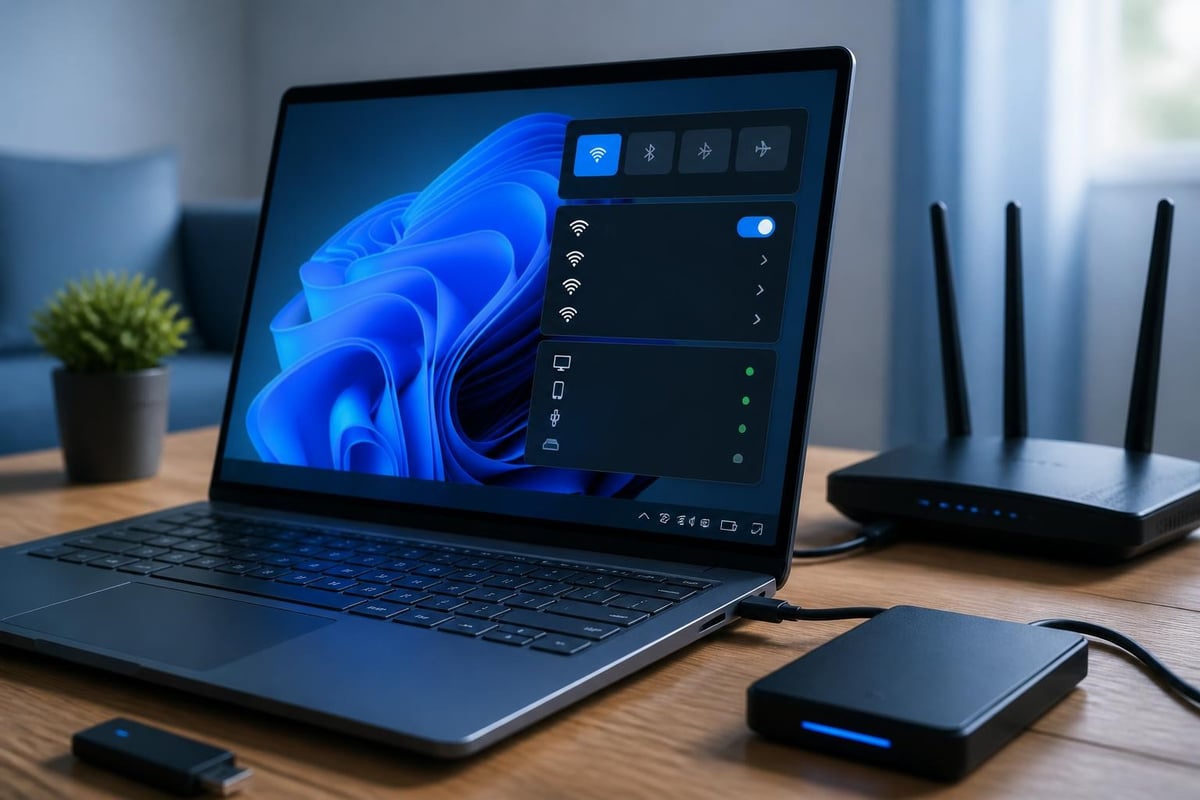
USB devices can deliver malware or exfiltrate data. Attackers leave infected USB sticks in public places, hoping someone will plug them in. Once connected, malicious firmware can install ransomware, steal files or create a backdoor. Windows 11 offers some USB controls through Group Policy, but home users should simply avoid plugging in unknown devices.
Bluetooth is another overlooked risk. Wireless keyboards, mice and headsets connect automatically, but so can unauthorised devices if Bluetooth is left discoverable. Turn off Bluetooth when you don't need it, and remove paired devices you no longer use.
Intrusion detection and network monitoring
Antivirus software scans files for known malware signatures, but it doesn't show you which applications are connecting to the internet or alert you when an unusual device joins your network. Network intrusion detection monitors connections in real time and flags suspicious behaviour.
This is where dedicated network security tools add value. NetGuardian Pro runs 14 detection modules on your Windows 11 laptop, watching Wi-Fi, USB and Bluetooth activity for signs of intrusion. It monitors ransomware behaviour, provides clear alerts and gives you blocking controls without requiring IT expertise. The built-in WireGuard VPN protects your traffic when you connect to public networks. NetGuardian Pro complements your antivirus rather than replacing it, focusing on network threats that traditional antivirus misses.

Look for tools that explain what triggered an alert. Generic warnings ("suspicious activity detected") don't help you decide whether to block a connection. Good intrusion detection tells you which application or device is involved, what it's trying to access and why the behaviour is unusual. This transparency lets you investigate and act with confidence.
Behavioural monitoring and false alarms
Traditional signature-based detection misses new or modified threats. Behavioural monitoring watches how applications and connections behave, flagging actions that deviate from normal patterns. For example, if a document editor suddenly starts encrypting hundreds of files, that's ransomware behaviour, even if the malware is brand new.
The challenge with behavioural detection is false positives. Legitimate software updates, backup tools and system maintenance can trigger alerts. A learning phase helps the system understand your normal activity. Over time, you see fewer false alarms and more meaningful warnings.
Ransomware behaviour and data backup
Ransomware encrypts your files and demands payment for the decryption key. It spreads through phishing emails, malicious downloads and unpatched vulnerabilities. Laptop security includes recognising ransomware behaviour before it completes encryption.
Signs of ransomware activity:
- Sudden mass file encryption or renaming
- Unexpected spikes in disk write activity
- Network connections to known command-and-control servers
- Privilege escalation attempts
- Deletion of shadow copies or backups
Behavioural monitoring can detect these patterns and alert you immediately. If an alert appears, disconnect from the network to prevent spread, then investigate.
The ENISA Threat Landscape 2024 highlights ransomware as a top endpoint threat. Their recommended defences include regular backups, timely patching and peripheral device controls.
Backups are your last line of defence. Keep at least one offline backup that ransomware cannot reach. External drives work if you disconnect them after each backup. Cloud storage with versioning (such as OneDrive or Google Drive) lets you restore previous file versions if ransomware encrypts the current copies.
Test your backups. A backup that fails during recovery is worthless.
Software updates and patch management
Unpatched software is one of the easiest ways for attackers to compromise your laptop. Vulnerabilities in Windows, browsers, office applications and plugins are discovered regularly. Updates close these security gaps.
Windows 11 installs updates automatically by default. Don't postpone them indefinitely. Security patches often fix actively exploited vulnerabilities. Restart your laptop when prompted, or schedule restarts during off-hours.
Enable automatic updates for:
- Web browsers (Edge, Chrome, Firefox): updates include fixes for JavaScript engine exploits and certificate validation flaws
- PDF readers: attackers embed malicious code in PDF files, so keep Adobe Reader or alternative readers current
- Office suites: macro-based malware remains a common attack vector
- Media players and codecs: older versions have memory corruption bugs
The NCSC device security guidance recommends automatic updates as a baseline control for endpoint security.
Third-party applications are harder to manage. Some notify you of updates, others require manual checks. Uninstall software you no longer use to reduce your attack surface.
A Windows 11 laptop displaying the Windows Update settings screen with pending security patches and automatic update configuration, emphasising the importance of keeping software current
Application and supply-chain risks
Not all software comes from trustworthy sources. Attackers distribute trojanised versions of popular applications on unofficial download sites. Always download from the developer's official website or the Microsoft Store.
Review application permissions before installation. A calculator app doesn't need access to your camera or location. Windows 11 shows permission requests during installation and in Settings → Privacy & security.
The OWASP Mobile Top 10 includes insecure storage, weak cryptography and supply-chain risks. These threats apply equally to laptop applications. Check developer reputations, read reviews and verify digital signatures when possible.
Authentication and password hygiene
Weak or reused passwords undermine every other security measure. If an attacker cracks your password, they bypass encryption, VPNs and firewalls.
Use a unique, strong password for each account. A password manager (such as Bitwarden, 1Password or the built-in Windows password manager) generates and stores complex passwords so you don't have to remember them. Protect the password manager itself with a strong master password and enable two-factor authentication.
Two-factor authentication (2FA) adds a second step after your password: a code from an app, a hardware token or a biometric check. Even if someone steals your password, they cannot log in without the second factor. Enable 2FA for email, banking, cloud storage and any account that stores sensitive information.
Windows Hello offers biometric authentication (face or fingerprint) backed by TPM hardware. This is faster and more secure than typing a password. Set up a recovery PIN in case the biometric sensor fails.
Incident readiness and response
Despite your best efforts, you may encounter a security incident. Laptop security includes knowing what to do when something goes wrong.
If you suspect an intrusion:
- Disconnect from the network (turn off Wi-Fi and unplug Ethernet) to prevent further access or data exfiltration.
- Document what you observed: unusual pop-ups, slow performance, unexpected network activity or files you didn't create.
- Run a full antivirus scan using up-to-date definitions.
- Check recently installed applications and browser extensions for anything unfamiliar.
- Review active network connections in Task Manager (Ctrl + Shift + Esc → Performance → Open Resource Monitor → Network).
- Change passwords for critical accounts once you're certain the device is clean.
Keep contact details for IT support or a trusted technician. If you run a small business, consider an incident response plan that outlines roles, communication steps and data recovery procedures. The SANS cloud security guidance includes checklists for anti-malware, backups and incident readiness.
For home users, document your important accounts and backup locations. If your laptop is compromised or stolen, you'll recover faster with a written list of what needs attention.
Browser security and web-based threats
Most laptop security incidents start with a web browser. Phishing links, drive-by downloads and malicious ads exploit browser vulnerabilities or trick you into installing malware.
Modern browsers include built-in protections. Microsoft Edge and Google Chrome warn you before visiting known phishing or malware sites. Firefox offers Enhanced Tracking Protection. Keep these features enabled.
Install an ad blocker to reduce exposure to malicious advertising. Ads on legitimate websites sometimes serve malware through compromised ad networks. Blocking ads reduces this risk and speeds up page loading.
Avoid browser extensions from unknown developers. Extensions run with elevated permissions and can read your browsing history, inject code into web pages or steal credentials. Review installed extensions regularly and remove any you don't actively use.
Use separate browser profiles for work and personal browsing. This limits the damage if one profile is compromised and prevents accidental data mixing (such as logging into a personal account on a work-related site).
Travel-specific laptop security
Travelling introduces additional risks: unfamiliar networks, physical theft, border searches and shoulder surfing.
Before you travel:
- Enable full-disk encryption
- Back up critical files and verify the backup
- Remove sensitive data you don't need for the trip
- Update all software
- Enable a VPN client
While travelling:
- Use a privacy screen filter to prevent shoulder surfing on planes and in public spaces
- Avoid charging from public USB ports (use a wall adapter or a USB data blocker)
- Connect only to networks you trust; confirm the network name with hotel or café staff
- Activate your VPN before connecting to public Wi-Fi
After travelling:
- Scan your laptop for malware
- Change important passwords if you connected to untrusted networks
- Review installed applications for anything unexpected
Some countries inspect laptops at borders. Know your rights and your employer's policies. Consider travelling with a clean device and accessing files through secure cloud storage.
Small business laptop security policies
If you run a small business, securing employee laptops protects customer data and business operations. You don't need an IT department to implement basic policies.
Create a written security policy that covers:
- Acceptable use (personal vs. business use)
- Mandatory encryption and screen locks
- Patch and update schedules
- Password requirements and 2FA
- Procedures for lost or stolen devices
- Backup responsibilities
Provide employees with the tools they need: VPN access, password managers and clear instructions. Make security part of onboarding and periodic training.
Consider device management software for larger teams. Windows 11 supports Mobile Device Management (MDM) through Microsoft Intune or third-party solutions. MDM lets you enforce encryption, push updates and remotely wipe lost devices.
| Control | Home user | Small business | Managed environment |
|---|---|---|---|
| Encryption | Recommended | Required | Enforced by policy |
| VPN | Recommended for travel | Required for remote work | Enforced for all external access |
| Patch schedule | Automatic | Weekly review | Centrally managed |
| Password policy | Unique, strong | Unique, strong, 2FA | Enforced complexity, 2FA required |
| Backup | Personal responsibility | Daily automated | Centrally managed, tested recovery |
Laptop security for small businesses balances protection with productivity. Overly restrictive controls frustrate employees and reduce compliance. Focus on the highest-impact measures: encryption, patching, authentication and network monitoring.
Laptop security is a layered approach that combines physical protection, strong authentication, encrypted storage, regular updates and network monitoring. Whether you work from home, travel frequently or run a small business, these practical steps reduce your risk without requiring deep technical knowledge. NetGuardian Pro helps Windows 11 users monitor network threats in real time with clear alerts and straightforward controls, complementing your antivirus to give you a fuller picture of what's connecting to your device.