
Home Network Protection: Practical Security for 2026
Your home network is the gateway between your personal devices and the internet. Every smartphone, laptop, smart TV and IoT device connects through your router, creating opportunities for attackers to exploit weak security, intercept data or gain unauthorised access to your Windows 11 PC. Home network protection involves securing that gateway, monitoring the devices connected to it and detecting suspicious activity before it escalates into data theft or ransomware. You don't need an IT degree to take control, just a clear understanding of what to check and when to act.
Understanding your home network's entry points
Your router is the first line of defence. It assigns local IP addresses, manages traffic and determines which devices can communicate. If an attacker compromises your router, they can redirect your browsing, intercept passwords or inject malicious code into unencrypted connections.
Most routers ship with default administrator credentials like "admin/admin" or "admin/password". Research from Vrije Universiteit Amsterdam found that many home routers remain exposed by default, with weak passwords, outdated firmware and unnecessary services enabled. Changing your router's admin password is the single most effective step you can take today.
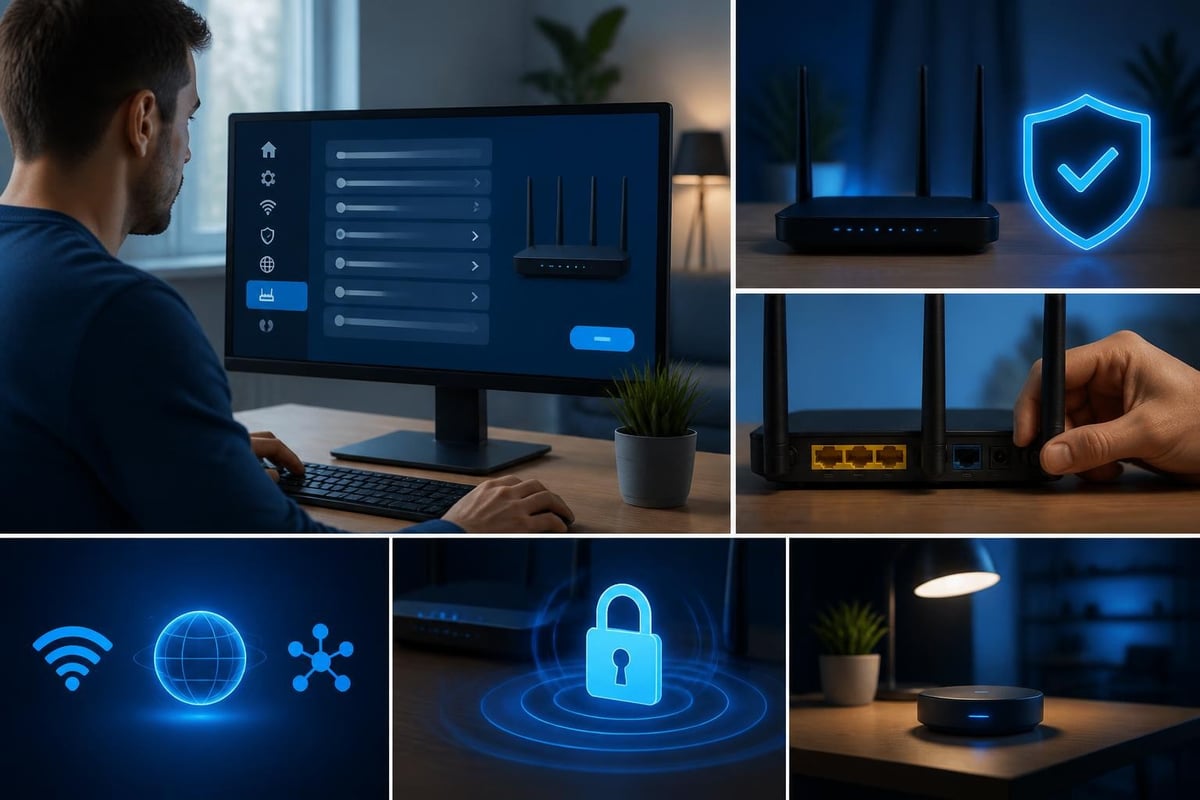
Router hardening checklist
Follow these steps to secure your router:
- Log in to your router's admin panel using the IP address printed on the device (often 192.168.0.1 or 192.168.1.1).
- Change the default username and password to a unique passphrase stored in a password manager.
- Update the firmware to the latest version. Check your manufacturer's support page for instructions.
- Disable WPS (Wi-Fi Protected Setup), which is vulnerable to brute-force attacks.
- Enable WPA3 encryption if your router supports it, or WPA2-AES as a minimum.
- Turn off remote management unless you specifically need it and understand the risks.
- Review connected devices regularly and remove any you don't recognise.
The NIST has published recommended cybersecurity requirements for consumer-grade routers that cover firmware integrity, supply-chain transparency and secure defaults. While these guidelines target manufacturers, they give you a benchmark to assess whether your current router meets modern standards.
Monitoring connected devices and unauthorised access
Your router's device list shows every gadget connected to your Wi-Fi. Most routers label devices by MAC address, manufacturer or hostname. If you see unfamiliar entries, investigate immediately.
Common signs of unauthorised access:
- Devices you don't recognise in the connected-devices list
- Slow internet speeds despite normal usage
- Router logs showing login attempts from unknown IP addresses
- Unexpected changes to DNS settings or firewall rules
| Indicator | Likely cause | Action |
|---|---|---|
| Unknown device on Wi-Fi | Neighbour or attacker using your password | Change Wi-Fi password, enable MAC filtering |
| Router admin login from external IP | Brute-force attempt or compromised credentials | Disable remote management, change admin password |
| DNS server changed | Malware on a connected device or router compromise | Reset router to factory defaults, scan all devices |
Home network protection extends beyond the router. Each device on your network can become a pivot point if compromised. Smart cameras, thermostats and voice assistants often run outdated software with known vulnerabilities. The OWASP Internet of Things project documents common weaknesses, including hard-coded credentials, lack of encryption and missing update mechanisms.
Securing IoT devices and peripherals
Isolate IoT devices on a guest network if your router supports it. This prevents a compromised smart bulb from accessing your Windows 11 laptop or file shares.
The FTC provides guidance on securing home security cameras, which applies equally to other connected devices: change default passwords, enable two-factor authentication where available and disable features you don't use (such as cloud storage or remote viewing).
Steps to reduce IoT risk:
- Create a separate SSID for smart home devices
- Disable UPnP on the router to prevent automatic port forwarding
- Check manufacturer websites monthly for firmware updates
- Turn off devices when not in use, especially cameras and microphones
Detecting network intrusions on Windows 11
Antivirus software scans files and processes for malware signatures, but it doesn't monitor network connections in real time. An attacker on your local network can attempt lateral movement, exploit SMB vulnerabilities or launch man-in-the-middle attacks without triggering traditional antivirus alerts.
NetGuardian Pro addresses this gap by running 14 detection modules directly on your Windows 11 PC. It monitors Wi-Fi, USB and Bluetooth connections, detects ransomware behaviour patterns and provides clear alerts when suspicious activity occurs. Because it complements rather than replaces antivirus, you maintain multiple layers of defence.
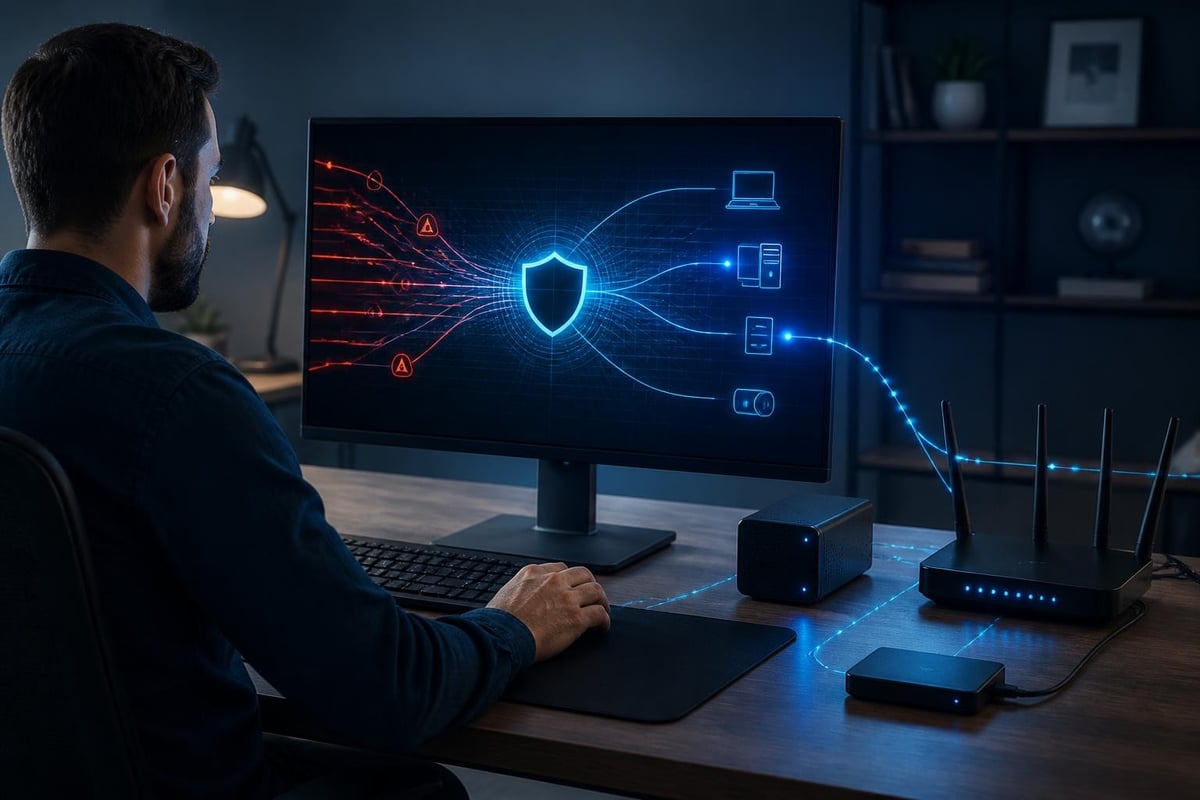
What to monitor on your PC
Even with a hardened router, your Windows 11 device needs endpoint monitoring. Attackers can exploit vulnerabilities in network services, attempt password spraying against SMB shares or use tools like Responder to capture credentials on the local network.
Key network threats to your Windows 11 PC:
- ARP spoofing: An attacker impersonates your router to intercept traffic
- Port scanning: Automated tools probe your device for open services
- SMB relay attacks: Credentials captured and replayed to gain access
- Rogue DHCP servers: Malicious device assigns itself as your gateway
- Bluetooth and USB exploits: Physical-proximity attacks on wireless interfaces
Traditional firewalls block inbound connections but may not alert you to reconnaissance attempts or unusual outbound traffic. The CIS Benchmarks provide detailed configuration baselines for Windows 11, including firewall rules, service hardening and logging settings that help you establish a secure baseline.
Protecting your network during travel and remote work
Public Wi-Fi at coffee shops, hotels and airports is inherently untrusted. Anyone on the same network can monitor unencrypted traffic, perform packet injection or serve fake login pages to steal credentials. A VPN encrypts your connection between your device and the VPN server, making interception far more difficult.
However, as Krebs on Security explains in Why Your VPN May Not Be as Secure as It Claims, not all VPN services offer equal protection. Some leak DNS queries, others maintain logs that can be subpoenaed and a few have been caught selling user data. Choose a VPN with a transparent privacy policy, open-source encryption and a no-logs commitment verified by independent audit.
VPN selection criteria
| Feature | Why it matters | What to check |
|---|---|---|
| Encryption protocol | Determines strength of protection | WireGuard or OpenVPN; avoid PPTP |
| Kill switch | Prevents leaks if VPN disconnects | Test by forcing a disconnect |
| DNS leak protection | Stops ISP from seeing your queries | Use dnsleaktest.org |
| Logging policy | Affects privacy and legal exposure | Independent audit preferred |
| Jurisdiction | Impacts data retention laws | Avoid Five Eyes countries if privacy-focused |
The Electronic Frontier Foundation's Surveillance Self-Defense guide offers additional context on VPN use cases, local network privacy and device hygiene. If you travel frequently for work, combining a trusted VPN with endpoint monitoring provides layered defence: the VPN protects your traffic in transit, while intrusion detection monitors for local threats on the untrusted network.
For small businesses and remote workers, the SANS Institute publishes a work-from-home deployment kit with awareness materials, checklists and configuration templates that help secure home networks used for business purposes.
Implementing layered home network protection
No single tool provides complete protection. Effective home network security combines router hardening, device isolation, monitoring and user awareness.
Recommended layers:
- Router-level controls: Strong passwords, current firmware, WPA3 encryption, guest networks for IoT
- Endpoint protection: Antivirus on all Windows devices, regular updates, least-privilege user accounts
- Network monitoring: Real-time intrusion detection to spot reconnaissance, unauthorised connections and anomalies
- Encryption in transit: VPN when travelling, HTTPS for all web browsing, encrypted DNS
- Backup and recovery: Offline backups of critical data to mitigate ransomware impact
Home network protection is not a one-time configuration. Firmware updates patch vulnerabilities, new devices expand your attack surface and threat actors develop new techniques. Schedule a monthly review: check for router firmware updates, audit connected devices and review any security alerts from your monitoring tools.
Responding to suspicious activity
When you detect unusual network behaviour, act quickly but methodically:
- Isolate the affected device by disconnecting it from Wi-Fi or using PC isolation features
- Check recent connections in your router logs and endpoint monitoring alerts
- Scan for malware using your antivirus and a secondary on-demand scanner
- Change passwords for any accounts accessed from the compromised device
- Review account activity for signs of unauthorised access or data exfiltration
If you run a small business from home, treat any suspected intrusion as a potential breach. Document what you find, preserve logs and consider engaging a professional if sensitive customer data is involved.
Practical steps for families and small businesses
Home network protection works best when everyone in the household or team understands the basics. Educate family members or employees about the risks of clicking suspicious links, reusing passwords and connecting unknown USB devices.
Family security checklist:
- Set up separate user accounts on shared Windows 11 PCs (avoid sharing admin accounts)
- Use a password manager to generate and store unique passwords
- Enable automatic updates for Windows, browsers and applications
- Discuss phishing and social engineering with children and older relatives
- Review privacy settings on smart home devices and disable unnecessary cloud features
Small business additions:
- Segment work devices from personal devices using VLANs or separate SSIDs
- Implement a patch management schedule for all business-critical applications
- Require VPN use when accessing company resources remotely
- Conduct quarterly security reviews and test backup restoration
- Maintain an incident response plan with clear escalation steps
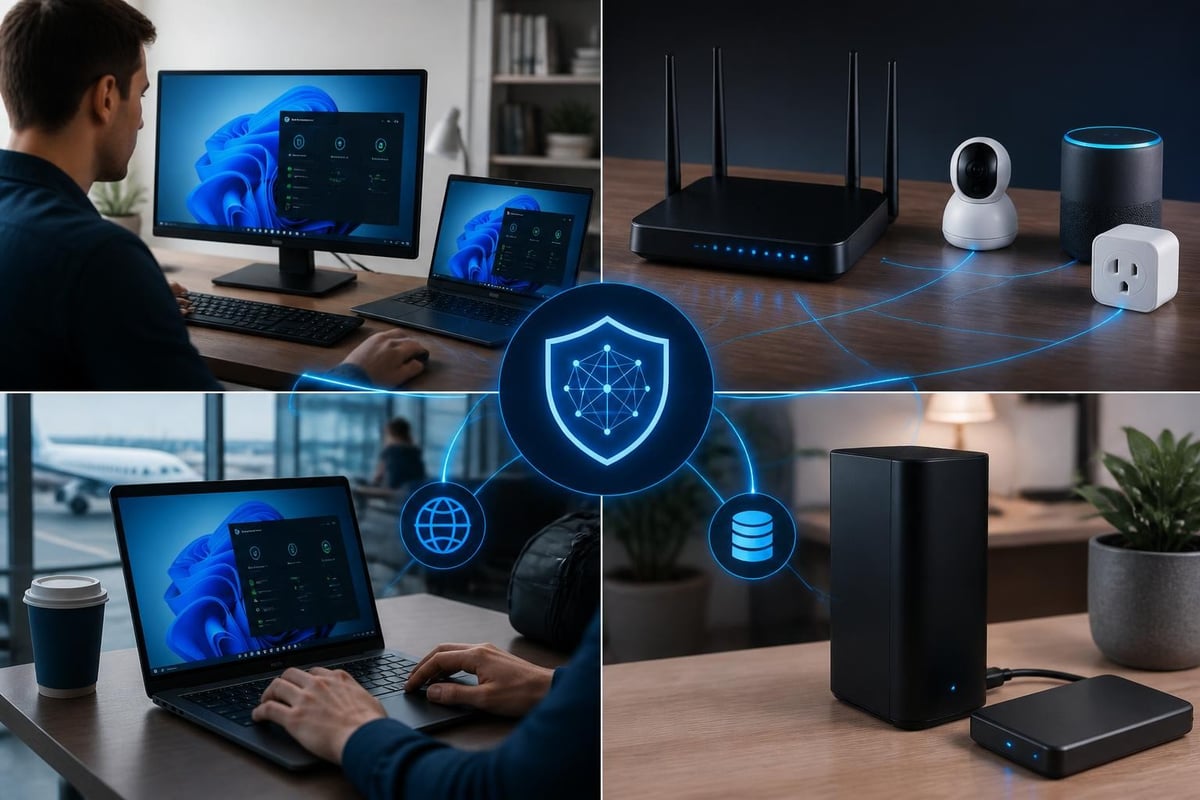
For travellers, especially those connecting from high-risk regions or public networks, behaviour-based monitoring adds a critical safeguard. Ransomware doesn't always rely on malware signatures; it exhibits predictable patterns like rapid file encryption, shadow copy deletion and network share enumeration. Detection systems that monitor these behaviours can alert you before encryption spreads across your backups.
Balancing usability and security
Security measures that disrupt daily workflow often get disabled. Aim for controls that run quietly in the background, alerting you only when action is needed.
Usability principles:
- Automate where possible (firmware updates, Windows patches, backups)
- Use clear, jargon-free alerts that explain what happened and what to do
- Avoid blocking legitimate activity; tune detection rules based on your actual usage
- Keep documentation simple (a one-page network diagram and password list in a safe place)
False alarms erode trust in security tools. If your intrusion detection system flags every Windows update or cloud sync as suspicious, you'll stop investigating alerts. Look for solutions that learn normal behaviour and reduce noise over time, so you can focus on genuine threats.
Home network protection in 2026 requires layered defences: a hardened router, isolated IoT devices, encrypted connections and real-time monitoring of your Windows 11 PC. By understanding where threats enter your network and how to detect them early, you gain control without needing advanced technical skills. NetGuardian Pro complements your existing antivirus by monitoring network connections, detecting ransomware behaviour and providing clear alerts when suspicious activity occurs. Start by securing your router today, then add endpoint monitoring to close the gaps that antivirus alone can't cover.
Controlling family devices, not just protecting them
Home network protection is about keeping threats out. Many families also want to control what happens inside, such as pausing a child’s phone for homework. NetGuardian can block a device at a supported router today, and it is developing an Android parental control app that does the same on any network, with a family locator. If you own NetGuardian Pro, your Pro licence key works in the app.