Email Protect: How to Secure Messages Against Threats
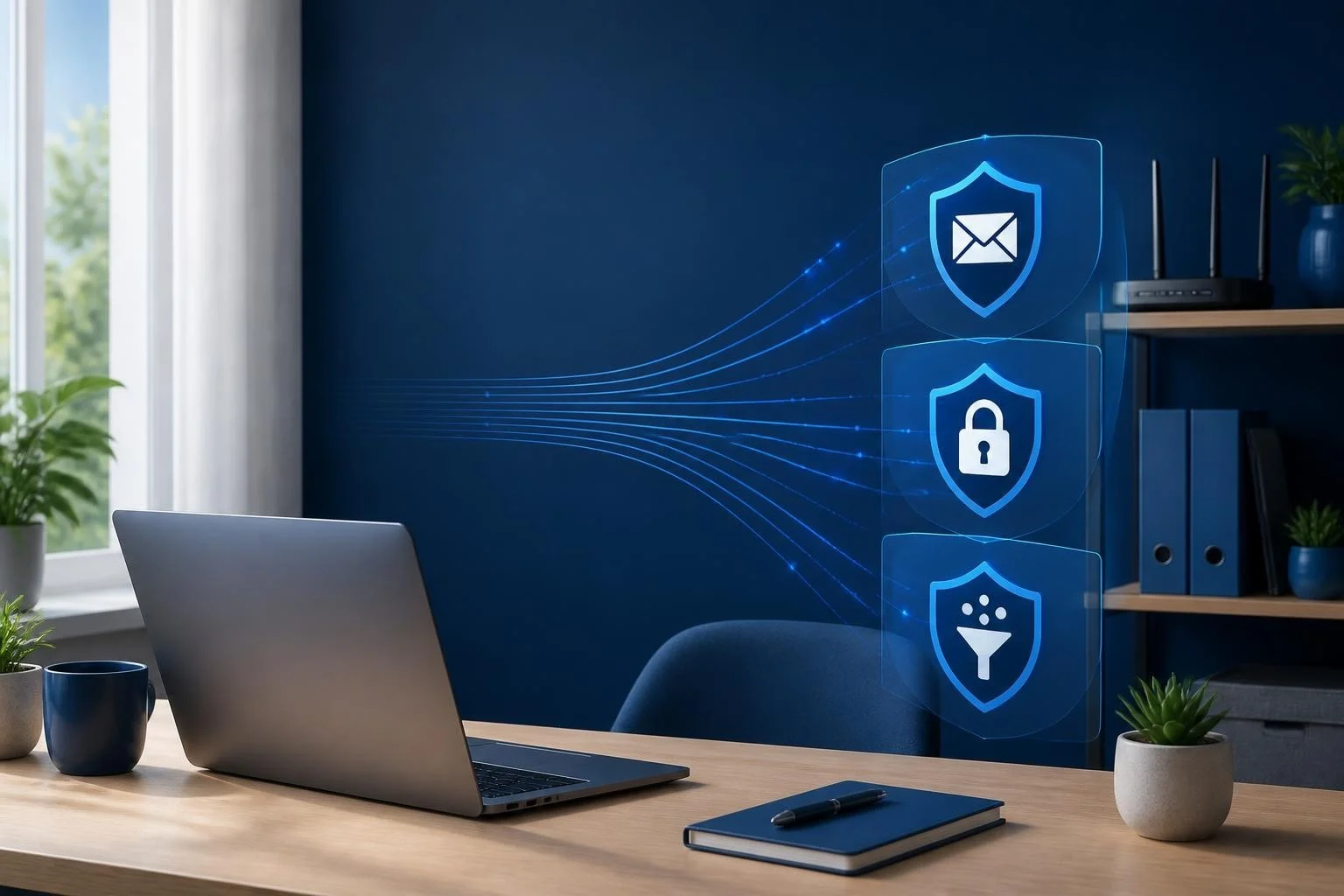
Email remains one of the most targeted attack vectors in 2026, with phishing and business email compromise showing no signs of slowing down. When you hear the term email protect, it refers to the collection of techniques, protocols and tools that work together to defend your messages from interception, forgery and malicious content. Understanding how to email protect your communications helps you avoid data breaches, financial fraud and ransomware infections that often start with a single compromised message.
Why email protect matters for everyday users
Email threats have evolved far beyond obvious spam. Modern phishing campaigns use sophisticated social engineering, domain spoofing and credential harvesting to target home users, small businesses and travelling professionals. According to Verizon’s Data Breach Investigations Report, a significant portion of breaches still involve the human element, with email serving as the primary delivery method.
When you email protect your accounts and systems, you reduce the risk that a single clicked link or opened attachment will compromise your PC, steal your credentials or spread malware across your network. This is especially critical if you work from home, run a small business or travel frequently, since your email connects to sensitive files, financial accounts and customer data.
Key threats email protect defends against:
- Phishing attacks that steal passwords and personal information
- Domain spoofing where attackers impersonate trusted senders
- Malware delivery through infected attachments or links
- Business email compromise targeting invoice fraud and wire transfers
- Man-in-the-middle attacks intercepting unencrypted messages in transit
The good news is that you don't need an IT background to implement effective email protect strategies. Many protections are built into modern email services, and understanding what they do helps you make informed choices about your security settings.
Authentication protocols that email protect relies on
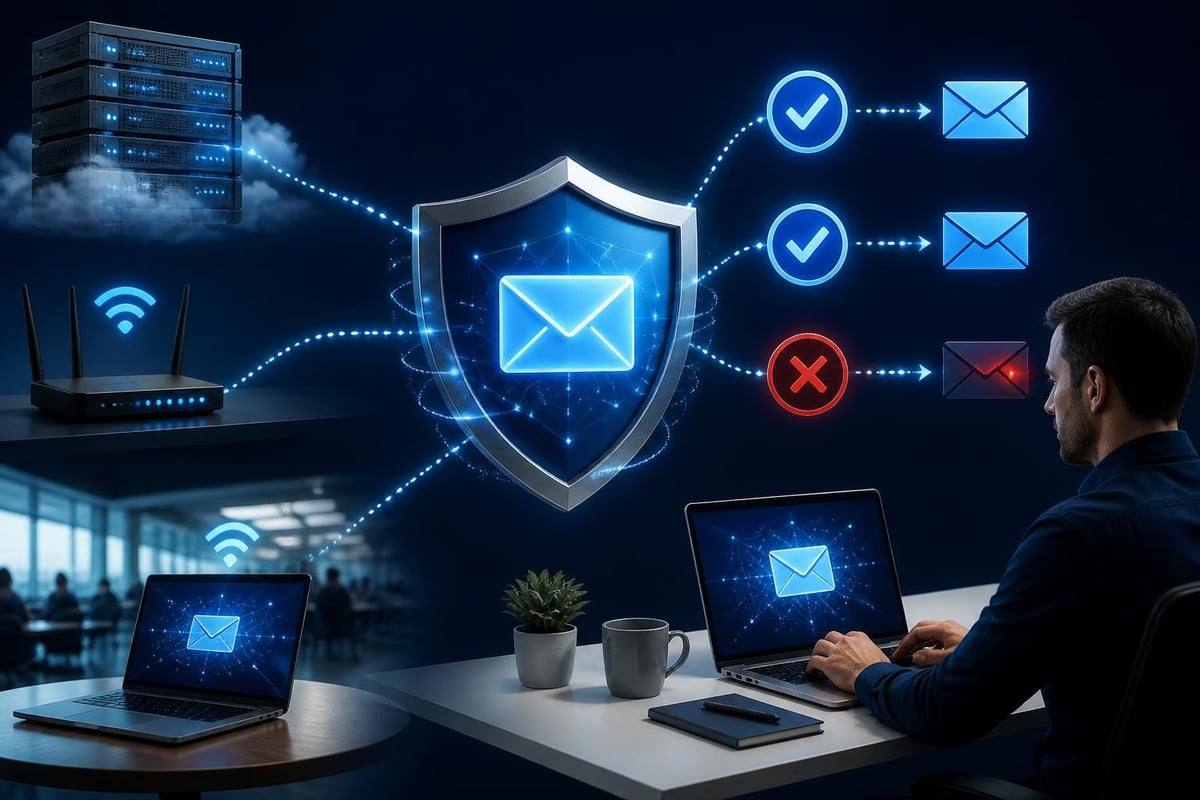
Email authentication is the foundation of any email protect strategy. Three core protocols work together to verify that messages actually come from who they claim to represent. These standards, widely adopted across email providers, make it much harder for attackers to forge sender addresses.
SPF records and sender verification
Sender Policy Framework (SPF) lets domain owners publish a list of mail servers authorised to send email on their behalf. When you receive a message, your email server checks the sending server's IP address against the published SPF record. If the IP isn't listed, the message fails SPF authentication and may be flagged as suspicious.
For small business owners sending email from your domain, setting up SPF correctly ensures your legitimate messages reach customers. Without it, your email might land in spam folders or be rejected entirely.
DKIM signatures for message integrity
DomainKeys Identified Mail (DKIM) adds a cryptographic signature to outgoing messages. The signature is created using a private key held by the sending server, and recipients verify it using a public key published in DNS. This confirms the message hasn't been altered in transit and truly originated from the claimed domain.
DKIM is particularly useful for email protect because it detects tampering. If an attacker intercepts and modifies a message, the signature won't match and the recipient's server can reject or flag it.
DMARC policy enforcement
Domain-based Message Authentication, Reporting and Conformance (DMARC) builds on SPF and DKIM. It lets domain owners specify what should happen when a message fails authentication checks. The DMARC standard (RFC 7489) allows you to set policies like quarantine (send to spam) or reject (block entirely), and provides reports on authentication failures.
| Protocol | What it does | How it helps email protect |
|---|---|---|
| SPF | Verifies sending server IP | Blocks messages from unauthorised servers |
| DKIM | Signs message with cryptographic key | Detects tampering and confirms origin |
| DMARC | Enforces policy on authentication failures | Tells servers how to handle suspicious email |
Implementing these protocols on your own domain takes a few DNS updates, and most email hosts provide clear instructions. If you receive email from domains that don't use authentication, remain cautious about trusting sender addresses at face value.
Encryption methods to email protect content in transit
Authentication confirms who sent a message, but encryption protects what's inside. Two main approaches to email protect through encryption are transport encryption and end-to-end encryption.
Transport layer security (TLS)
TLS encrypts the connection between email servers, preventing eavesdropping as messages move across the internet. Most reputable email providers now enforce TLS by default, meaning your message travels through an encrypted tunnel from your server to the recipient's server.
The UK NCSC provides practical guidance on MTA-STS, a mechanism that forces sending servers to use TLS and reject unencrypted delivery attempts. MTA-STS and its companion TLS Reporting (RFC 8460) help operators detect and fix encryption failures, strengthening email protect across the board.
For you as a user, check that your email provider uses TLS. Most consumer services like Gmail, Outlook and others do this automatically. When travelling, avoid using public Wi-Fi to access email without a VPN, since network-level attacks can still intercept traffic before it reaches the email server.
End-to-end encryption with S/MIME and PGP
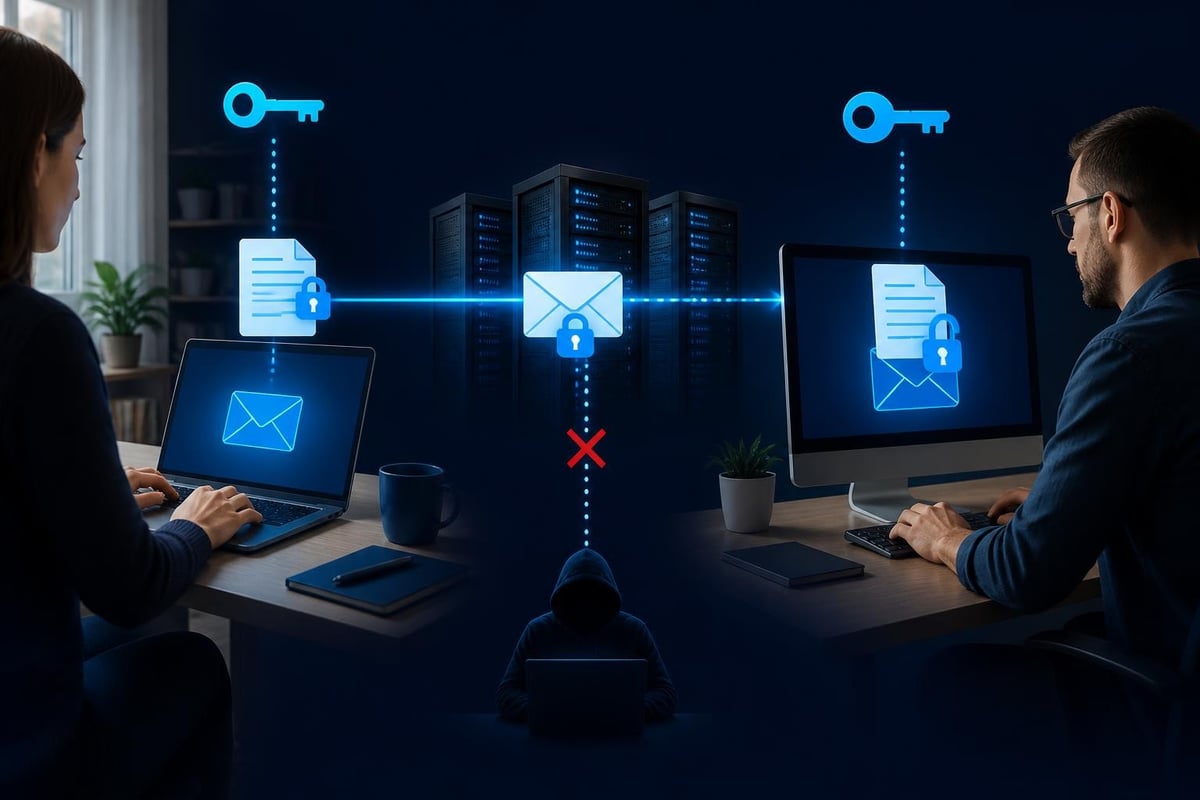
Transport encryption protects messages between servers, but the email provider can still read the content. End-to-end encryption ensures only the sender and recipient can decrypt the message. S/MIME and OpenPGP are the two main standards.
S/MIME uses certificates issued by trusted certificate authorities. You encrypt messages with the recipient's public key, and only their private key can decrypt them. RFC 9787 provides modern guidance on end-to-end email security, covering both S/MIME and PGP implementation considerations.
For most home users and small businesses, end-to-end encryption is overkill for everyday email. It requires certificate management and cooperation from recipients. However, if you handle highly sensitive information (legal documents, medical records, financial data), it's a powerful way to email protect confidential content.
Filtering and threat detection to email protect your inbox
Authentication and encryption address sender verification and privacy, but you also need filtering to block malicious content before it reaches you. Modern email protect strategies combine several layers of filtering.
Spam filters use reputation databases, content analysis and machine learning to identify unsolicited bulk email. Reputable providers constantly update their filters based on emerging threats.
Malware scanning checks attachments and links for known viruses, ransomware and trojan programs. Sandboxing technology opens suspicious files in isolated environments to observe their behaviour before delivering them to your inbox.
Phishing detection looks for telltale signs of credential theft attempts, such as mismatched sender domains, urgent language and fake login pages. CISA’s counter-phishing guidance outlines a prioritised approach federal agencies use, and many of the same principles apply to small organisations and individuals.
What to do when filtering isn't enough
No filter catches everything. Even with strong email protect measures in place, sophisticated attacks slip through. Here's how to stay vigilant:
- Check sender addresses carefully by hovering over the display name to see the actual email address
- Be suspicious of urgency and pressure tactics that demand immediate action
- Never click links or download attachments from unexpected or unverified senders
- Verify requests for sensitive information by contacting the sender through a separate, known-good channel
- Report phishing attempts to your email provider and IT support if applicable
When you receive a suspicious message, trust your instincts. Attackers rely on confusion and haste. Taking a moment to verify can prevent a major security incident.
Practical steps to email protect your accounts today
You've learned about protocols and encryption, but what can you do right now to improve your email security? These practical steps work for home users, small businesses and anyone who wants better email protect without deep technical knowledge.
Enable multi-factor authentication
Multi-factor authentication (MFA) requires a second form of verification beyond your password. Even if an attacker phishes your password, they can't access your account without the second factor (usually a code from an app or SMS). Enable MFA on all email accounts that support it.
Use strong, unique passwords
Password reuse is one of the easiest ways for attackers to compromise multiple accounts. Use a password manager to generate and store unique passwords for each service. If one account is breached, your email remains secure.
Review connected apps and devices
Periodically audit which apps and devices have access to your email. Revoke access for services you no longer use. This reduces the attack surface and limits the damage if a third-party app is compromised.
Keep software and systems updated
Email clients, operating systems and security software receive regular updates that patch vulnerabilities. Enable automatic updates where possible. For Windows 11 users, keeping your PC current helps protect against network-level threats that can intercept or manipulate email traffic. NetGuardian Pro monitors network activity on your PC, providing an additional layer of protection by detecting suspicious connections that may indicate malware communicating with command servers or exfiltrating data after an email compromise.
Configure email client security settings
Most email clients let you block external images, disable automatic link previews and warn before opening attachments. These settings reduce the risk that simply opening a message triggers an exploit or reveals your identity to an attacker.
| Step | Why it matters | Difficulty |
|---|---|---|
| Enable MFA | Prevents account takeover even if password is stolen | Easy |
| Use unique passwords | Limits breach impact to one account | Easy |
| Review app access | Reduces third-party risk | Medium |
| Update software | Patches known vulnerabilities | Easy |
| Configure client settings | Blocks automatic exploit triggers | Medium |
Advanced email protect techniques for small businesses
If you run a small business or manage email for a team, additional measures can significantly improve your email protect posture. These go beyond personal account hygiene and address organisational risks.
Implement DMARC with reject policy
As your business grows, protecting your domain reputation becomes critical. Start with a DMARC policy set to "none" (monitoring only) to collect reports on authentication failures. Once you've confirmed legitimate mail passes authentication, move to "quarantine" and eventually "reject" to block unauthorised use of your domain.
NIST’s trustworthy email guidance offers detailed deployment recommendations for SPF, DKIM and DMARC, including testing and rollout strategies suitable for small teams without dedicated email administrators.
Deploy BIMI for brand protection
Brand Indicators for Message Identification (BIMI) displays your logo next to authenticated email in supported clients. It requires DMARC enforcement and a Verified Mark Certificate (VMC). The BIMI Group’s implementation guide walks through the process. While optional, BIMI reinforces your brand and helps recipients visually confirm legitimate messages.
Train your team on phishing recognition
Technology alone won't stop every attack. Regular training helps your team recognise phishing attempts. Use realistic examples (without links to live threats) to demonstrate common tactics. Encourage reporting of suspicious messages and create a culture where asking "is this email legitimate?" is welcomed, not penalised.
Establish incident response procedures
Plan what happens when someone clicks a malicious link or opens a ransomware attachment. Document steps for isolation, password resets, notification and recovery. Having a plan reduces panic and limits damage during an actual incident.
How network monitoring complements email protect strategies
Email protect primarily focuses on the message itself, but threats that arrive via email often exploit your network once they're on your PC. Malware delivered through phishing emails frequently attempts to communicate with command and control servers, spread laterally across your network or exfiltrate data.
Network monitoring tools observe connection patterns and detect anomalies that indicate compromise. For example, if malware from an email attachment tries to contact a known malicious IP address or sends large volumes of data to an unfamiliar destination, network-level detection can alert you and block the activity.
Windows 11 users benefit from endpoint security that watches network behaviour in real time. This complements antivirus software by catching threats based on how they behave on the network, not just file signatures. For home users and small businesses, this layer provides context about what's happening after an email threat bypasses other defences.
Travelling professionals face additional risks when connecting to untrusted Wi-Fi networks in airports, hotels or cafes. Using a VPN encrypts all network traffic, preventing eavesdropping on email and other sensitive communications. Combining VPN protection with strong email protect practices creates defence in depth.
Monitoring and maintaining your email protect measures
Email security isn't a one-time setup. Threats evolve, and your email protect measures need regular attention to remain effective. Build these habits into your routine.
Review authentication reports monthly. If you've deployed DMARC, check the reports your provider sends. Look for patterns in failed authentication, which might indicate spoofing attempts or misconfigured services.
Update your threat intelligence. Follow security news and threat reports like Proofpoint’s State of the Phish to understand current attack techniques. Knowing what attackers are doing helps you recognise new threats in your inbox.
Test your defences periodically. Send test emails from external accounts to verify your filters, authentication and encryption are working as expected. Ask colleagues or friends to send you messages that should trigger warnings, so you know the protections are active.
Keep your contact list clean. Remove outdated or suspicious contacts. Be cautious about address book harvesting attacks that steal your contacts to target your friends, family or customers with spoofed messages.
Document your configuration. Keep notes on your email protect settings, DNS records and authentication policies. If you need to migrate providers or troubleshoot issues, having documentation saves time and reduces errors.
Common email protect mistakes to avoid
Even with the best intentions, some common missteps can undermine your email security. Being aware of these pitfalls helps you avoid them.
Trusting the display name alone. Attackers often spoof display names to make messages appear legitimate. Always check the actual email address, not just the friendly name shown in your inbox.
Ignoring certificate warnings. If your email client shows a certificate error, don't proceed. It could indicate a man-in-the-middle attack attempting to intercept your messages.
Using public computers for email. Shared or public computers may have keyloggers or malware installed. Avoid accessing email on untrusted devices, and if you must, never save passwords or stay logged in.
Overlooking mobile security. Your phone's email app needs the same attention as your desktop client. Enable MFA, use strong device passwords and keep your mobile OS updated. Be cautious when children access email on shared devices.
Assuming encryption is always on. Just because your email provider supports TLS doesn't mean every message uses it. Some recipients' servers may not enforce encryption. For truly sensitive content, use end-to-end encryption or another secure channel.
Email protect strategies combine authentication, encryption and filtering to defend against phishing, spoofing and malware that target your inbox daily. By enabling multi-factor authentication, using strong passwords, keeping software updated and staying alert to suspicious messages, you build practical defences that don't require an IT department. For Windows 11 users, NetGuardian Pro adds network-level monitoring that detects suspicious activity after threats bypass email filters, giving you clear alerts and blocking controls to isolate your PC when needed.