
What Is Cybersecurity? A Practical Guide for Windows 11 Families
When you hear the term "cybersecurity," you might wonder what it actually means for your family's everyday digital life. Cybersecurity is the practice of protecting your computers, mobile devices, networks and data from unauthorized access, theft or damage. For families using Windows 11 PCs and laptops, this translates into safeguarding everything from your photos and financial documents to your email accounts and online banking. Understanding what cybersecurity involves helps you make informed decisions about protecting your digital household without needing a technical background or expensive consulting services.
Why cybersecurity matters for your household
Your family's Windows 11 devices hold years of irreplaceable memories, important documents and access to accounts that control your finances and identity. A single compromised device can expose your bank details, allow criminals to lock your files for ransom or give strangers access to your children's photos and personal information.
The threat landscape in 2026 continues to evolve. According to ENISA’s cybersecurity threat analysis for 2030, ransomware, phishing and supply chain attacks remain persistent risks for both organizations and home users. What makes these threats particularly concerning is that they often exploit basic security gaps rather than sophisticated vulnerabilities.
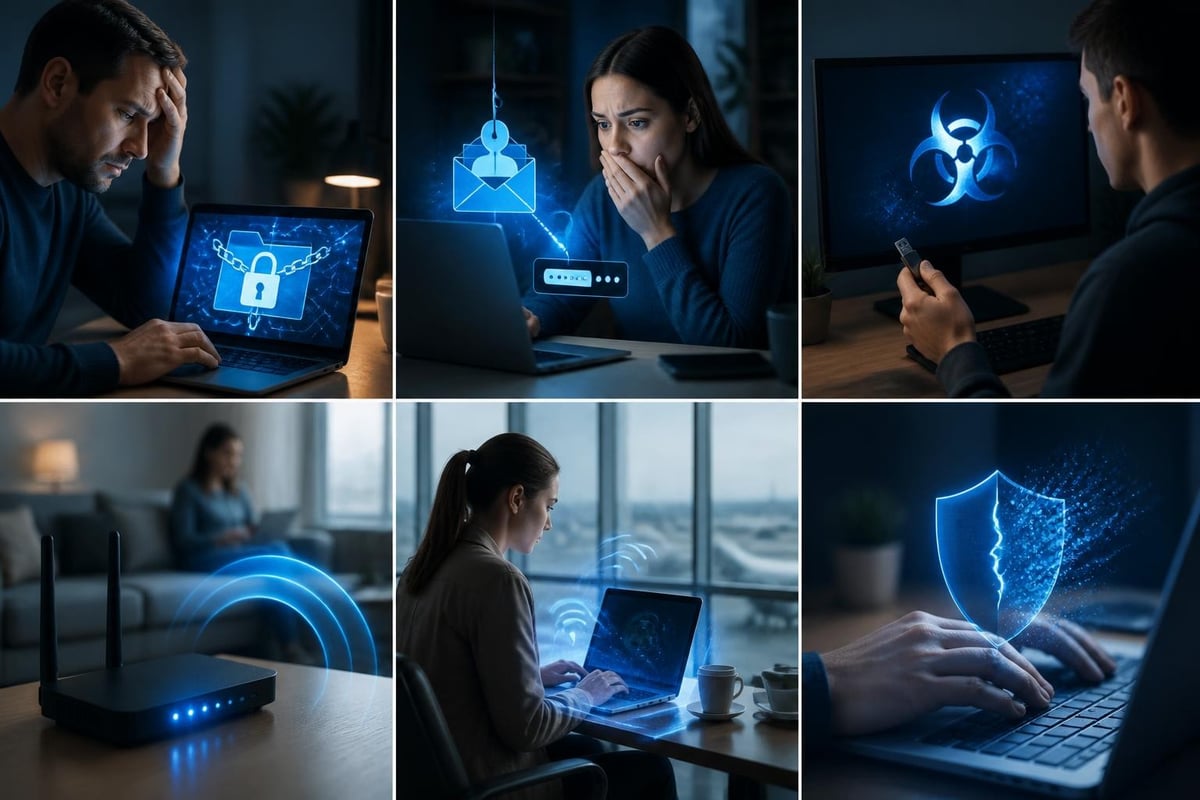
Common risks your family faces:
- Ransomware that encrypts your photos and demands payment
- Phishing emails that trick you into revealing passwords
- Malicious software hidden in downloads or USB drives
- Unsecured Wi-Fi connections exposing your online activity
- Weak passwords allowing account takeovers
- Unpatched software vulnerabilities that criminals exploit
Most attacks succeed because they target human behavior and basic configuration oversights, not because attackers possess superhuman technical abilities. This means you can significantly improve your security posture through straightforward, practical measures.
Understanding the core components of home cybersecurity
Cybersecurity isn't a single product or solution. It's a collection of practices and tools working together to reduce your risk. Think of it like home security: you lock your doors, install an alarm system, keep valuables in a safe and stay alert to suspicious activity. Digital security follows similar principles.
Operating system updates and patches
Windows 11 regularly receives security updates that fix newly discovered vulnerabilities. When Microsoft identifies a weakness that criminals could exploit, they release a patch to close that gap. Delaying or ignoring these updates leaves known security holes open.
How to manage Windows 11 updates effectively:
- Open Settings and navigate to Windows Update
- Enable automatic updates so patches install without manual intervention
- Schedule active hours to prevent updates during work or school time
- Restart your PC when prompted rather than postponing indefinitely
- Check monthly that updates have installed successfully
Updates apply to Windows itself and to applications like Microsoft Office, web browsers and other software. Each program represents a potential entry point, so keeping everything current matters.
Strong passwords and password management
Passwords remain the primary way you prove your identity online. Weak or reused passwords across multiple accounts create a domino effect: when criminals breach one service and steal passwords, they try those same credentials on banking sites, email providers and social media platforms.
A strong password contains at least 12 characters mixing uppercase letters, lowercase letters, numbers and symbols. More importantly, each account should have a unique password. Remembering dozens of complex, unique passwords isn't realistic, which is where password managers help.
Password manager benefits:
- Generates random, strong passwords for each account
- Stores them securely with encryption
- Automatically fills login forms
- Syncs across your family's devices
- Requires you to remember only one master password
| Password approach | Strength | Convenience | Risk if one account breaches |
|---|---|---|---|
| Same simple password everywhere | Very weak | High | All accounts compromised |
| Variations on a pattern | Weak | Medium | Predictable variations guessed |
| Unique complex passwords written down | Strong | Low | Paper can be lost or seen |
| Password manager with unique passwords | Very strong | High | Only that account affected |
Multifactor authentication for critical accounts
Multifactor authentication adds a second verification step beyond your password. Even if criminals steal or guess your password, they can't access your account without the second factor, typically a code sent to your phone or generated by an authentication app.
Enable multifactor authentication on these accounts first:
- Email (controls password resets for other accounts)
- Online banking and financial services
- Cloud storage containing family photos and documents
- Social media accounts
- Microsoft account (controls Windows 11 and Office)
The setup process varies by service but generally involves scanning a QR code with an authentication app like Microsoft Authenticator or Google Authenticator. You'll then enter a six-digit code that changes every 30 seconds along with your password when logging in.
This extra step takes seconds but dramatically reduces the likelihood of account takeover. NIST’s Cybersecurity Framework identifies authentication as a fundamental control for protecting access to systems and data.
Protecting your data through backups
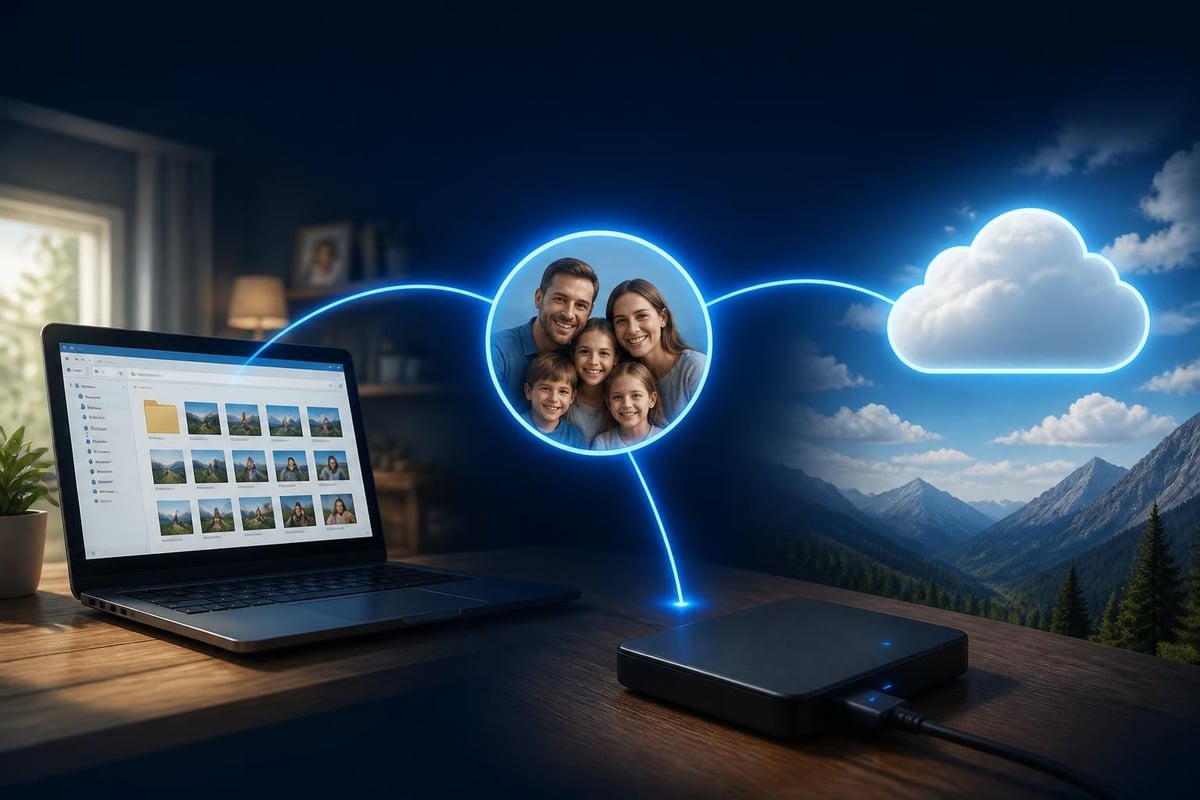
Backups ensure you can recover your files if something goes wrong, whether through ransomware, hardware failure, accidental deletion or theft. The 3-2-1 backup rule provides a practical framework: keep three copies of important data, on two different types of storage media, with one copy stored offsite.
Practical backup strategy for families:
- Primary copy: Your working files on your PC's hard drive
- Local backup: External USB hard drive or network-attached storage at home
- Cloud backup: Online service like OneDrive, Google Drive or a dedicated backup provider
Schedule automatic backups weekly at minimum, daily for critical data. Test your backups periodically by restoring a few files to verify they're actually recoverable. Many families discover their backup strategy failed only when they desperately need it.
Windows 11 includes File History for backing up documents, photos and other personal files to an external drive. Cloud services offer the advantage of offsite protection, though you'll need sufficient internet bandwidth and storage capacity for your family's data volume.
Antivirus software and its role
Antivirus software scans files and programs for known malicious code, blocks suspicious downloads and removes detected threats. Windows 11 includes Microsoft Defender Antivirus, which provides baseline protection without additional cost.
Antivirus works by comparing files against databases of known malware signatures and analyzing behavior for suspicious patterns. When you download an email attachment or install a program, the antivirus scans it before allowing it to run. It also performs scheduled scans of your entire system to catch anything that slipped through.
What antivirus handles well:
- Detecting and removing known viruses and trojans
- Scanning email attachments and downloads
- Blocking access to known malicious websites
- Identifying suspicious file behavior
What antivirus doesn't cover:
- Network-level attacks before they reach your PC
- Exploitation of network services and protocols
- Lateral movement between devices on your network
- Zero-day vulnerabilities before signatures exist
Antivirus is essential but insufficient on its own. It's one layer in a comprehensive security approach, not a complete solution.
Network intrusion detection and prevention
Your PC connects to the internet through your home network, communicating with countless external servers and services. Network intrusion detection monitors these connections, identifying suspicious activity that might indicate an attack in progress.
Unlike antivirus that focuses on files and programs, network monitoring watches the communication itself. This catches threats that bypass traditional antivirus, such as attackers probing for vulnerabilities, suspicious outbound connections from compromised software or unauthorized access attempts via Wi-Fi, USB or Bluetooth.
NetGuardian Pro provides this network layer protection specifically for Windows 11 PCs and laptops. Its 14 detection modules monitor network connections for threats, with ransomware behavior monitoring, clear alerts you can understand and blocking controls that let you stop suspicious activity. The system learns your normal activity to reduce false alarms and complements your existing antivirus rather than replacing it.
Key differences between antivirus and network monitoring:
| Protection type | What it monitors | Primary threats detected | When it acts |
|---|---|---|---|
| Antivirus | Files and programs on your PC | Viruses, trojans, malware in downloads | Before files run or during scans |
| Network monitoring | Communication between your PC and external systems | Network attacks, suspicious connections, intrusion attempts | During active network communication |
Both work together to cover different attack vectors. Think of antivirus as protecting the contents of your home, while network monitoring watches who's approaching and how they're trying to get in.
Practical steps you can take this week
Rather than feeling overwhelmed by cybersecurity advice, start with actions that deliver immediate risk reduction. You can implement this checklist over a few hours across your family's Windows 11 devices.
This week's security checklist:
Monday: Check Windows Update on each PC and install pending updates. Enable automatic updates if not already active.
Tuesday: Review passwords on your email and banking accounts. If you're reusing passwords or using simple ones, change them to strong, unique passwords. Consider starting with a password manager.
Wednesday: Enable multifactor authentication on your email account first, then your Microsoft account and primary bank.
Thursday: Verify your backup system is working. If you don't have backups, connect an external drive and set up Windows File History or choose a cloud backup service.
Friday: Confirm Microsoft Defender Antivirus is running and up to date. Run a full scan on each PC.
Weekend: Review your home Wi-Fi network security. Change the router's default admin password, verify WPA3 or WPA2 encryption is enabled and consider whether your network name reveals personal information.
This checklist covers the fundamentals outlined by the CIS Critical Security Controls, which prioritize inventory, configuration, access control, data protection and logging as essential first steps.
Understanding alerts and taking action
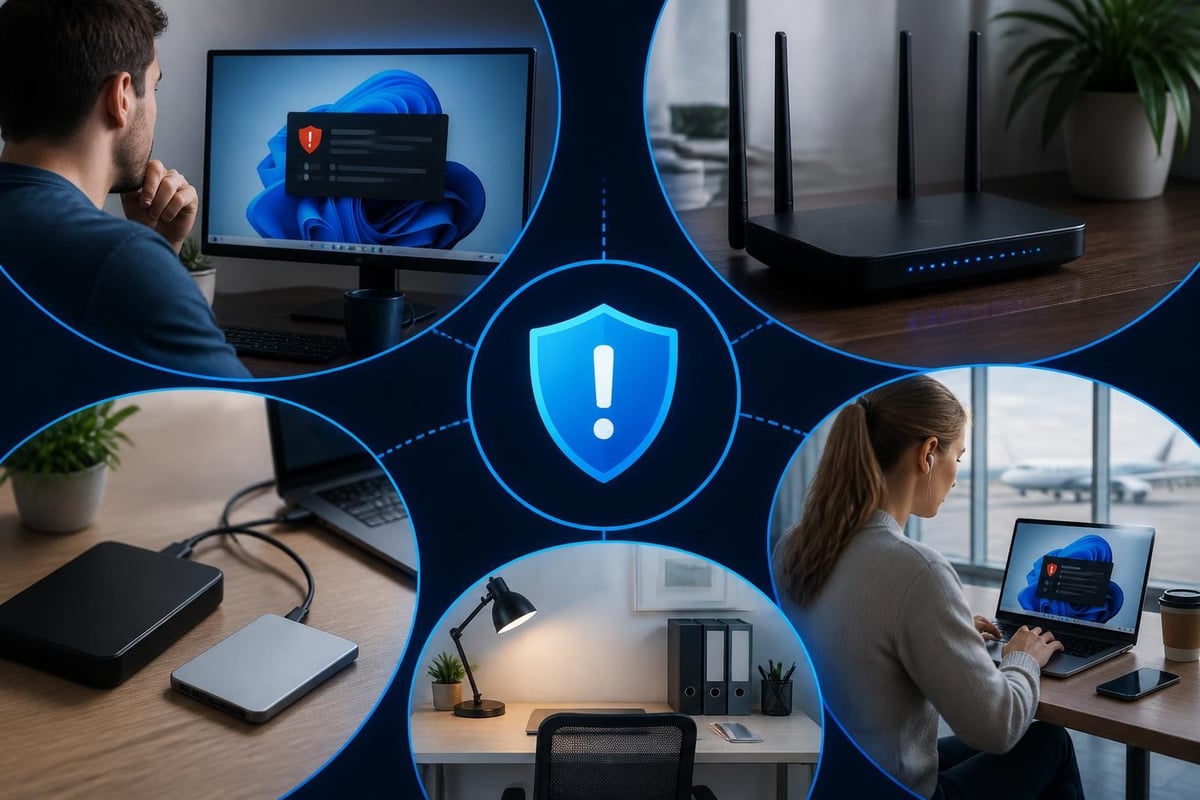
Security tools generate alerts when they detect something suspicious. The challenge many families face is understanding what these alerts mean and deciding how to respond. Not every alert indicates a serious threat, but ignoring all alerts defeats the purpose of monitoring.
How to evaluate security alerts:
- Read the full message: Alerts typically explain what was detected and why it's flagged
- Check the source: Is it from your antivirus, Windows Defender or network monitoring tool?
- Note the timing: Does the alert correspond to something you just did, like installing software?
- Assess the risk: Is someone trying to access your PC, or did a scan find a low-risk cookie?
- Take the recommended action: Most alerts suggest a specific response like blocking, removing or updating
Good security tools provide clear explanations rather than technical jargon. If an alert warns that a program is attempting unauthorized network communication, you can block that connection while investigating whether the program is legitimate or malicious.
When to seek additional help
You don't need to become a security expert, but you should know when a situation exceeds your comfort level or expertise. Some scenarios warrant reaching out to professionals or trusted technical resources.
Situations requiring expert assistance:
- You receive a ransomware message demanding payment
- Your bank alerts you to suspicious transactions you didn't make
- Your PC is sending spam or making unexpected network connections
- You discover someone has accessed your accounts without authorization
- Security tools detect persistent threats they cannot remove
For ransomware incidents, CISA’s guidance for organizations recommends against paying ransoms and provides incident response resources. While aimed at companies, the principles apply to severe home incidents: isolate affected devices, preserve evidence and report to authorities when appropriate.
Most security products, including NetGuardian Pro, include email support to help you interpret alerts and decide on responses. Don't hesitate to use this resource rather than guessing at the correct action.
Staying current without constant worry
Cybersecurity evolves as attackers develop new techniques and defenders create new protections. You can stay reasonably current without making security a daily preoccupation.
Sustainable security habits:
- Review security settings quarterly rather than constantly
- Subscribe to one or two trusted security news sources for major developments
- Apply updates promptly but don't panic over every headline
- Teach children age-appropriate security awareness
- Back up regularly and verify backups work
- Monitor your bank and credit card statements for unauthorized charges
Security researcher Brian Krebs publishes investigative reporting on major breaches and attack trends that helps you understand real-world threats without sensationalism. Following one authoritative source provides useful awareness without information overload.
The goal is informed vigilance, not paranoia. You take reasonable precautions, use appropriate tools and respond to genuine warnings while continuing to enjoy the benefits of your connected devices.
The complete picture for Windows 11 families
Effective cybersecurity for your household combines several elements working together. No single tool eliminates all risk, but layered defenses significantly reduce the likelihood of successful attacks and limit the damage when something does go wrong.
Your complete security stack:
- Foundation: Windows 11 updates applied promptly
- Authentication: Strong unique passwords plus multifactor authentication
- Data protection: Regular backups following the 3-2-1 rule
- File security: Antivirus software detecting and removing malware
- Network security: Intrusion detection monitoring connections and blocking threats
- Awareness: Understanding alerts and responding appropriately
Each layer addresses different attack vectors. Updates close vulnerabilities before they're exploited. Strong authentication prevents unauthorized account access. Backups ensure recovery from data loss. Antivirus catches malicious files. Network monitoring detects connection-based attacks. Your awareness ties everything together through informed decisions.
This comprehensive approach aligns with NIST’s framework for managing cybersecurity risk, which emphasizes identifying assets, protecting them through multiple controls, detecting incidents, responding effectively and recovering quickly.
Cybersecurity on a realistic budget
Many families worry that proper security requires expensive enterprise products or ongoing subscription fees. While premium services exist, you can achieve solid protection through a combination of built-in tools, one-time purchases and free resources.
Cost-effective security options:
| Security component | Built-in option | One-time purchase | Subscription service |
|---|---|---|---|
| OS updates | Windows Update (free) | N/A | N/A |
| Antivirus | Microsoft Defender (included) | Various products available | Monthly/annual plans |
| Password manager | Browser storage (limited) | Standalone apps | Premium services |
| Backup | File History to external drive | External hard drive | Cloud storage monthly |
| Network monitoring | Windows Firewall (basic) | NetGuardian Pro | Enterprise products |
NetGuardian Pro uses a one-time payment model with no subscription, including free updates and email support. This approach gives you network intrusion detection and prevention without recurring costs adding up over time.
Free doesn't always mean inferior, and expensive doesn't guarantee better protection. Focus on covering each security layer with tools appropriate for your family's technical comfort level and budget constraints.
Questions families frequently ask
Do I need antivirus if I only visit trusted websites?
Yes. Malicious code spreads through many vectors beyond suspicious websites, including legitimate sites that have been compromised, email attachments, USB drives and software updates from third-party sources. Antivirus provides a safety net for the unexpected.
Can my router's firewall replace security software on my PC?
Router firewalls control what traffic reaches your home network but don't inspect individual PC connections or scan files for malware. You need both network-level and PC-level protection. Your router blocks some attacks from reaching your devices, while PC security handles threats that get through or originate internally.
What's the difference between free and paid security tools?
Free versions typically offer basic protection with limitations on features, support or updates. Paid versions add capabilities like advanced monitoring, priority support, protection for multiple devices or additional tools. Evaluate whether the extra features address specific risks you face rather than assuming more expensive is always better.
How often should I change my passwords?
Current guidance from security experts suggests changing passwords only when you have reason to believe they've been compromised, rather than on arbitrary schedules. Focus on using strong, unique passwords for each account and enabling multifactor authentication instead of frequently changing passwords to variants that become progressively weaker.
Is public Wi-Fi safe to use?
Public Wi-Fi networks at cafes, airports and hotels carry higher risk because you share the network with strangers who might attempt to intercept your traffic. If you must use public Wi-Fi, avoid accessing sensitive accounts like banking and use a VPN to encrypt your connection. NetGuardian Pro includes a built-in WireGuard VPN specifically for travel situations. Many families find it simpler to use their phone's hotspot feature for important tasks when away from trusted networks.
Moving forward with confidence
Cybersecurity for your Windows 11 family doesn't require technical expertise or constant vigilance. By understanding what each security component does and implementing practical measures in layers, you significantly reduce your risk while maintaining the convenience and connectivity your household depends on.
Start with the fundamentals: keep Windows updated, use strong unique passwords with multifactor authentication, maintain regular backups and run reliable antivirus software. Add network intrusion detection to monitor the connections your antivirus doesn't see. Review your security setup quarterly rather than constantly, respond promptly to genuine alerts and teach your family age-appropriate security awareness.
The protective measures outlined here work together to safeguard your irreplaceable photos, important documents and online accounts from the most common threats families face in 2026. You're building resilience so that your digital life remains secure and recoverable even when something goes wrong.
For additional details on security features and capabilities, visit the main resources at NetGuardian Secure to explore comprehensive information about protecting your family's Windows 11 environment.
Understanding what cybersecurity means for your family's Windows 11 devices helps you make informed decisions about protecting your data and accounts through practical, layered defenses. If you're looking to add network-level protection that monitors Wi-Fi, USB and Bluetooth connections while providing clear alerts you can actually understand, NetGuardian Pro complements your existing antivirus with intrusion detection designed for families and small businesses who want practical protection without technical complexity.
Family protection for Android phones and tablets
Cybersecurity at home includes the children’s devices. Our Android app, Hawk Kids, lets a parent block or unblock a child’s phone or tablet, set a screen timer, and see the device on a family locator map. It is available now. It is not released yet, and the Windows protection described here is available now. If you own NetGuardian Pro, your Pro licence key works in the app.