
Connectivity Security for Your Windows PC in 2026
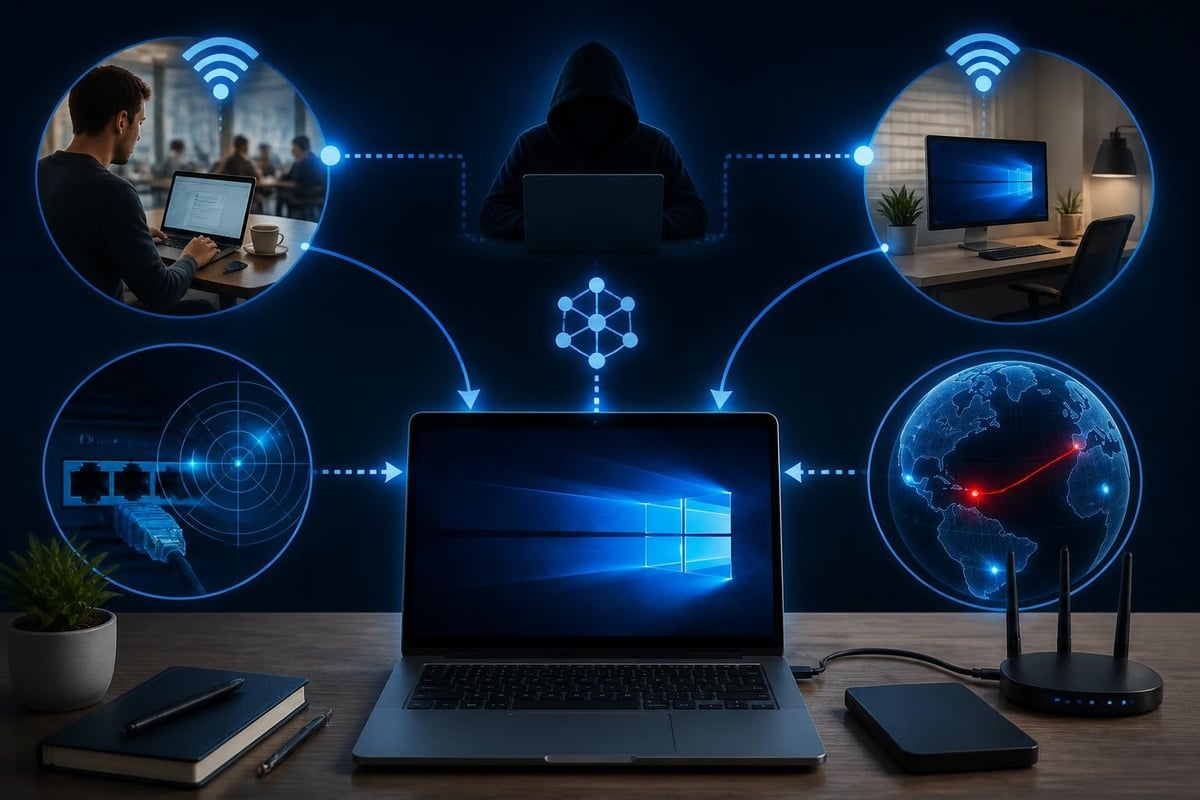
Your Windows PC doesn't exist in isolation. Every time you connect to Wi-Fi at a coffee shop, plug in a USB drive, or simply browse the web from home, you're opening pathways between your computer and the outside world. Those pathways are essential for getting things done, but they're also the routes attackers use to reach your files, your photos, and your personal information. That's where connectivity security comes in. It's the practice of protecting all the ways your PC communicates with networks, devices, and the internet, and it's become just as important as traditional antivirus protection in 2026.
What connectivity security actually means
At its simplest, connectivity security is about watching the doors and windows of your digital house. Your PC has dozens of network ports (not physical plugs, but numbered channels for different types of traffic), Wi-Fi radios, Bluetooth, USB ports, and internet connections. Each one is a potential entry point.
Traditional antivirus software focuses on files and programs already on your computer. Connectivity security takes a different angle. It monitors the traffic flowing in and out, looking for suspicious patterns before a threat lands on your hard drive.
The threats that travel over connections
Attackers in 2026 don't always rely on getting you to download a virus. Many modern attacks exploit your network connections directly:
- Evil twin Wi-Fi networks that impersonate legitimate hotspots to intercept your data
- Port scans where attackers probe your PC looking for open doors
- Man-in-the-middle attacks that silently sit between you and the websites you visit
- DNS hijacking that redirects your web traffic to fake sites
- Lateral movement techniques where one compromised device on your network becomes a stepping stone to others
The MITRE ATT&CK framework documents lateral movement tactics that attackers use once they've gained initial access, and many of these depend on exploiting trusted network connections.
What makes connectivity threats tricky is that they often don't touch your hard drive at all. An attacker might scan your ports, find an open remote desktop connection, and log in directly. No file to scan. No signature to detect. Just network traffic that looks almost normal.
Wi-Fi security beyond the password
Most people think Wi-Fi security begins and ends with a strong password. That's important, but it's only the start. Modern Wi-Fi attacks don't bother trying to crack your password when they can work around it.
An evil twin attack creates a fake access point with the same name as a legitimate network. Your laptop sees "CoffeeShop_WiFi" and connects automatically, not realizing it's actually an attacker's hotspot. Now every website you visit, every password you type, flows through their system.
Deauthentication attacks are even sneakier. An attacker sends special packets that force your PC to disconnect from the real Wi-Fi network. Your computer, trying to be helpful, immediately reconnects. If the attacker is running an evil twin at the same time, your PC might connect to the fake network instead.
How to protect yourself on public Wi-Fi
-
Use a VPN every time you connect to public Wi-Fi. A virtual private network encrypts all your traffic before it leaves your PC, so even if you're on a malicious network, the attacker sees only scrambled data.
-
Forget networks when you're done. Windows remembers Wi-Fi networks and auto-connects next time. In your Wi-Fi settings, tell Windows to forget networks you won't use regularly, especially at hotels, airports, and cafes.
-
Watch for duplicate network names. If you see two "Starbucks WiFi" networks in the same location, that's suspicious. Ask staff which is legitimate.
-
Disable automatic connection. In Windows 11, open Settings > Network & Internet > Wi-Fi, click on a saved network, and uncheck "Connect automatically when in range" for any public hotspot.
The challenge is that most of these attacks are invisible. Your PC won't warn you that it's connected to an evil twin. The Wi-Fi signal looks strong, the connection works fine, and you have no idea someone is recording everything. That's why detection matters as much as prevention.
Network intrusion detection for home users
When most people hear "intrusion detection," they picture corporate data centers and IT security teams. But the same principles apply to your home network, and the threats are just as real.
Network intrusion detection watches the traffic flowing to and from your PC, looking for patterns that suggest an attack. It's different from a firewall, which blocks traffic based on fixed rules. Intrusion detection is more like a smoke detector. It doesn't prevent the fire, but it warns you the moment something's wrong.
| Protection Type | What It Does | Example |
|---|---|---|
| Firewall | Blocks or allows traffic based on rules | Windows Firewall blocking incoming connections on port 3389 |
| Intrusion Detection | Alerts when traffic patterns look suspicious | Warning when 50 login attempts hit your PC in 10 seconds |
| Antivirus | Scans files for known malware | Detecting a virus in a downloaded file |
Modern connectivity security tools watch for several specific patterns:
Port scanning is when an attacker probes your PC to see which network services are running. Think of it like someone walking down your street and jiggling every doorknob to see which houses are unlocked. A single connection to a closed port is normal. Fifty connections across different ports in one minute is a scan.
Brute-force attacks happen when someone tries to log into your PC by guessing passwords over and over. Remote Desktop (the feature that lets you control your Windows PC from another location) is a common target. An attacker might try thousands of username and password combinations, hoping one works.
ARP spoofing is a technique attackers use on local networks to intercept traffic between your PC and your router. Your computer trusts that the device claiming to be your router actually is your router. ARP spoofing exploits that trust.
For families protecting photos and documents, or small businesses without IT staff, understanding these threats matters less than knowing they're being watched. That's the value of connectivity security tools designed for non-technical users.

The rise of zero-trust thinking for home networks
"Zero trust" has been a corporate buzzword for years, but the core idea applies perfectly to home and small-business Windows PCs. The old security model assumed everything inside your network was safe and only the outside world was dangerous. Zero trust assumes nothing is automatically safe, not even devices already on your network.
Why does this matter? Because in 2026, your home network probably includes dozens of devices: phones, tablets, smart TVs, security cameras, your kids' gaming consoles, and maybe a work laptop. If one gets compromised, traditional thinking says it's already inside the trusted zone and can access anything else on the network. Zero-trust thinking says every connection must prove it's legitimate, even between devices on the same Wi-Fi network.
SANS guidance on zero trust implementation emphasizes network segmentation and continuous verification. For a home user, that translates to practical steps like keeping IoT devices on a separate guest network and monitoring what each device on your network is actually doing.
The government sector has also recognized the importance of modern connectivity security approaches. CISA’s 2024 guide to secure network access outlines how organizations are moving beyond legacy VPN models toward more granular, identity-based access controls.
For a Windows PC user, zero-trust connectivity security means:
- Not assuming your home Wi-Fi is inherently safe just because it's yours
- Treating every USB device as potentially hostile until proven otherwise
- Monitoring network connections even from familiar devices
- Verifying that remote access attempts are legitimate before allowing them
DNS security and why it matters
DNS (Domain Name System) is the internet's phonebook. When you type "google.com" into your browser, DNS translates that friendly name into the numeric IP address your computer actually needs. Most people never think about DNS, which makes it a perfect target for attackers.
DNS hijacking redirects your traffic to fake websites without you realizing it. You type your bank's website address, DNS tells your PC to go to the attacker's fake banking site instead, and you hand over your password thinking everything is normal.
Malicious DNS lookups are how malware communicates with its command-and-control servers. When ransomware infects a PC, it often connects to a specific domain to download encryption keys or receive instructions. Blocking those malicious domains cuts the connection before the attack can proceed.
Connectivity security that includes DNS monitoring watches every domain your PC tries to reach. It compares those requests against databases of known-malicious domains and blocks connections before they complete. It also alerts you if an unusual program suddenly starts making DNS requests, which might indicate malware that got past your antivirus.
Protecting your DNS at home
You can improve your DNS security right now:
-
Switch to a security-focused DNS provider like Cloudflare (1.1.1.1) or Quad9 (9.9.9.9). These services block known-malicious domains automatically.
-
Enable DNS over HTTPS in your browser (Firefox, Chrome, and Edge all support it). This encrypts your DNS queries so your internet provider can't see or tamper with them.
-
Monitor your hosts file. Windows uses a file at C:WindowsSystem32driversetchosts to override DNS. Malware often edits this file to redirect banking sites and other sensitive domains. Connectivity security tools watch for unauthorized changes.
When Windows Defender isn't enough
Windows Defender has become genuinely good at stopping malware before it runs. If you download a known virus, Defender will likely catch it. But connectivity security addresses a different part of the threat landscape.
Defender is preventive. It stops bad files from executing. Connectivity security is detective. It watches what's already running and alerts you to suspicious behavior. The two approaches complement each other.
Consider a living-off-the-land attack. That's when attackers abuse legitimate Windows tools like PowerShell, certutil, or mshta to carry out malicious activities. There's no malware file to scan. The tools being used are built into Windows and are supposed to be there. Defender has nothing to prevent because nothing is overtly malicious. But connectivity security can spot that PowerShell is making unusual network connections or that a script is trying to download files from suspicious domains.
NetGuardian Pro was designed specifically for this gap. It runs alongside Windows Defender (not instead of it) and adds 11 real-time detection engines that focus on behavior rather than just file signatures. When it detects a port scan, a brute-force attempt, or a suspicious Wi-Fi network, it explains what's happening in plain language and gives you one clear action to take. You don't need to understand the technical details to stay protected.

The local self-learning engine is particularly valuable for connectivity security. It learns how your specific PC normally uses the network, which apps usually connect to the internet, what ports they use, and what times of day you're typically online. When something breaks that pattern-a new program trying to open a listening port, or network traffic at 3 AM when you're asleep-it raises a flag.
USB threats and physical connectivity
We often forget that connectivity security isn't just about wireless networks and the internet. USB ports are network connections too, just physical ones.
USB attacks range from simple malware on a thumb drive to sophisticated hardware implants. A "BadUSB" attack uses a modified USB device that pretends to be a keyboard and types malicious commands the moment you plug it in. Your PC trusts it because, as far as Windows knows, you just pressed those keys yourself.
Best practices for USB security:
- Scan every USB device before opening any files on it, even if it came from someone you trust
- Disable AutoPlay in Windows settings so drives don't automatically run programs when connected
- Be suspicious of unexpected USB devices, even if they look like generic thumb drives or charging cables
- Use USB data blockers when charging from public USB ports at airports or hotels
Some connectivity security tools extend their monitoring to USB connections, alerting you when a new device appears and scanning it for threats before Windows mounts it as a drive.
Practical connectivity security for small businesses
If you're running a small business without a dedicated IT team, connectivity security might sound overwhelming. You're probably thinking about payroll, inventory, and customer service, not port scans and DNS hijacking.
Here's the good news: modern tools handle the complexity for you. You don't need to become a network security expert. You just need systems in place that watch your connections and tell you, in plain language, when something's wrong.
What small businesses should prioritize
Network visibility is step one. You can't protect what you can't see. At minimum, you should know which devices are on your network and what they're doing. Windows PCs, printers, point-of-sale systems, security cameras-every connected device is part of your attack surface.
Segmentation comes next. Your customer database doesn't need to be accessible from the same network as the guest Wi-Fi you offer customers. Separate them. If your router supports it, create a guest network that can't see your business devices.
VPN for remote access is essential in 2026. If you or your employees connect to the office network from home or while traveling, that connection should be encrypted. Don't rely on Windows Remote Desktop over the open internet.
Regular monitoring beats perfect prevention. You won't stop every attack, but if you notice suspicious port scans or brute-force attempts within minutes instead of days, you can respond before real damage occurs.
| Business Size | Primary Connectivity Risks | Recommended Focus |
|---|---|---|
| 1-5 employees | Public Wi-Fi, USB threats, weak passwords | VPN for travel, USB scanning, brute-force detection |
| 5-20 employees | Lateral movement, unsecured remote access | Network segmentation, intrusion detection, VPN |
| 20-50 employees | Multiple attack surfaces, mixed device types | Dedicated security tools, regular monitoring, incident response plan |
The beauty of connectivity security tools designed for non-technical users is that they translate technical events into business risks. Instead of "inbound SYN flood on port 445," you see "someone is trying to break into your PC's file sharing." Instead of "unauthorized ARP reply," you see "a device on your network is impersonating your router."
Keeping up with evolving threats
Connectivity security isn't static. The threats change as attackers develop new techniques and as we add new types of devices and services to our networks. In 2024 and 2025, researchers studying zero-trust network access highlighted new challenges in securing remote connections as hybrid work became permanent.
For home users and small businesses, staying current doesn't mean reading security research papers. It means choosing tools that update themselves, that learn from new threat intelligence automatically, and that adapt their detection as your PC's normal behavior changes.
It also means understanding that no single security measure is perfect. A VPN protects your public Wi-Fi connections but doesn't prevent USB malware. A firewall blocks unwanted connections but won't detect a port scan. Intrusion detection alerts you to attacks but doesn't automatically stop them. Layered security, where multiple tools work together, gives you the best protection.
Windows Defender provides your base layer of file and program protection. Connectivity security adds the network layer, watching the pathways attackers use to reach your PC in the first place. Together, they create a more complete picture of your security posture.
The goal isn't perfection. It's awareness. When you know your PC is being port-scanned, you can disconnect from that network. When you know a USB drive contains suspicious files, you can remove it before anything executes. When you know your DNS queries are being redirected, you can shut down and investigate instead of entering your bank password into a fake website.
Connectivity security puts that awareness at your fingertips, in language you can understand, with actions you can actually take. For most Windows users, that's the difference between discovering a breach weeks after it happened and stopping it in progress.
Protecting your Windows PC means protecting every way it connects to the world around it, from Wi-Fi networks to USB devices to internet traffic. The threats are real, but they're manageable when you have the right visibility and tools. NetGuardian Pro brings together network intrusion detection, Wi-Fi attack monitoring, port-scan alerts, and ten other protection layers in one application designed for non-technical users, giving you comprehensive connectivity security without the complexity. Every alert comes in plain language with one clear fix, so you always know what's happening and what to do about it.